
Ever been annoyed when your Ring Doorbell flashes mysterious light codes you don’t understand? It might seem confusing at first, but each blink points to a specific issue. Today, we share a few simple fixes to help get your doorbell running smoothly again. Check your Wi-Fi strength and give the device a quick reboot, these basic steps can often clear up the problem. Stick with us as we turn those puzzling light signals into clear, easy-to-follow instructions for a stress-free fix.
Quick Troubleshooting for Your Ring Doorbell Issues
If you notice your Ring Doorbell flashing, it's giving you a quick heads-up on what might be wrong. A blinking top half usually means your Wi-Fi password is off, the left half flashing shows the doorbell isn’t connecting to the internet, and if the right half is blinking, your Wi-Fi signal might be too weak. Think of these light patterns as your doorbell's way of speaking up about connection issues.
For the doorbell to work properly, your upload speed needs to hit at least 2 Mbps per device. That means if you have four devices, your network should deliver at least 8 Mbps. Placing your router within 20 feet of the doorbell can also help avoid app glitches and Alexa integration hiccups. And if you suspect your whole network is acting up, check out the Ring System Status page.
Before diving into more detailed fixes, take a look at your Wi-Fi signal strength in the Device Health section of the Ring app. If the problem persists, try restarting both your doorbell and your router. These quick steps often clear up basic connectivity issues, saving you the hassle of more advanced troubleshooting unless it's really needed.
Ring Doorbell Wi-Fi Connectivity Troubleshooting
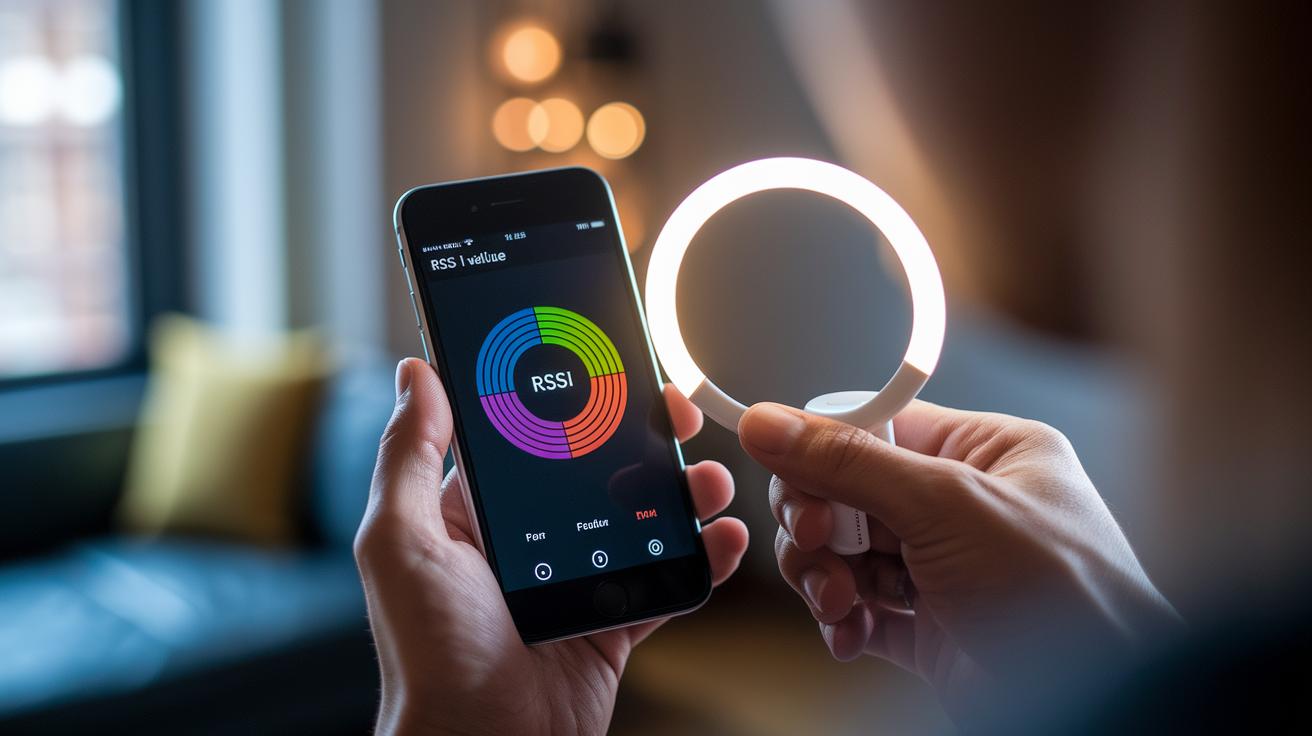
Open the Device Health section in the Ring app to check your signal strength. If the RSSI reading is low, especially when speeds fall below 1 Mbps, you might notice the video quality drop and live views lag.
Flashing light codes help you quickly identify problems. For example, if the top half flashes, your password might be wrong. If the right half flashes, the signal is weak. And if the left half flashes, there may be a connection issue.
| Issue | Light Indicator | Solution |
|---|---|---|
| Incorrect Wi-Fi password | Flashing top half | Re-enter the correct password |
| Weak Wi-Fi signal | Flashing right half | Boost the signal by repositioning the router |
| No connection | Flashing left half | Verify network settings and SSID |
For better coverage, try adding a Wi-Fi extender that works on 2.4 GHz. Good choices include extenders from Ring, Google, TP-Link, or Netgear. Position the extender roughly halfway between your router and the doorbell, keeping both around 20 feet apart for the best results.
Power and Battery Troubleshooting for Ring Doorbell
Start by checking the transformer's output and making sure the wiring is secure. For wired models, the transformer should supply between 10 and 24 VAC. Use a multimeter to measure the voltage at the doorbell terminals. If you see a reading below 10 VAC, the doorbell might go offline. Low voltage can happen because of loose wiring or a transformer that is failing. Make sure all connections are tight and that you’re using a transformer with the right specifications. This quick check can often pinpoint many power issues.
For battery-powered models, take a look at how long a full charge lasts. Cold weather or a weak signal can force the doorbell to work harder, draining the battery faster. If a full charge holds less than 25% of what you expect, it might be time to consider a battery replacement. Also, keep in mind that frequent motion alerts or long periods of live view can lead to rapid battery drain. Watch how environmental conditions and how you use the doorbell affect its energy use.
Try these pro tips to get the most out of your battery: keep the firmware updated, adjust notification settings to avoid unnecessary alerts, and ensure your doorbell is within a strong network signal range. Regularly checking how the battery performs over time will help you know when it might be time for an upgrade.
Reset Procedures for Ring Doorbell Troubleshooting
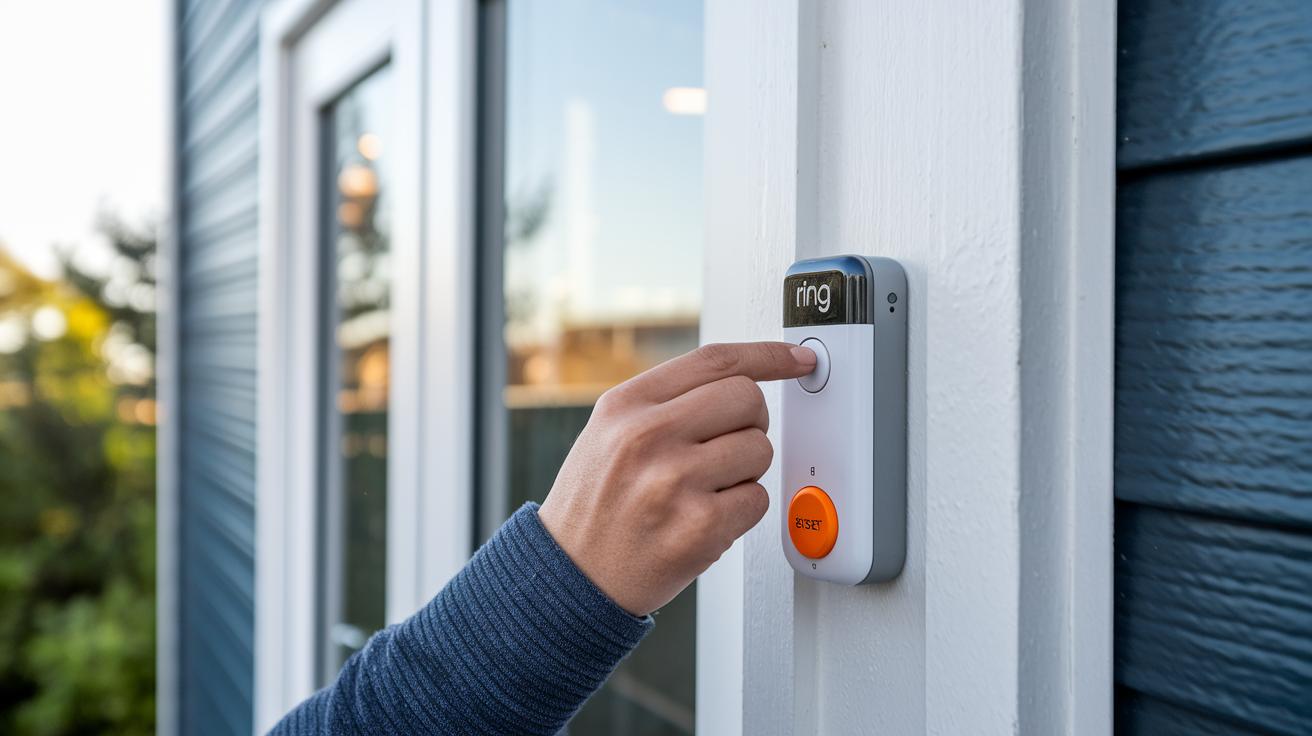
If your Ring Doorbell keeps having connection problems, shows weird light patterns, or you’re stuck with a glitch, a full reset might be just what you need. Sometimes a factory reset or hardware reboot clears out glitches and helps the doorbell reconnect to your Wi-Fi.
- For the 1st Gen Battery Doorbell, take the doorbell off its bracket and press the orange button. Hold it down for 10 seconds until you see the light flashing for a few minutes.
- For the 2nd Gen Battery Doorbell, remove the faceplate and press the setup button (it has an orange dot). Hold it for 10 seconds to start the reset process.
- For Doorbell 2, 3, 3 Plus, or 4, follow the same steps as the 2nd Gen by pressing the dedicated setup button.
- For Wired, Pro, or Elite models, use the same method by holding down the reset button. Note that its location might be different depending on your model.
Once the reset is done, you’ll need to set up your doorbell again. Follow the steps in the Ring Setup Guide to reconnect it to your network, update the firmware if necessary, and restore your settings. Make sure your Wi-Fi password is entered correctly and check that you have a strong connection. This careful process should fix common issues and keep your Ring Doorbell working reliably.
Video and Streaming Troubleshooting for Ring Doorbell
First, make sure your Ring Doorbell has the latest firmware. Out-of-date firmware can cause choppy video and blurry images, especially when your upload speed drops below 1 Mbps. Run the doorbell’s built-in video diagnostics to check if heavy network traffic is slowing things down. A simple firmware update often smooths out these issues and gets your live view running better.
Next, try reducing network congestion by setting up Quality of Service (QoS) on your router. When your home network has several connected devices, delays and stutters can crop up. Video diagnostics can show you how prioritizing your doorbell’s data, by dedicating a specific band like the 2.4 GHz, helps maintain a clear and steady video feed even when other devices are active.
Finally, if your model allows it, consider switching to a wired Ethernet connection. This move can bypass many common wireless hiccups. Also, think about repositioning your router for the best possible signal. Placing it in a central, elevated spot can cut down on obstacles and interference, which means better streaming performance during busy times.
Motion Sensor & Alert Troubleshooting in Ring Doorbell
Start by cleaning the lens to remove any dust or smudges that might cause false alarms or missed alerts. Open the Ring app, head to Device Settings, then Motion Settings, and finally Motion Zones. Adjust the sensitivity so that the camera registers movement accurately. For example, if your front yard is busy, lowering the sensitivity can help cut down on constant notifications.
Next, if you're not receiving alerts indoors, check your Ring Chime and Chime Pro devices. Make sure they have a solid power connection and are placed close enough to the doorbell to catch a strong signal. Sometimes, interference or distance can lead to delayed or missing notifications.
Finally, if exterior alerts are acting up, inspect the wiring and the diode in your mechanical chime kit. The diode must be aligned correctly according to the installation instructions. If it’s not, the device may not trigger alerts consistently.
Advanced Diagnostics and Support for Ring Doorbell
When you switch on Diagnostic Mode in the Ring app, you'll see detailed error logs that can uncover issues like network hiccups or unexpected error codes. It's wise to double-check your subscription status too, since an inactive subscription disables cloud recordings and alerts. Unusual log entries with no obvious fixes suggest that it might be time for deeper troubleshooting, maybe it's a sign to examine both your device's performance and your account settings.
If basic troubleshooting hasn't cleared things up, consider reaching out to support or even replacing the hardware. Ongoing network drops might mean your router needs a tweak or that you require IP whitelisting. And if the logs show signs of water damage or cracked casing, professional repair or replacement is in order. Take a careful look at your diagnostic logs; if issues persist after you’ve checked the basics, contacting support or upgrading your hardware could be the best next step.
Final Words
In the action, we covered a quick rundown of how flashing indicators reveal connection, power, or sensor issues, and tips to optimize upload speeds and router placement. We also walked through reset procedures and tackled video streaming shortfalls along with motion sensor tips. We detailed key steps for both minor fixes and advanced diagnostics. All these insights combine to simplify troubleshooting ring doorbell frustrations, keeping your device reliable and ready. Stay positive, small adjustments go a long way toward smoother, worry-free operation.
FAQ
How do I troubleshoot a wired Ring Doorbell issue?
The troubleshooting for a wired Ring Doorbell involves checking if your transformer outputs 10–24 VAC and verifying wiring connections with a multimeter to ensure proper power delivery.
How do I troubleshoot Ring Doorbell battery problems?
The battery troubleshooting for Ring Doorbell focuses on confirming a full charge and checking for rapid battery drain. If the battery holds below 25% after a full charge, it may need replacing.
What should I do if my Ring Doorbell isn’t working when pressed?
The Ring Doorbell not responding when pressed often points to connectivity, power, or hardware issues. Check your button’s integrity, test connectivity, and consult support if the problem persists.
How can I make my Ring Doorbell ring inside the house?
The method to make your Ring Doorbell ring indoors typically requires integrating a compatible indoor chime or smart speaker through Ring’s setup guide to relay the alert sound across your home.
What if my Ring Doorbell stopped working or shows no lights?
The situation when a Ring Doorbell stops working or shows no lights may indicate power supply issues or hardware faults. Check the voltage, inspect wiring, and verify the device status in the Ring app for diagnostics.
What are common Ring Doorbell issues?
The common Ring Doorbell issues include connectivity errors, battery drain, unresponsive buttons, and flashing lights that signal Wi‑Fi problems; checking device health and network settings often resolves these matters.
How do you reset a Ring Doorbell?
The reset procedure for a Ring Doorbell depends on the model. For most models, press and hold the orange setup button until the light flashes, then follow the reconfiguration steps as outlined in Ring’s official guide.
Why are people getting rid of Ring Doorbells?
The reasons behind replacing Ring Doorbells often include concerns over privacy, inconsistent performance, or the appeal of smart doorbells from competitors that offer added features or improved connectivity.