
Have you ever wondered if setting up home automation could be a breeze? The TP-Link Smart Plug App makes it simple to turn everyday tech tasks into quick, manageable steps. In this guide, I’ll walk you through downloading the app, creating your cloud account, and connecting your smart plug to Wi-Fi, all without any hassle.
We break down each step so that you can start controlling your plug from anywhere. Whether you're at home or on the move, this app puts smart control within reach. Get ready to see how one small device can make your life simpler and save you precious time.
Downloading, Account Setup, and Initial Provisioning with the TP-Link Smart Plug App
First, open the Google Play Store on your Android or the App Store on your iOS device and search for the TP-Link Smart Plug App. Once you spot it, tap to install it. When the download is complete, launch the app and sign up for a TP-Link cloud account if you don’t have one already. Just enter your email and pick a password, the process is simple.
After signing up, log in using your new cloud account details. The app might ask you to verify your email or phone number, so complete that step to ensure you get full access. Once logged in, you’ll be led through an Add Device wizard. This is where you connect your smart plug for the first time by following the on-screen instructions to link it to your Wi-Fi network. Supported models include popular Kasa plugs (HS100, HS103, HS105, HS110, KP100, KP105, KP115, KP125, KP125M, KP401) and Tapo plugs (P100, P105, P110, P110M, P115, P125M, P135, TP15).
When the wizard asks to find your plug, make sure it’s plugged in and close enough to your router. Once the device is detected, you’ll receive a notification confirming the connection, and then you can start setting up controls and automations.
Connecting Your Smart Plug to Wi-Fi Using the TP-Link Smart Plug App
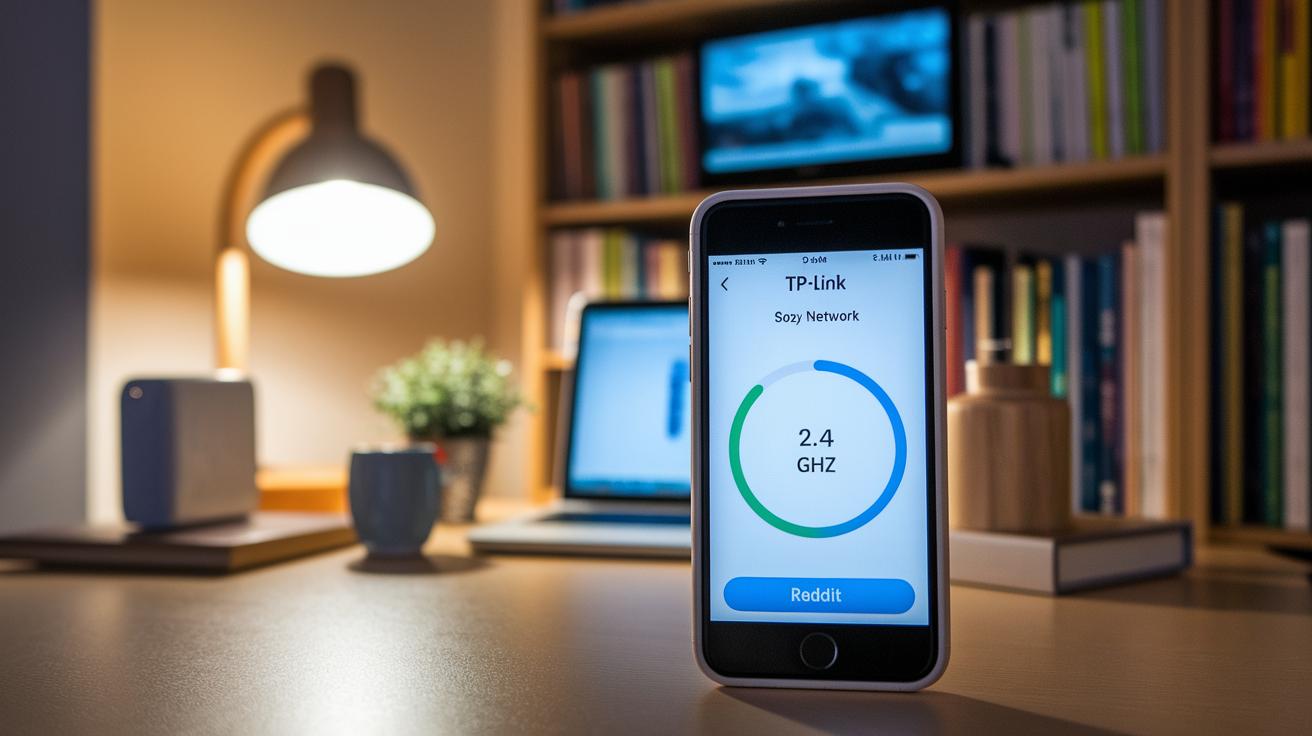
Open your TP-Link Smart Plug App and head straight to the device settings. There you'll find an option to set up the wireless network. When you tap that, the app shows a list of available Wi-Fi networks. Since the plug only works on a 2.4 GHz network, make sure you pick one labeled 2.4 GHz if your router offers both bands.
Next, type in your Wi-Fi network name (SSID) and password. Before you confirm, double-check that your phone is on the same network as the plug. This step helps prevent issues where the plug and your mobile device might be on different parts of the network, which could block automatic detection.
After you’ve entered your details, press the connect button. The smart plug will try to join your network, and if it works, you'll see a quick confirmation message, usually within about 5 seconds saying something like "Device connected successfully!" That means your plug is ready to take commands.
If the connection doesn’t go through, try these simple fixes:
| Step | What to Do |
|---|---|
| 1 | Make sure your phone and smart plug are on the same network and subnet. |
| 2 | Restart your router and the smart plug. |
| 3 | Check your router settings to confirm it supports the 2.4 GHz band. (Smart plugs don’t usually work with 5 GHz networks.) |
Following these steps will keep your setup smooth and ensure you can easily control your smart plug for everyday tasks.
TP Link Smart Plug App Simplifies Home Life
The TP Link Smart Plug App gives you quick control over your devices. You can turn them on or off with a simple tap, and the app updates every 5 seconds so you rarely wait for your command to take effect. For example, you can switch off your kitchen plug in the middle of meal prep and see the result almost immediately. In fact, a tap on the app can cut off power in less than 5 seconds, making it easy to save energy.
Managing multiple plugs is a breeze. You can group several plugs together and control them all with one command, perfect for turning off lights or appliances at once. And with remote access available, you have control whether you're at home or away.
The app also lets you set up basic routines to match your lifestyle. You can schedule your coffee maker to start in the morning or create an eco mode to lower energy use during busy hours. There’s even an update guide to help you keep your settings current and troubleshoot if needed.
With fast response times and a user-friendly design, the TP Link Smart Plug App makes everyday control simple and reliable.
Automations, Scheduling, and Energy Monitoring in the TP-Link Smart Plug App
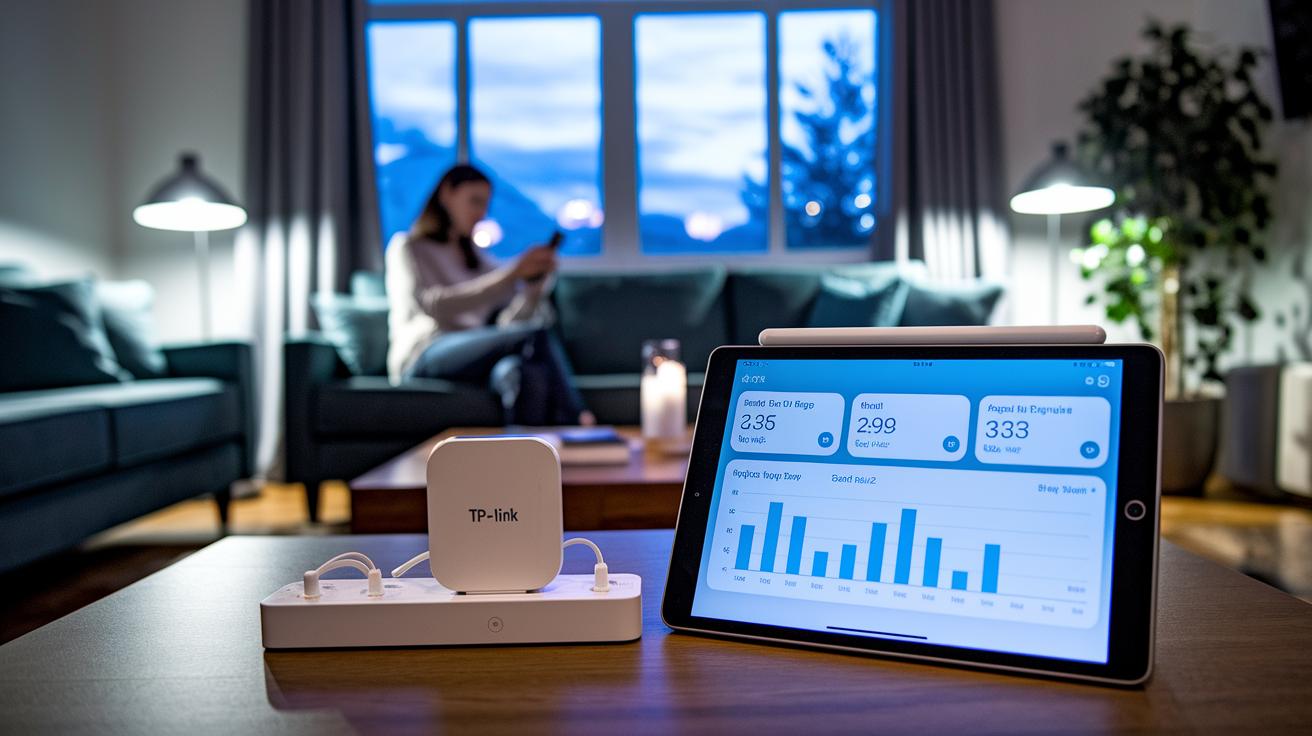
If you use a TP-Link Smart Plug, you have a set of handy features to simplify everyday control. The app lets you set timers that automatically turn devices on or off, which fits right into your daily routine. For example, you can schedule your living room lamp to power down at night and turn on again in the morning.
Another cool tool is Eco mode scheduling. It helps cut energy use during busy periods by adjusting when appliances run. The app also tracks your energy consumption over time, so you can see patterns and make better choices. All this data appears on your dashboard, giving you a clear look at your energy trends.
Your plugs and power strips also handle auto on/off settings and even update their firmware automatically. This integration keeps everything running smoothly without any extra effort from you.
| Feature | Description | Update Interval |
|---|---|---|
| Auto On/Off Schedule | Turns devices on or off according to your set times. | Immediate |
| Eco Mode Timer | Adjusts appliance timing for energy savings during peak periods. | Immediate |
| Energy Usage Metric | Monitors power consumption in real time. | 60 Seconds |
| Firmware Auto-Update | Automatically updates firmware to keep devices performing at their best. | Immediate |
With these features, you can create a more energy-efficient environment while staying in control of your devices and schedule.
Integrating the TP-Link Smart Plug App with Voice Assistants
Connecting your TP-Link smart plug with voice assistants makes everyday tasks a breeze. First, open the TP-Link Smart Plug App and tap on the Works With section. Here, you'll find easy setup options for popular assistants like Amazon Alexa and Google Home.
Start by following the on-screen steps, and be sure your smart plug and mobile device are on the same network. If you choose Amazon Alexa, the app will prompt you to enable its companion skill. Log into your Amazon account and grant the necessary permissions. Then, test the setup by saying something like "Turn on living room plug", it should respond right away.
For Google Home, the process is much the same. Select Google Home in the Works With menu and follow the setup guide to connect your cloud accounts. After pairing, try a command such as "Turn off kitchen plug" to make sure everything works as expected.
Once both assistants are connected, you can easily control individual plugs or even group several devices together with your voice. This simple integration helps you manage your smart home with just a few words.
Troubleshooting Connectivity and Pairing Issues in the TP-Link Smart Plug App
If your TP-Link smart plug isn’t showing up or feels slow when you issue commands, don’t worry. Here are some simple fixes you can try that address common problems like pairing errors, weak Wi-Fi signals, and login issues.
-
Make sure your phone and plug are on the same Wi-Fi network
Check that both your smartphone and your smart plug are connected to the same network. This keeps them on the same subnet and helps your device find the plug without issues. -
Reset the plug by pressing its button for 10 seconds
Hold down the plug’s button for a full 10 seconds. This forces a reset and clears up temporary glitches that might be interfering with the pairing process. -
Set a fixed IP address for the plug through your router
Log into your router settings to assign a static IP to the plug. Using a fixed IP ensures a steady connection between your plug and your phone. -
Use the “Forgot Password” feature if you can’t log in
If you’re locked out of your cloud account, try the app’s “Forgot Password” option. This can quickly help you regain access and continue setting up your device. -
Turn on debug logging in the Advanced Settings
Enable debug logging from the app’s Advanced Settings to capture detailed information. This report can help you pinpoint and troubleshoot connectivity problems.
Each of these steps targets a specific issue, whether it’s discovery trouble or login delays. Follow these fixes to get your plug working smoothly and keep it responsive.
Updating Firmware and App Versions for the TP-Link Smart Plug App
With the TP-Link Smart Plug App, you can easily keep your plug or power strip updated from anywhere. Open the app, tap on Device Settings, and then select Firmware Update. This screen shows any updates that are ready, so you always know if your device needs a refresh.
When you see an available update, simply tap to begin the process. The update runs quietly in the background and typically finishes in just a few minutes. During the update, the plug’s light might blink to show that everything is working as it should. The best part is that you don’t need to unplug the device or use any extra tools; it all happens right in the app.
After the update completes, go back to the Firmware Update section in Device Settings to check the firmware version. This way, you can be sure that your device is running the latest improvements and security fixes, which helps keep it running smoothly and enhances the features you enjoy.
Final Words
In the action, you learned how to download, set up, and provision your smart plug using clear steps in the tp link smart plug app. We covered everything from wireless configuration and voice assistant pairing to troubleshooting and firmware updates. Each section laid out guidance that turns tech setup into a simple process. This walkthrough makes managing your smart plug straightforward while keeping everyday use in mind. Enjoy a smoother, connected home experience with confidence and ease.
FAQ
What is the official app for TP-Link smart plug?
The TP-Link smart plug is managed through the Kasa/Tapo app. This app supports your plug’s setup, control, and automation and is available via the Google Play Store and Apple App Store.
How do I download and install the TP-Link smart plug app on my devices?
The TP-Link app, found in the Google Play Store or Apple App Store, lets you download and install the app on Android and iOS. Note that PC users may need to use remote access through a web interface.
How do I connect my TP-Link smart plug or link it to a new Wi-Fi network?
The connection process involves using the app’s guided setup wizard. Make sure your mobile device and smart plug are on the same network and input the correct SSID and password during setup.
How do I reset my TP-Link smart plug?
Resetting your TP-Link smart plug involves holding the physical reset button for 10 seconds. This action clears previous settings, allowing you to set it up fresh using the Kasa/Tapo app.
What are TP-Link Tapo, TP-Link Tether, Kasa Smart, and SmartLife apps?
TP-Link Tapo, TP-Link Tether, and Kasa Smart are official apps for different TP-Link devices. SmartLife is a separate platform for various smart home products and is not used for managing TP-Link smart plugs.
How do I integrate my TP-Link smart plug with Amazon Alexa or Google Nest?
Integration is achieved via the app’s “Works With” menu. Once you enable the relevant skill for Alexa or set up integration for Google services, you can control your plug using voice commands.