
Ever had trouble getting into your home because your Yale door lock just won't cooperate? Sometimes all it needs is a quick reset, kind of like restarting your computer when it freezes. In this guide, we take you through each step in plain language. First, we’ll show you where to find the reset button. Next, we explain how to remove any saved access codes. Finally, we detail how to confirm that the reset worked so your lock is ready to use. This straightforward process will help you regain control and feel secure again in no time.
Step-by-Step Reset Guide for Your Yale Door Lock
Start by getting ready to work on your Yale door lock. Gently slide the battery cover upward and off to reveal the four AA batteries and the hidden reset button. Think of this as taking a peek at the lock’s inner core before giving it a fresh start.
Next, find the reset button tucked inside the battery compartment. Press and hold it to clear all the programmed passcodes, including the master code, and return the lock to its original settings, kind of like giving your computer a reboot when things go wrong.
Watch for the LED light to react after you press the button. A flashing or color-changing light means the reset is happening and that the lock is safely resetting to factory defaults, much like a signal that tells you it’s okay to move on.
Once the LED confirms the reset, carefully snap the battery cover back into place. Make sure everything is lined up correctly and that the batteries are installed with the right polarity. Finally, test the lock using the keypad or your mobile app to be sure the reset worked as expected.
Preparing Batteries, Tools, and Safety Checks Before Resetting Your Yale Lock

Before you begin the reset, make sure you have everything you need. Grab a Phillips screwdriver, four fresh AA batteries, and a clean, dry cloth. Start by lifting the battery cover upward and off to show the batteries and the reset button.
Take a minute to check that the battery compartment is free of dust and debris. It is important to install the batteries correctly by matching the positive and negative markings. Yale door locks run on four AA batteries, so swapping any old cells for new ones helps prevent power issues when you reset the lock.
Tools and supplies to keep handy include:
- Phillips screwdriver (to secure the battery cover)
- 4 new AA batteries
- Cleaning cloth (to wipe away dust or grime)
Think of aligning the battery terminals properly like checking the batteries in your remote before a long movie night. It may seem small, but it stops problems from cropping up during the reset. Also, ensure that every part fits flush and that the battery cover snaps back securely to keep the lock working smoothly.
Factory Reset Procedures for Nest x Yale and Z-Wave Enabled Yale Locks
Begin with making sure the lock is steady. First, remove the battery cover by sliding it up and off. This lets you see the batteries and the reset button inside. Doing this cuts off power so the reset can be done without any interference.
For both Nest x Yale and Z-Wave Yale locks, find the reset button located in the battery area. Press and hold the button for a moment until you see the LED light flash. That flash means the lock is wiping all user codes, including the master code, and returning every setting to its original state, like hitting a reset button when things go wrong.
Some users have reported that a Z-Wave Yale lock in ATT Digital Life kept showing "unlocked" after the door closed. If you run into a similar issue, this reset can clear up any misconfigured settings causing that glitch. It's important to follow the steps carefully; the LED flash is your sign that everything is on track.
Once you see the LED confirmation, snap the battery cover back into place. Double-check that the batteries line up correctly with the positive and negative markings. If your lock is part of a network, such as with Z-Wave, you might also need to remove it from the network and then add it back. This re-pairing makes sure the lock functions properly, letting you use commands like master code bypass and code reprogramming without any worries.
Troubleshooting Common Errors Post-Reset on Yale Door Locks
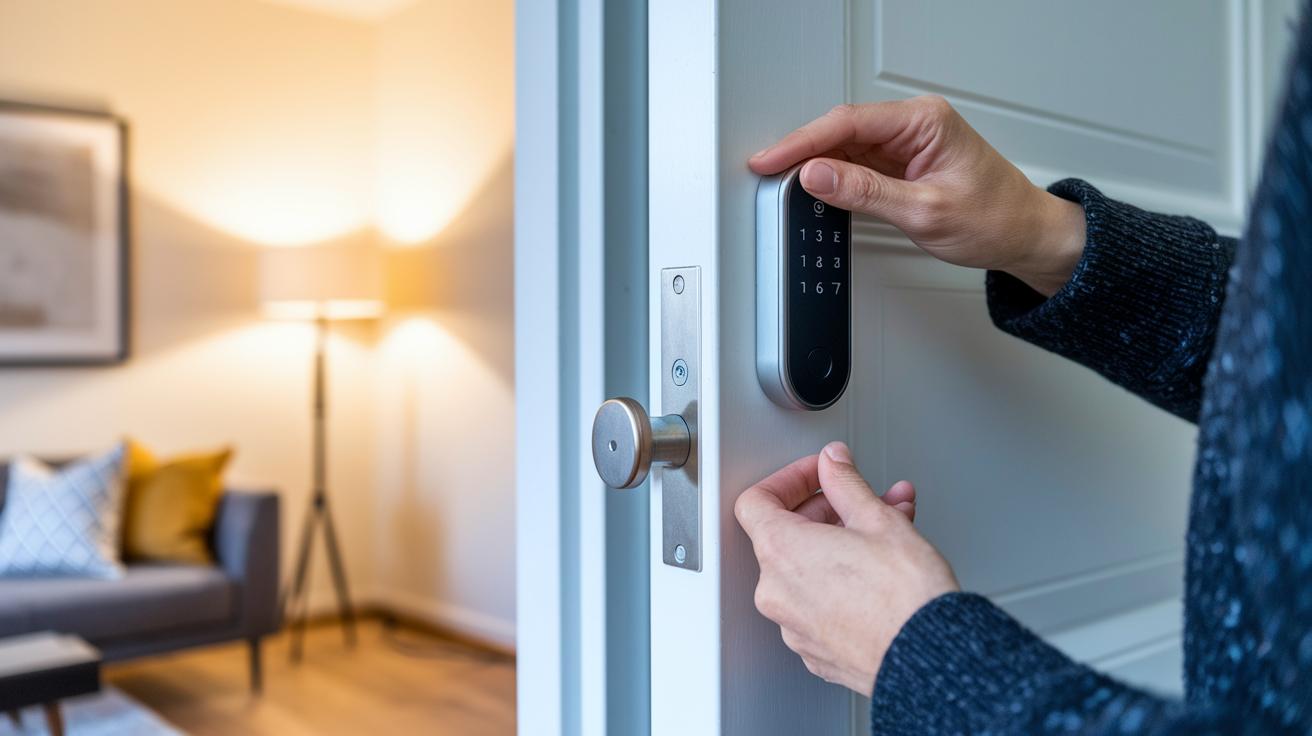
After you reset your Yale lock, take a moment to check for any signs of issues that might hint at a misalignment or a setup error. Sometimes the lock will still obey app commands even if you notice problems like a latch that isn't quite right or new codes that don't work as expected.
If you run into these troubles, try these steps:
- Make sure the battery cover is fully snapped in place and that the batteries are correctly aligned.
- Double-check that you completed the reset properly. Even with a positive LED signal, a small misalignment or a brief power drop might have disrupted the lock's internal setup.
- Test several newly programmed codes at different access points. If one code fails, the issue might be with internal calibration rather than a connectivity glitch.
One user even ruled out radio interference since the lock continued to respond to app commands. In those cases, the problem is likely a firmware or configuration error. If you still face challenges after these checks, it might be time to contact Yale support for personalized help while keeping your privacy in mind.
Reprogramming Access Codes and Best Practices After Resetting Your Yale Lock
After a factory reset, your Yale lock will forget all the old access codes, including the master code. You need to set up new credentials right away. Begin by entering a new master code either on the keypad or using your mobile app. This master code is like the main password that lets you add more user codes and control the lock, think of it as updating your phone’s password after a reset.
Next, update any user access codes you regularly use. It’s wise to test each new code as soon as you program it. Try them on the door’s keypad and, if you have the option, through the mobile app. This way, you can be sure the lock opens and closes reliably every time.
Remember these best practices:
- Always confirm that each new code works correctly right after programming.
- Adjust the latch alignment after set-up so the door locks firmly.
- Update your access codes regularly to keep your lock secure.
By following these steps, you'll keep your Yale lock running smoothly, just like making sure your remote has fresh batteries before a movie night.
Final Words
In the action, we walked through removing the battery cover, pressing the reset button, and waiting for LED confirmation. You learned how to reset Yale door lock securely while knowing how to troubleshoot common post-reset issues.
We also covered reprogramming new access codes and checking battery health for smooth performance. This guide offers clear, practical steps to get your lock back in shape. Enjoy a more secure entry experience and feel confident in maintaining your Yale door lock.
FAQ
How to reset a Yale door lock without a key or code?
Resetting a Yale door lock without a key or code involves a factory reset. Slide off the battery cover to access the reset button, press it, and wait for the LED confirmation to restore default settings.
How do I reset a Yale 3-digit combination lock?
Resetting a Yale 3-digit combination lock requires you to remove the battery cover, press the internal reset button, and follow the on-screen prompts until the LED confirms the reset.
How can I perform a factory reset on Yale Assure Lock 2 or Nest x Yale?
To factory reset a Yale Assure Lock 2 or Nest x Yale, remove the battery cover, press the reset button, and wait for the LED signal that confirms all settings have returned to their defaults.
How do I reset my Yale lock for a new owner?
For a new owner, reset the Yale lock by performing a factory reset. This erases all previously programmed codes and lets you set a new master code and configure user codes.
How do I change the code on a Yale door lock using the app?
Changing the code through the app involves connecting your lock to the companion app, accessing the settings menu, and entering a new code following the provided on-screen instructions.
How do I reset the master code on a Nest Yale Lock?
Resetting the master code on a Nest Yale Lock is done by performing a factory reset—remove the battery cover, press the reset button, then program a new master code as instructed.
What should I do if my Nest Yale lock factory reset is not working?
If a Nest Yale lock reset is not working, check that the batteries are fresh, ensure the battery cover is fully removed, and verify you pressed the reset button correctly. Contact support if issues continue.
How do I reset the smart door lock password?
Resetting the smart door lock password requires a full factory reset to clear previous codes and then setting up a new password via the keypad or mobile app using the step-by-step instructions.