
Ever notice that your TV's built-in speakers sometimes just don't do your shows justice? If your favorite scenes feel lacking in sound, hooking up a soundbar could completely transform your viewing experience. In this guide, we'll walk you through the simple steps to connect your soundbar using either an HDMI ARC port (which lets audio travel both ways along one cable) or an optical cable. We'll help you choose the best connection for your TV and show you how to tweak your settings for clear, detailed audio. Get ready to enjoy TV sound that really brings every moment to life.
Connecting Your Soundbar to Your TV: Step-by-Step Instructions
Start by checking the back of your TV for audio ports. Look for an HDMI port labeled ARC/eARC, an optical (Toslink) port that’s rectangular with a notch, red and white RCA jacks, or a 3.5 mm line-out. If you see a dedicated HDMI-ARC port, that's your best bet since it offers clean, digital sound.
Next, pick the right cable for your setup. Use an HDMI cable if you have an ARC port. If your TV doesn’t have HDMI-ARC, then choose an optical or coaxial cable for up to 5.1 channel sound. When digital options aren’t available, go with RCA or a 3.5 mm cable.
Now, connect the cables firmly into the matching ports on both your TV and soundbar. A tight fit helps avoid any audio dropouts while you're watching your favorite show.
Finally, update your TV's audio settings. Make sure your TV sends sound to the external soundbar instead of the built-in speakers. This way, you'll enjoy the best sound quality possible.
Follow these steps to connect your soundbar smoothly and enjoy clear, powerful audio from your TV.
Comparing Soundbar-to-TV Connection Methods
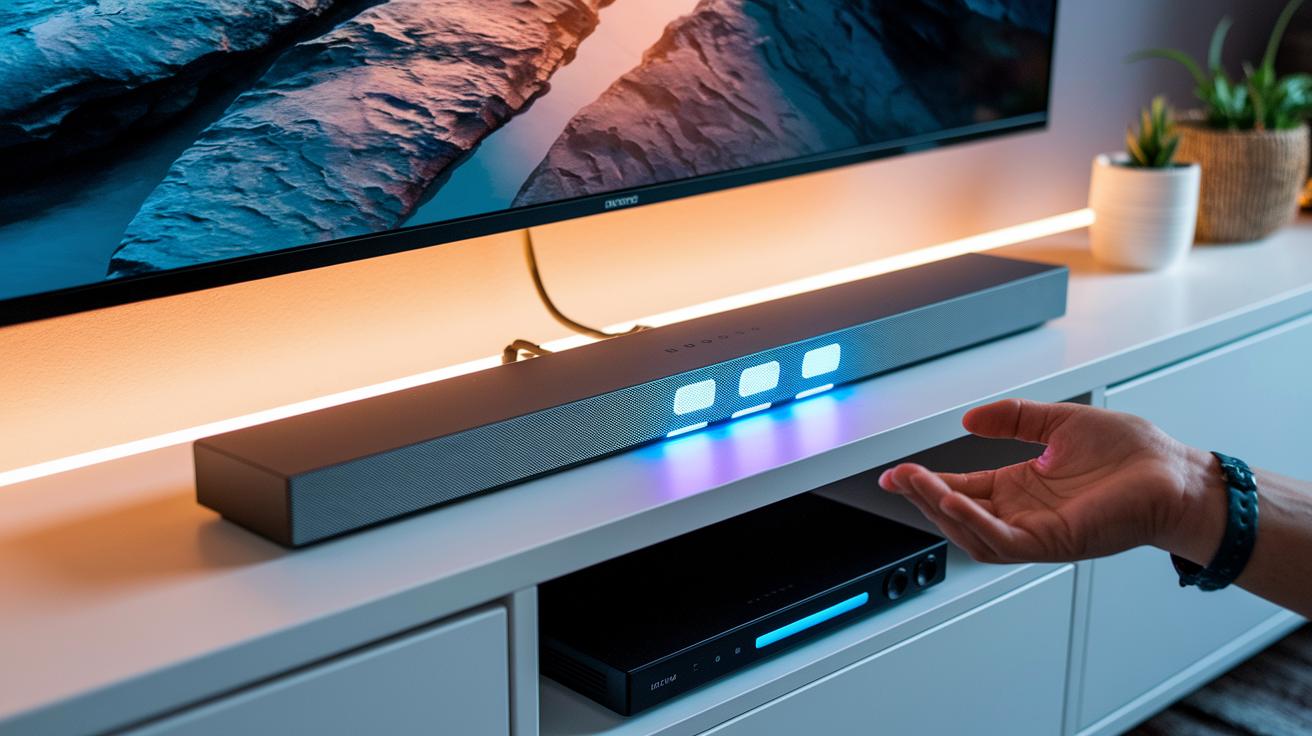
When it comes to hooking up your soundbar, you have to balance sound quality, ease of installation, and what ports your TV offers. HDMI ARC is a popular pick for newer TVs because it lets you use one cable that handles full digital sound, giving you a crisp and lively audio experience. If your TV is missing an HDMI ARC port, optical or coaxial cables are solid alternatives. They support up to 5.1 surround sound, which can make your movie nights feel much more immersive.
For older TVs, RCA or a 3.5 mm auxiliary connection is almost always an option. Just note that these analog setups only deliver stereo sound, so you won’t get that full surround effect. And if you’re trying to keep things wireless, Bluetooth is another route to consider. However, its performance depends on your TV’s Bluetooth capabilities and might introduce a little delay when watching videos.
| Method | Audio Quality | Port Availability | Required Cable |
|---|---|---|---|
| HDMI ARC | Full digital bandwidth | Common on modern TVs | HDMI cable |
| Optical/Coaxial | 5.1 surround sound | Available on sets without ARC | Optical or coaxial cable |
| RCA/Aux | Analog stereo | Universal on older TVs | RCA or 3.5 mm cable |
| Bluetooth | Varies; potential lag | TV-dependent | Wireless pairing |
Using HDMI ARC to Connect Your Soundbar and TV
First, locate the HDMI port labeled ARC or eARC on both your TV and soundbar so you can enjoy formats like Dolby Digital and DTS. Use a high-speed HDMI cable and double-check that the connection is secure for a clean digital signal.
Next, open your TV's audio settings and make these changes:
These tweaks help you keep the sound synced with your video and enjoy high-quality audio without extra fuss.
Connecting via Digital Optical or Coaxial Cables
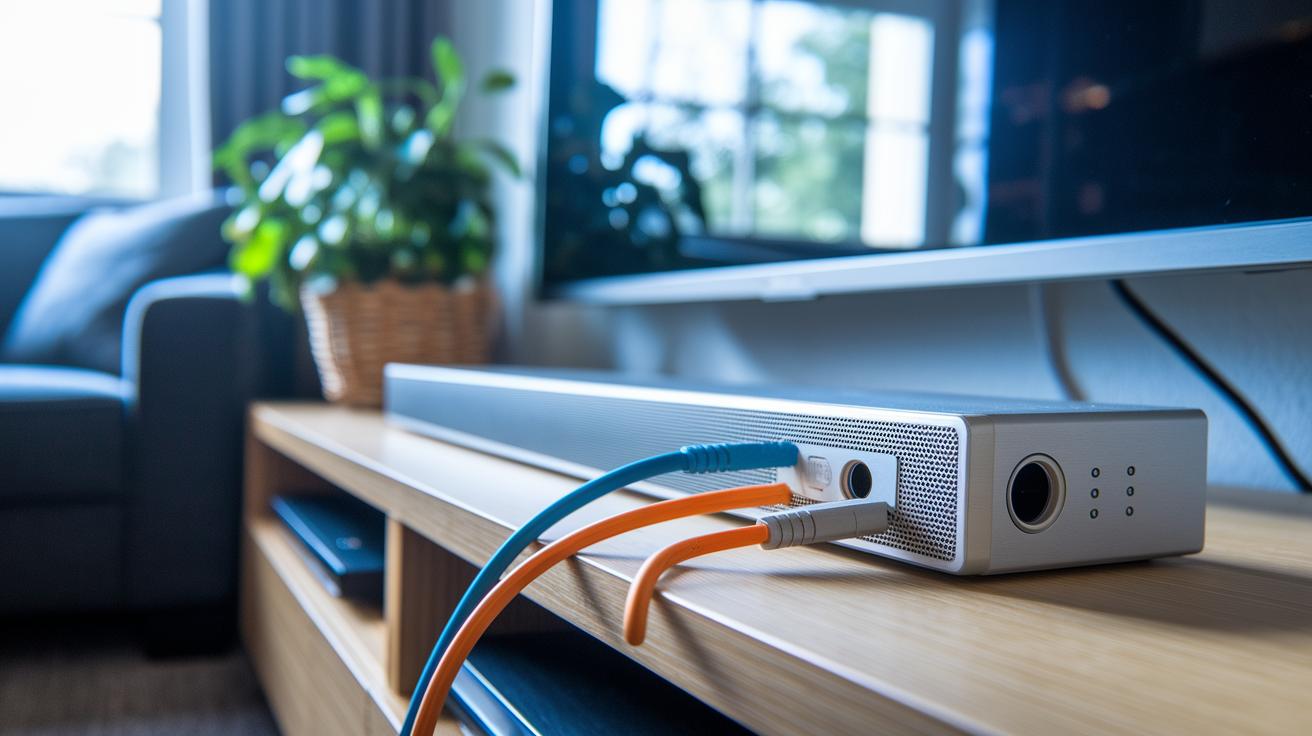
Digital optical and coaxial cables give you a solid 5.1 surround sound experience with your soundbar. First, check the back of your TV for a Toslink optical port. It’s a square port with notches that make it easy to spot. If you see it, take off the protective end caps on your optical cable, plug one end into your TV's optical OUT, and the other into your soundbar's optical IN.
If your TV doesn’t have an optical port, look for a coaxial digital output instead. This option features a single orange-tipped RCA jack. Just insert the cable into your TV’s coaxial OUT and then connect the other end to your soundbar’s coaxial IN. This setup also supports high-quality digital audio.
Once you’ve made the connection, go into your TV’s audio settings. Set the output to “Optical” if you’re using an optical cable, or “Coaxial” if you’re using a coaxial cable. This step makes sure your TV sends the right digital signal to your soundbar.
For example, after connecting the optical cable, I switched to the audio menu and picked “Optical” mode, and the sound quality improved right away.
Connecting Soundbar to TV with RCA or 3.5 mm Aux Cables
If your TV lacks digital ports, you can connect your soundbar using analog cables like RCA or a 3.5 mm cable. Just be sure to use the TV’s line-out rather than its headphone jack for clearer sound.
With RCA cables, plug the red connector into the red jack and the white connector into the white jack on both devices. If your TV has a 3.5 mm line-out, connect a male-to-male cable from the TV directly to the soundbar’s aux input.
Keep in mind that these analog setups only support stereo audio, so you won’t get surround sound channels.
Wireless Connection: Pairing a Bluetooth Soundbar with Your TV
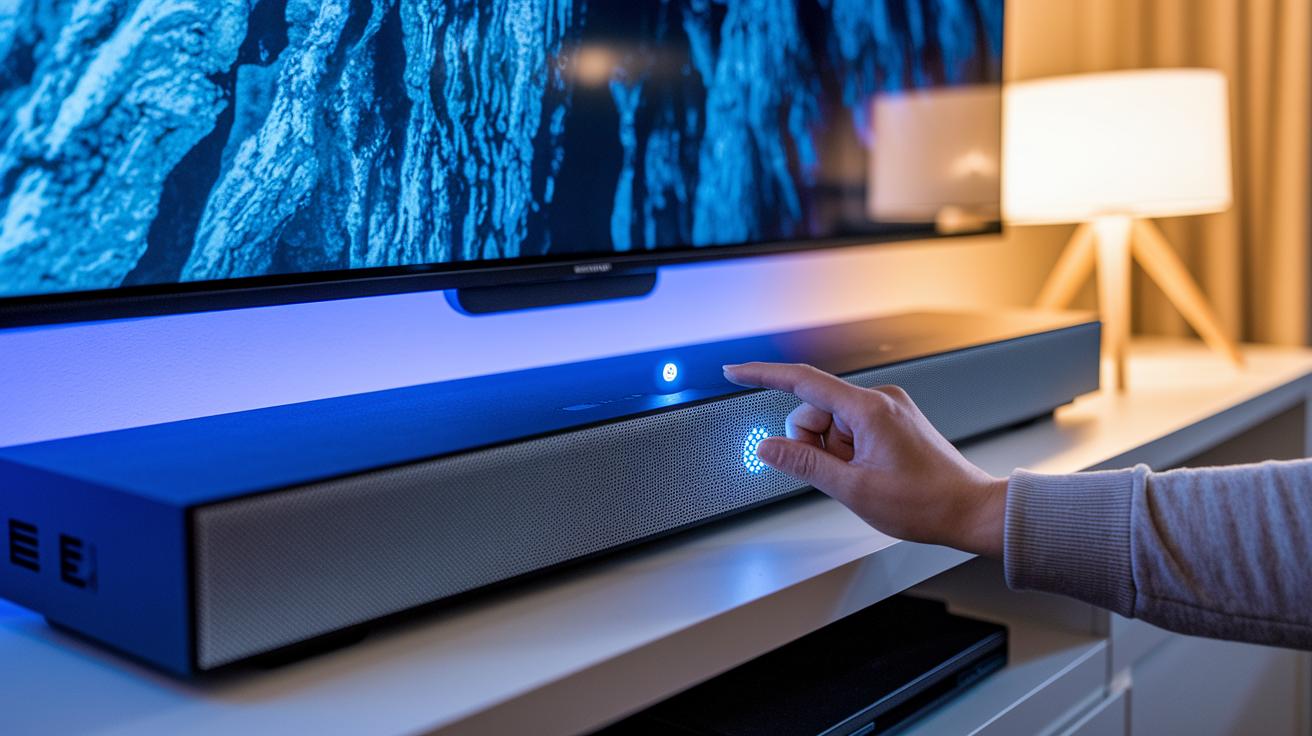
Begin by checking if your TV supports Bluetooth audio using A2DP (a standard for high-quality sound). If it does, simply turn on your TV's Bluetooth and put your soundbar into pairing mode. Press the pairing button on your soundbar until you see a blinking light that tells you it’s ready to connect.
If your TV doesn’t have built-in Bluetooth, you can use an external Bluetooth adapter that plugs into the TV’s audio output. Once it’s plugged in, switch the adapter to pairing mode and use either the TV’s or adapter’s Bluetooth menu to look for available devices.
Follow these steps to complete the pairing process:
- Put the soundbar into pairing mode.
- Open your TV’s Bluetooth settings and wait for the soundbar’s name to appear.
- Select the soundbar from the list.
- Enter any on-screen PIN or code if prompted.
- Confirm the connection once both devices indicate they’re paired.
To help reduce any audio lag, check your TV for a Game Mode or Audio Sync setting and adjust it as needed. This tweak is especially handy when you’re streaming video. With this setup, you get a wireless connection that not only cuts the cables but also delivers clear, robust sound.
Troubleshooting and TV Audio Settings for Soundbar Integration
If you don’t hear any sound, first check that every cable is firmly connected to the right port on both your TV and soundbar. Make sure your TV’s audio settings point to the correct input. Often, the fix is as simple as securing a loose cable or switching the input mode.
When you’re using HDMI, the cable might be the issue. Try a certified High Speed HDMI cable and switch to a different ARC port if you have one. Also, updating your TV’s firmware can smooth out glitches and ensure it works well with modern audio formats like Dolby Digital or DTS.
For digital optical or coaxial connections, take a close look at the Toslink port to ensure no dust or debris is blocking the signal. If the optical cable is damaged or worn, replacing it might be the answer. With coaxial cables, make sure they aren’t bent or stretched, as that can hurt performance.
If you’re using RCA or 3.5 mm connections, opt for quality shielded cables. It’s also important to plug into your TV’s line-out rather than the headphone jack, which can sometimes introduce unwanted noise.
For Bluetooth setups, try unpairing and pairing the devices again. Reducing obstacles between your TV and soundbar and updating both devices’ firmware can help cut down on latency. Finally, adjust any available audio delay or lip-sync settings in the TV menu to ensure the audio stays perfectly in step with the video.
Final Words
In the action, we walked through the entire process of connecting a soundbar to your TV. We covered four main methods: HDMI ARC, digital optical/coaxial, RCA/3.5 mm, and even Bluetooth for wireless setups. Each step was explained clearly, so you now know how to connect soundbar to tv and pick the best option for your needs.
The guide keeps things practical, helping you find a smooth setup without any hassle. Enjoy your enhanced audio experience!
FAQ
How do I connect a soundbar to my TV if I don’t have an HDMI port?
Connecting a soundbar without HDMI means using alternatives like an optical cable, RCA cables, or Bluetooth. Double-check your TV’s audio-out options and match them with the soundbar’s inputs.
How do I connect a soundbar to my TV using an HDMI cable?
Connecting via HDMI requires plugging the cable into your TV’s HDMI ARC (or regular HDMI) port and the soundbar’s corresponding input, then enabling the external audio option in your TV’s settings.
How do I connect a soundbar to my smart TV?
Connecting a soundbar to a smart TV follows similar steps. First, identify the available ports—HDMI, optical, or Bluetooth—and then adjust the TV’s audio settings to route sound to your soundbar.
How do I connect a soundbar to my TV wirelessly?
To connect wirelessly, put the soundbar into Bluetooth pairing mode, then use your TV’s Bluetooth menu to locate and pair with the soundbar, confirming any prompts that appear.
Why might my TV not play sound through my soundbar?
If your TV isn’t playing sound through the soundbar, check that all cables are securely connected, the correct input is selected, and the TV’s audio settings (like ARC or optical output) are properly configured.
Can any soundbar be used with any TV?
Most soundbars are compatible with most TVs as long as both devices share compatible ports and connection methods. Always verify available connection options on your TV and soundbar before purchasing.
What cable is needed to connect a soundbar to a TV?
The type of cable needed depends on your devices; you might use an HDMI cable for digital audio, an optical cable for surround sound, or RCA/aux cables for basic stereo connections.
How do I connect a Samsung soundbar to my TV wirelessly?
To connect a Samsung soundbar wirelessly, activate its pairing mode and then use your TV’s Bluetooth settings to locate and select it, confirming any on-screen prompts to complete the connection.