
Ever been annoyed when your speaker just won’t connect? Here’s a simple guide to pairing your JBL Bluetooth speaker and enjoying clear, crisp sound right away. First, make sure your speaker is fully charged, then set it to pairing mode. Follow these easy steps and soon you’ll be streaming from your phone, laptop, or tablet without a hitch. Stick with us, and you’ll see how effortless it can be to get your music playing in no time.
Quick Step-by-Step Guide to Connect JBL Bluetooth Speakers
Before you begin, make sure your JBL speaker is fully charged and turned off. Plug it in via USB-C for at least 2 hours so you get the best performance. When you're ready, turn the speaker on and press and hold the Bluetooth button until the LED starts flashing. This tells you that the speaker is in pairing mode and ready to connect. With these simple steps, you'll be playing your favorite tunes in under a minute.
- Charge your speaker until it’s full and keep it off until you're ready.
- Turn the speaker on, then press and hold the Bluetooth button until the LED flashes.
- On your phone or laptop, open Bluetooth settings and look for “JBL …” in the available devices list.
- Once you see it, select the JBL device and start playing a song to confirm it’s connected. To disconnect, just press the Connect/Auracast button again.
Following these clear steps makes it easy to pair your JBL speaker with your smartphone, tablet, or laptop. Enjoy reliable connectivity and crisp sound every time you listen.
Preparing JBL Bluetooth Speakers for Pairing
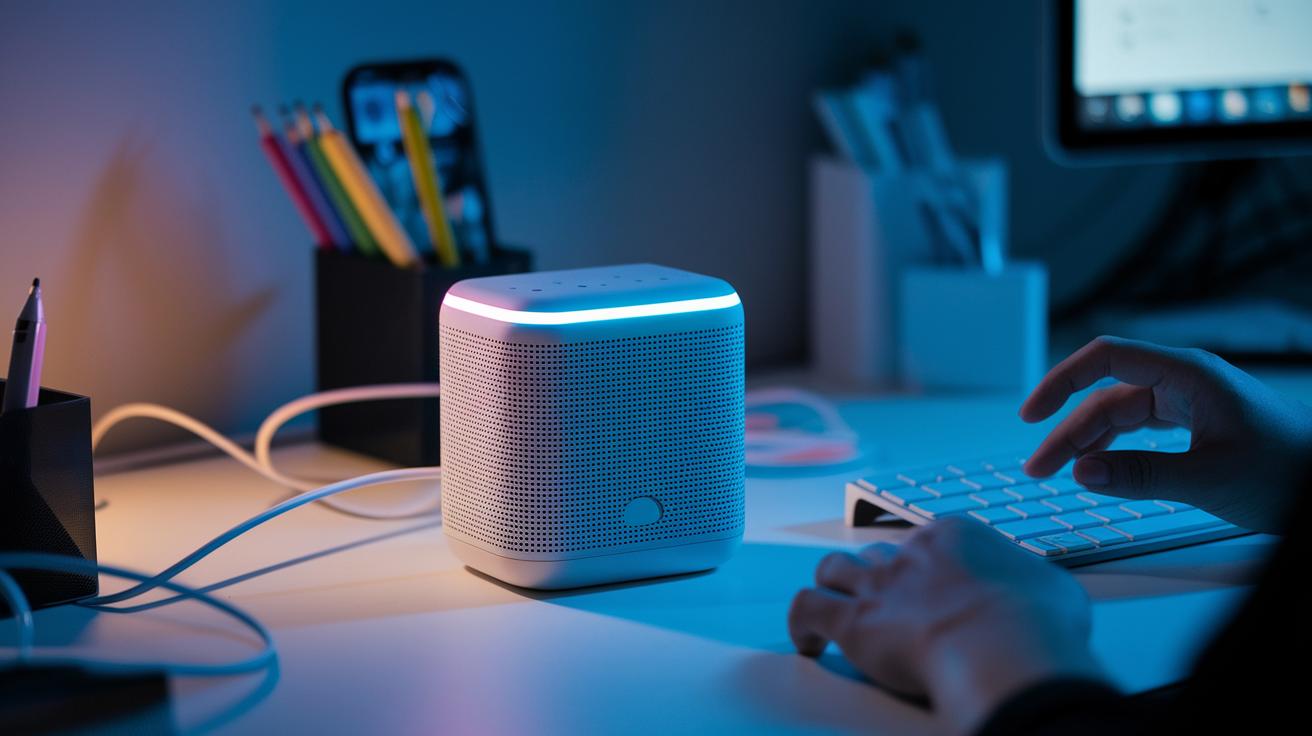
First off, make sure your speaker is off and has had at least 2 hours of charging via USB-C. Once it's charged, turn it on and press the Bluetooth button until you see the LED blinking.
Next, open Bluetooth on your iOS, Android, Windows, or macOS device and set it to be discoverable. This helps the speaker show up during the scan. If you're using a Windows laptop, head to your Bluetooth settings, click on "more Bluetooth options," and check the box that allows Bluetooth devices to find your PC.
Pre-pairing checks:
- The speaker has been off and charging for at least 2 hours.
- It is turned on and held with the Bluetooth button until its LED flashes.
- Your device’s Bluetooth is enabled and set to discoverable.
If you have trouble pairing, try these tips:
- Restart both the speaker and your device to refresh the connection.
- Double-check that your device’s Bluetooth settings allow nearby devices to be shown.
- Look for any firmware updates for the speaker.
- Turn off other Bluetooth devices that might interfere with the connection.
Connecting JBL Bluetooth Speakers to iPhone, Android, Mac, and PC
This guide walks you through pairing your JBL Bluetooth speaker with your favorite devices quickly and simply. Follow the steps for your specific device, and you'll be enjoying your tunes in just a few minutes.
iPhone/iPad
On your iPhone or iPad, open Settings and tap Bluetooth. Make sure Bluetooth is on, then look for your JBL speaker in the list of available devices. Tap its name, and it’ll connect automatically so you can start playing your favorite tracks without any fuss.
Android
With your Android phone, go to the Settings app and select Bluetooth. If it isn’t on yet, toggle it to activate. Once your phone scans for nearby devices, your JBL speaker will appear. Simply tap it, and the connection will be made quickly, just like pairing any other wireless accessory.
macOS
On your Mac, click the Apple icon and open System Preferences, then choose Bluetooth. Wait a moment as your Mac scans for devices, then find your JBL speaker in the list. Click Connect next to its name, and you'll be all set to enjoy your music through your Mac seamlessly.
Windows PC
For Windows 10 or 11 users, open Settings and navigate to Devices, then select Bluetooth & other devices. Click Add Bluetooth device, and when your JBL speaker appears, select it. Your PC will complete the pairing automatically, leaving you ready to listen without any hassle.
Syncing Multiple JBL Bluetooth Speakers via PartyBoost and Auracast
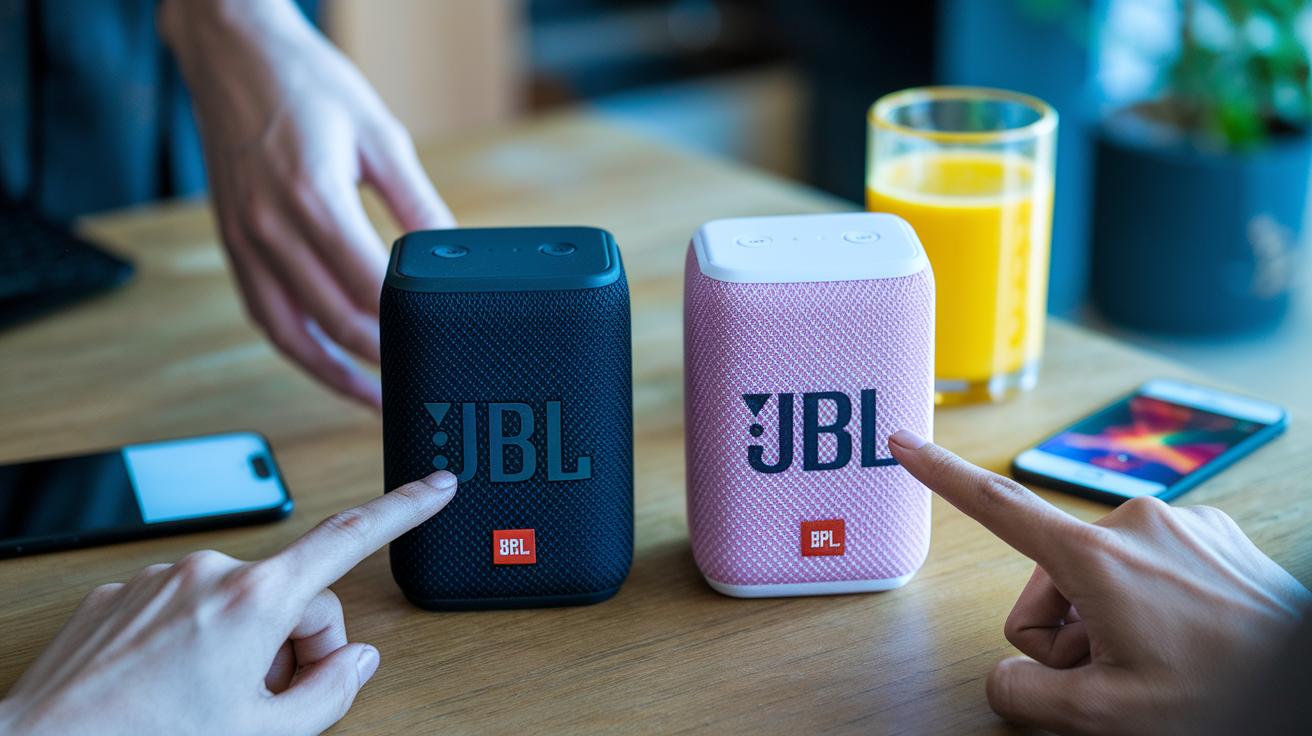
Syncing your JBL speakers is really simple whether you want to boost your party or enjoy richer stereo sound. If you use PartyBoost, you can easily connect two speakers like the Flip 7, Charge 5, or Xtreme 4 by just pressing the PartyBoost button on each speaker. This method works great for a quick, two-speaker setup, but it only works with models that support PartyBoost.
Auracast, on the other hand, is a newer feature found on speakers like the Boombox 3 and Xtreme 4. It lets you broadcast audio to many speakers at once, no matter the brand. This makes it perfect for larger setups when you want to fill a room with sound.
Pre-synching comparison highlights:
- PartyBoost connects two speakers and is limited to compatible JBL models.
- Auracast supports unlimited receivers and works with a wider range of devices.
- PartyBoost offers a simple dual-connection setup, while Auracast shines when syncing multiple speakers.
Either way, syncing your JBL speakers ensures a powerful, immersive audio experience. With an easy setup, you can focus on enjoying your music instead of fiddling with complicated connections.
Troubleshooting JBL Bluetooth Speaker Connection Issues
Sometimes connecting your JBL speaker just doesn't work the way you expect. It might not show up in your device's Bluetooth list, the LED could stay quiet when you press the Bluetooth button, the battery might be low, nearby devices can cause interference, or your firmware could be outdated.
Try these steps one at a time:
- Speaker not showing up:
- Restart both the speaker and your phone or tablet.
- Check that the speaker is in pairing mode as described in the guide.
- LED not blinking:
- Reset the speaker by holding the Power and Bluetooth buttons for 5 seconds.
- Low battery:
- Plug the speaker into a USB-C charger and let it charge for at least 2 hours.
- Interference issues:
- Stay within 10 meters of your speaker and turn off any other active Bluetooth devices.
- Outdated firmware:
- Update the speaker using the JBL Portable app.
These fixes should help you get your connection working smoothly.
Enhancing Connection with the JBL Portable App and Firmware Updates
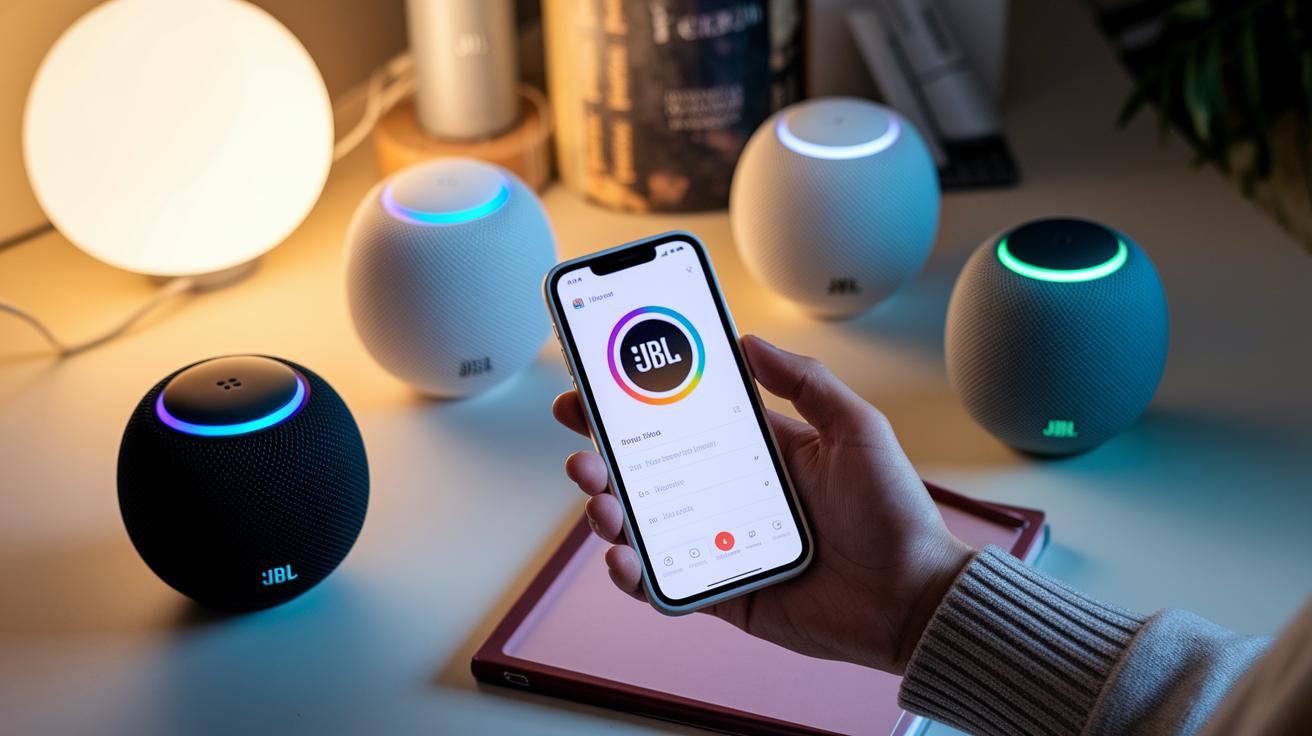
The JBL Portable app, once known as JBL Connect, is free on both the App Store and Google Play. This handy app makes it easy to manage your speakers like talking with a friend who knows tech. You can quickly connect multiple speakers for group listening, fine-tune the sound with EQ presets to match your space, and keep track of battery levels so you're never caught off guard.
What’s more, the app lets you update your speaker’s firmware with just a few taps. Regular updates keep your speaker stable and can even bring cool new features that boost performance and connectivity.
Key features of the app include:
- Connecting several speakers for synchronized playback.
- Adjusting EQ settings for a more personalized audio experience.
- Monitoring battery levels and receiving alerts for firmware updates.
After you download the app, open it to see your connected devices. Simply go to the Firmware section to check for any new updates. This small step helps ensure your JBL speaker always sounds its best, every time you play your favorite tracks.
Final Words
In the action, we walked through every step, from prepping your speaker to troubleshooting glitches. We broke down how to connect jbl bluetooth speakers on various platforms and even synced multiple speakers for a richer sound.
We covered the basics, detailed device-specific pairing, and outlined fixes when things go awry. The guide is easy to follow and full of practical advice that works in everyday scenarios. Enjoy a seamless listening experience, and have fun with your JBL speaker setup!
FAQ
Q: How to connect JBL Bluetooth speakers to an iPhone?
A: Connecting JBL Bluetooth speakers to an iPhone involves powering on the speaker, holding the Bluetooth button until the LED flashes, then opening Settings > Bluetooth and selecting your JBL device from the list.
Q: How to connect JBL Bluetooth speakers to a laptop or PC?
A: Connecting JBL Bluetooth speakers to a laptop or PC requires enabling pairing mode by holding the Bluetooth button until the LED flashes, then opening your computer’s Bluetooth settings and choosing the JBL device from the available list.
Q: How to connect JBL Bluetooth speakers to an Android phone?
A: Connecting JBL Bluetooth speakers to an Android phone involves powering on the speaker, holding its Bluetooth button until the LED flashes, then opening the phone’s Bluetooth menu and selecting the JBL device to pair.
Q: How to connect multiple JBL speakers, including JBL Charge 5, together?
A: Syncing multiple JBL speakers uses features like PartyBoost or Auracast; press the dedicated sync button on each speaker to link them for simultaneous stereo or party-mode playback.
Q: How do you pair a JBL Bluetooth speaker and put it in pairing mode?
A: Pairing a JBL Bluetooth speaker means powering on the speaker and holding the Bluetooth button until the LED starts flashing, then selecting it from your device’s Bluetooth list to establish a connection.
Q: Why is JBL Bluetooth not pairing?
A: JBL Bluetooth may not pair if the battery is low, the speaker hasn’t been properly reset, or if interference is present; try fully charging, resetting by holding power with the Bluetooth button, and ensuring your device’s Bluetooth is active.