
Ever dreamt of talking to your lights? With smart bulbs and Google Home, that dream becomes real. You simply speak a command and control your lighting without lifting a finger. This guide walks you through pairing Matter-compatible bulbs with your Google Home app. We break everything down so you can easily set up your first light and enjoy the perfect glow. Get ready for a smooth, hands-free way to brighten your day.
Integrating Smart Lights with Google Home: A Beginner’s Guide
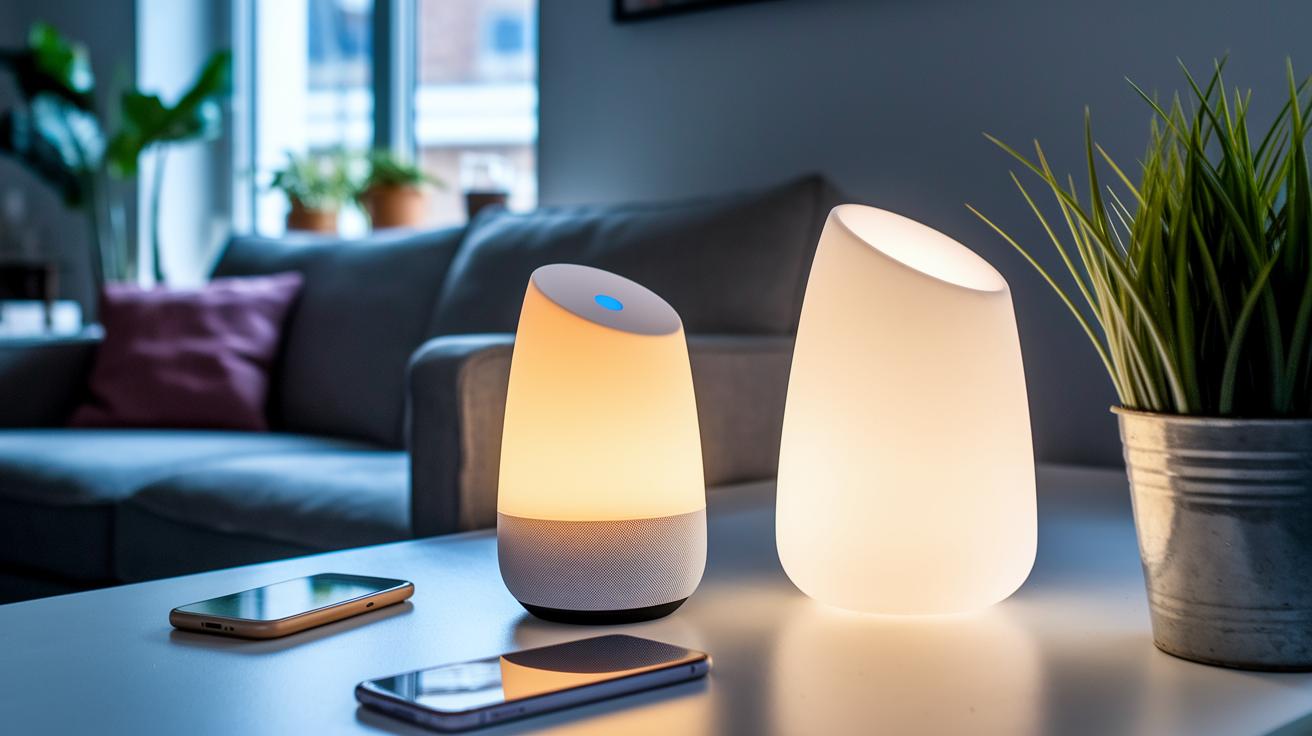
IKEA has rolled out more than 20 new Matter-compatible smart devices, including lights, sensors, and remotes that work smoothly with Google Home. These products use Matter, a modern standard that boosts connectivity over Wi‑Fi, so you don't need an extra hub. They fit standard E26 sockets, making them easy to set up in most homes.
Most smart bulbs give you about 800 lumens, which is great for everyday use, while some high‑performance options shine even brighter at over 1,100 lumens. Pairing your new light is a snap. Simply open the Google Home app, tap "Add Device," and select "Work with Google." Then choose the manufacturer, sign in to your account, and assign the light to a room like "Living Room" or "Bedroom." Once the setup is done, you can control your lights with voice commands like "Hey Google, brighten the Living Room" or "Hey Google, set the Bedroom light to 50% brightness."
This easy integration shows how digital assistants can simplify your light management and help automate your daily routines without any extra hardware. If you're just getting started with smart lights, exploring these devices will show you how they can boost convenience and efficiency in your home.
Best Smart Lights for Google Home: Top Bulb Picks for 2025

When setting up smart lighting for Google Home, you need a bulb that strikes a balance between cost, brightness, and easy installation. We tested a range of bulbs to make sure they deliver energy-saving light and react quickly to your voice commands. For instance, the Wiz LED Smart Light Bulb (Color) offers vibrant full-color options for only $13 and works without a hub. It's a great choice if you want to explore voice-activated moods without a big investment.
| Product | Price (US) | Brightness | Color Capability | Hub Requirement |
|---|---|---|---|---|
| Wiz LED Smart Light Bulb (Color) | $13 | 800 lm | Full color | No hub |
| Philips Hue White and Color Ambiance | $55 | 800–1,100 lm | 16M colors | Hub required |
| Wyze Bulb White (2-pack) | $25 | 800 lm | Tunable white | Wi-Fi direct |
| Tapo Smart Wi-Fi Light Bulb | $11 | 800 lm | White only | No hub |
| Lifx Color BR30 | $27 | 1,100 lm | Full color | Wi-Fi direct |
| Govee LED Strip Light | $70 | 1,000 lm/m | Color sync | Hubless |
| Govee Mini Panel Lights | $130 | Modular | Music-sync | Wi-Fi |
| Ring Pathlight Solar | $30 | 300 lm | Outdoor | Solar + battery |
These options let you set up a smart lighting system that fits your space perfectly. Whether you need a budget-friendly white light like the Tapo or a bulb with vivid, full-color effects like the Lifx Color, there’s something for every room and mood. If you're ready to invest a bit more for advanced features, the Philips Hue system is a solid choice that works great in a larger smart home network. With designs for both indoor and outdoor use, these bulbs work seamlessly with Google Home, giving you hands-free control to create the perfect atmosphere any time of day.
Step-by-Step Installation of Smart Lights with Google Home

Before you start, double-check that you've finished pairing using our main integration guide. If you run into any hiccups or need a bit more help, try these tips:
- Verify that each smart bulb is firmly screwed into an E26 socket and is receiving power.
- Make sure your Google Home app is updated. If the pairing process seems to stall, it might be time to check for an update.
- Confirm you’re signed into the correct manufacturer account and that your bulb is assigned to a specific room.
- If your voice commands don't work, restart your Google Home device and try again.
These steps are designed to clear up common issues without repeating the basic installation steps outlined in the integration guide.
Automating Lighting Scenes in Google Home with Smart Lights

Setting up automatic lighting scenes in Google Home is simple and practical. You can create these routines based on time or voice commands. For instance, you might create a routine named "Sunrise" that adjusts your lights to 75% warm white at 7 AM. This gentle change helps ease you into the day.
Voice commands are just as effective. Program your Google Home so that saying "Movie time" sets your lights to 20% brightness with a soft amber hue to enhance your viewing experience. Group your bulbs by room, such as Living Room or Bedroom, for more targeted control.
You can even combine several actions into one routine. Adjust the lights, play music, or receive a quick weather update all with a single command. One tester shared, "I set my routine to dim my lights for movie time while also playing my favorite playlist." Plus, you might schedule a dimming routine at night, set your lights to drop to 30% later in the evening to create a calming atmosphere and save energy.
Consider these scene ideas for your setup:
- Morning boost
- Evening wind-down
- Dinner ambiance
- Reading nook
- Party mode
Each scene can be tailored to match your lifestyle and energy needs. Just open the Routines tab, select your desired actions, and assign a voice command. In no time, your smart lights will adjust automatically, offering you a seamless, hands-free lighting experience.
Troubleshooting Smart Lights with Google Home

When your smart lights act up, there are a few quick fixes to get voice control back on track. If a bulb goes offline, try power cycling it (turn it off and then back on) and check that your Wi-Fi settings are still the same. A simple restart might just reconnect it.
If your voice commands stop working, reconnect your Google account and the light manufacturer's account through the Home app. One tester found that doing this instantly fixed the problem.
For issues like dimming glitches, updating the bulb's firmware using the manufacturer’s app and then syncing again with Google Home usually helps. And when you notice a delay controlling lights together, ensure your router has enough bandwidth and that your bulbs are connected to a 2.4 GHz network for a more stable connection.
If the bulb’s color isn’t changing properly, first confirm that it supports color features. Then, remove it from Google Home and set it up again. These steps can help you keep your energy-saving lighting automation running without long breaks.
| Issue | Fix |
|---|---|
| Bulb Offline | Power-cycle and verify Wi-Fi details |
| Voice Command Fail | Re-link accounts |
| Dimming Glitches | Update firmware and re-sync |
| Group Control Delay | Check router and use 2.4 GHz |
| Color Not Changing | Confirm support and re-add device |
Final Words
In the action, we reviewed how to integrate smart lights with google home by pairing bulbs, setting up routines, and troubleshooting common issues. We broke down the process into clear steps, from installation to creating custom lighting scenes that boost energy efficiency. This guide gives you the practical advice needed to switch seamlessly between manual and voice control for a hands-free experience. Smart lights with google home offer everyday convenience and bright possibilities for your living space. Enjoy setting up and exploring all that your smart lighting system has to offer.
FAQ
FAQ
How do smart lights integrate with Google Home via the Google Home app?
The smart lights integrate with Google Home through the Google Home app, whether they are wireless, LED, or require a hub. Pairing lets you control them with voice commands and routines.
What are the best smart lights for Google Home?
The best smart lights include options like Wiz LED, Philips Hue White and Color Ambiance, Wyze Bulb, and Tapo Smart Wi‑Fi Light Bulb. They offer varying brightness, color features, and hub needs to suit different budgets.
What are Google smart lights?
Google smart lights are lighting devices that sync with Google Home. They allow you to control brightness, color, and power using voice commands or the Google Home app, typically connecting via Wi‑Fi or Matter.
What is a Google Home Light Switch?
A Google Home Light Switch is a device that replaces a traditional switch and lets you control your lights using voice commands through Google Home, offering hands‑free operation for your lighting setup.
How does a Works with Google Home Smart Plug function?
A smart plug designed to work with Google Home enables you to control appliances via voice commands. You simply plug it in, set it up in the Google Home app, and manage connected devices on demand.
What is the Google light bulb app?
The Google light bulb app is a feature within the Google Home app that guides you through the setup and management of your smart bulbs, allowing you to adjust settings like brightness and color and integrate them into routines.
How do I set up compatible smart lights with Google Home?
To set up compatible smart lights, install the bulb, open the Google Home app, tap “+” then “Add device,” choose your manufacturer, sign in, and assign the device to a room for easy voice control.
Which smart light switches work with Google Home?
Smart light switches that work with Google Home include models from trusted brands like Lutron and TP‑Link. Checking the manufacturer’s compatibility list helps ensure the switch meets your needs for seamless voice control.