
Ever get annoyed when your doorbell just won't work? Resetting your Ring doorbell wipes out old data and gives you a fresh start for an easy setup. This guide walks you through a step-by-step factory reset, whether you're fixing glitches or getting ready to pass on the device. You'll find clear, simple instructions that show you how to remove previous settings and set up your doorbell just the way you like it. Enjoy a fast fix that puts you back in control of your smart home entry system.
Step-by-Step Ring Doorbell Factory Reset Procedure
Resetting your Ring doorbell wipes all settings, configurations, and recorded footage to bring it back to how it was when new. This method is perfect if you're dealing with stubborn issues, planning to hand the doorbell to someone else, or just want a fresh start. The process uses a reliable push-button method where holding the reset button clears out your personal data and Wi-Fi info. Remember, the button's placement can vary, it might be behind the faceplate on top, on the side, or at the back, so double-check your device manual before you begin.
- Find the reset button. Check your model’s guide to locate the exact spot.
- Hold the button for 20 seconds. A firm, continuous press starts the reset.
- Look for LED flash signals. When the LED ring flashes, it shows the device is entering setup mode.
- Wait for the reboot. Give the doorbell time to restart while it completes the reset process.
- Remove the doorbell from the Ring app. Open the app, go to Device Settings > General Settings, and select Remove Device.
- Confirm removal. Make sure the doorbell is no longer listed in your Ring account to ensure a full reset.
Before you start, back up any footage you want to keep. The reset permanently deletes all recorded videos along with your custom settings and network details.
Preparing Your Ring Doorbell for Factory Reset
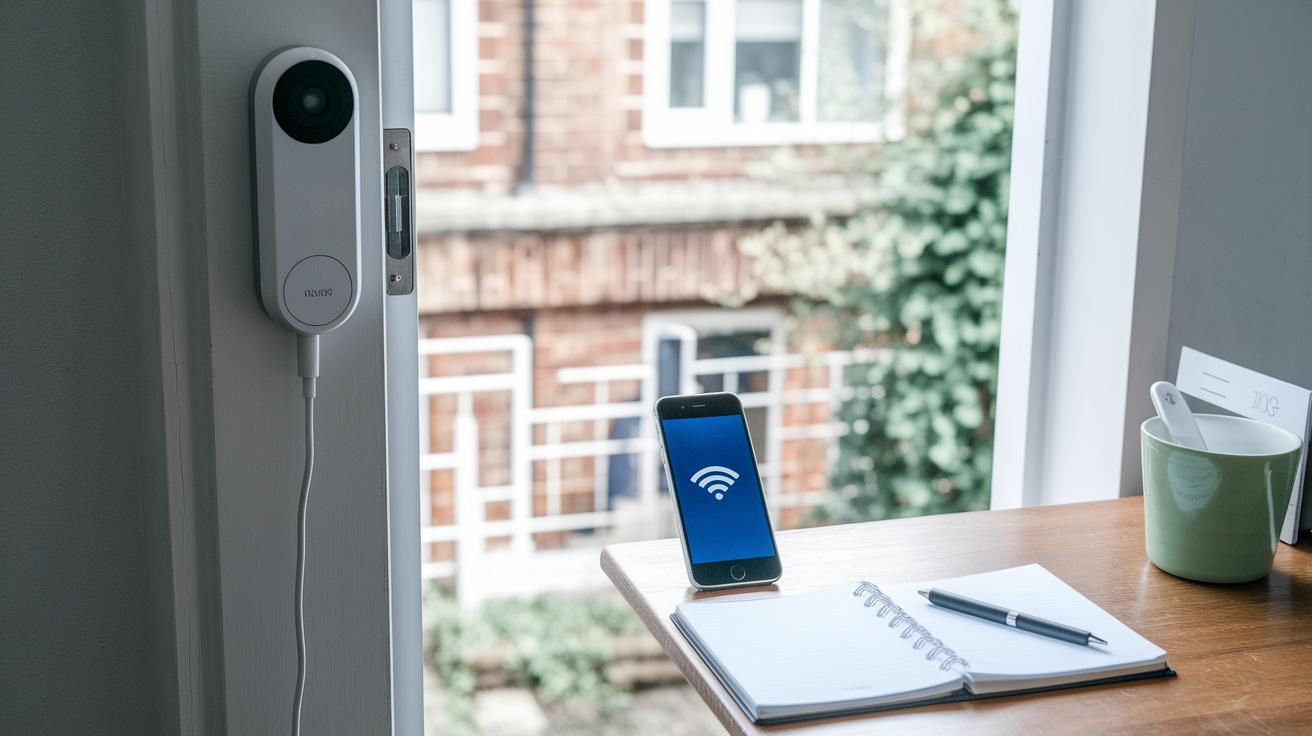
Before you reset your device, take a few minutes to set things up properly. Back up your video clips and check that your doorbell has enough power and a stable Wi-Fi connection. This way, you won’t lose any important footage or custom settings after the reset.
- Save any video clips you want to keep so you don't lose them for good.
- Make sure the doorbell is charged or connected to power to avoid any interruptions.
- Confirm that your Wi-Fi connection is steady so the device can reconnect quickly after the reset.
- Write down any custom settings so you can easily restore them later.
Following these simple steps helps ensure your reset goes smoothly and keeps all your important data safe.
Ring Doorbell Factory Reset by Model
Resetting your Ring doorbell depends on which model you have. Following the right steps will help you restore your device quickly and confidently. Below are clear reset instructions for each Ring model category.
First and Second Generation Models
For these models, start in the Ring app. Open the app and go to your device’s health section where you will see reset prompts. Follow these steps:
- Begin the reset process from the app by choosing the right option.
- When asked, press the reset button on your doorbell as shown on the screen.
- Look for the LED ring to flash. This means the reset is in progress.
This method uses easy-to-follow app guidance, which makes it simple even if you are not used to hardware buttons. It also clears all previous settings.
Battery-Powered and Pro Series
For devices like the Battery Video Doorbell Pro, the process is a bit different. Here’s what to do:
- Find the reset button behind the faceplate at the top-right of the lens.
- Press and hold this button for 20 seconds.
- Watch the LED; a flashing pattern shows that the doorbell is ready for setup.
This reset fully wipes the device, removing any custom settings. It is ideal if you want to set up the doorbell from scratch or pass it on.
Wired, Floodlight and Indoor Cam Variants
For wired models, Floodlight Cams, or Indoor Cams, you might find the reset button on the side, back, or beneath the faceplate. The steps remain similar:
- Press and hold the reset button for 20 seconds.
- Check that the LED ring flashes to confirm the process has started.
- Follow any extra instructions in the app to finish the reset.
Using these instructions will return your Ring device to its original settings, so all personal configurations and network details are cleared.
Troubleshooting Ring Doorbell Factory Reset Issues
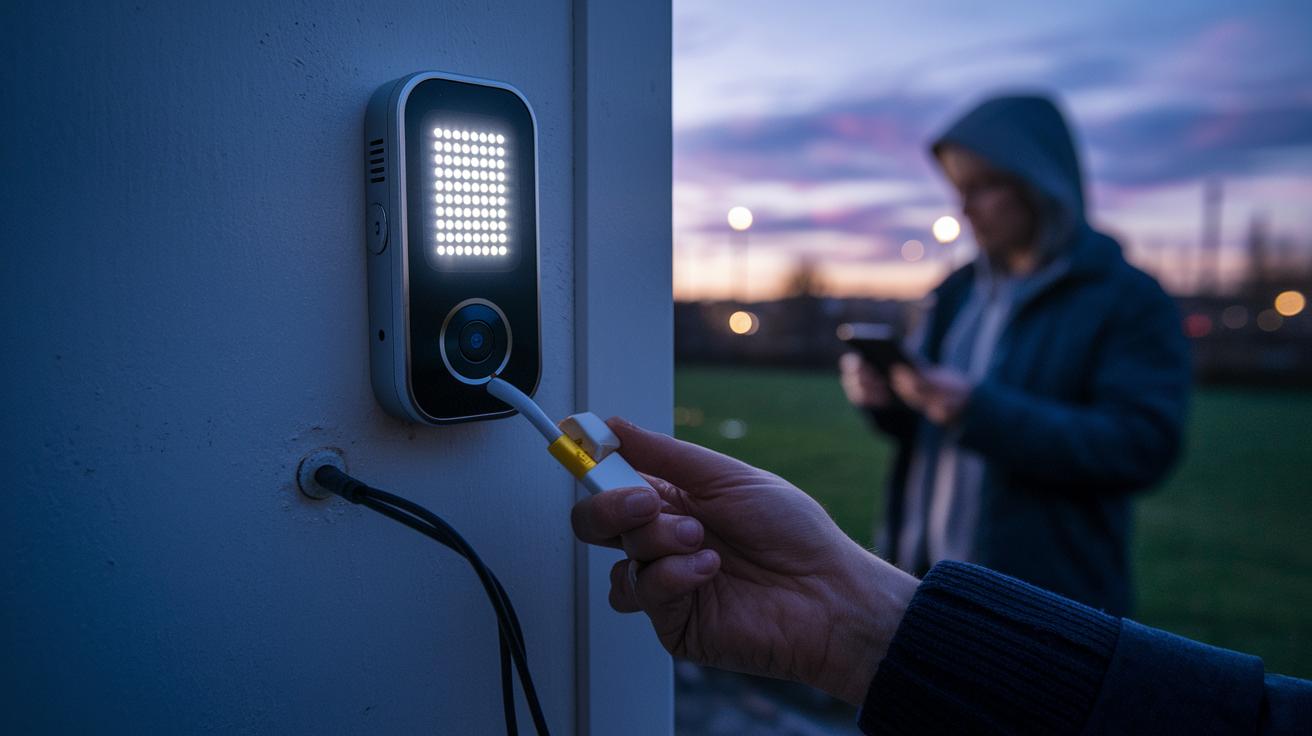
If you hold the reset button for 20 seconds and the LED light doesn't blink, it might mean the doorbell isn't getting enough power. Check the battery level or inspect the wiring to make sure everything is properly connected. A low battery or loose connection can stop the doorbell from fully resetting.
Sometimes, a quick press and hold won't do the trick. A brief hold might only trigger a soft reset, which simply reboots the device and reconnects it to Wi-Fi while keeping your settings intact. Make sure you hold the button long enough to hit the full reset threshold.
If the doorbell gets caught in a setup loop, try cutting its power for 30 seconds before trying another full reset. While you're at it, check the Ring app for any error codes; these might point to a Wi-Fi conflict that needs attention. These steps should help guide you to a complete factory reset.
Reconnecting Ring Doorbell After Factory Reset
Open the Ring app and tap Set Up a Device, then select Doorbells. The app walks you through each step to re-pair your doorbell after a factory reset. You'll see clear, friendly instructions that put you in control.
Next, scan or manually enter the QR code on the back of your doorbell. This tells the app which device you're pairing with and links it to your account. You'll then be asked to confirm some key details about your doorbell.
After that, the app will help you connect to your Wi-Fi network. It guides you to choose your network and enter the password so that your doorbell can get back online for instant alerts and remote monitoring.
Once your Wi-Fi is set up, you can name your device and set up your favorite features like motion zones, chime tones, and notifications. This step is essential to restore your doorbell's previous settings and to enjoy its full functionality. Simply follow the prompts on your screen.
Finally, check the live view and test the notifications. This confirmation means your doorbell is ready to detect motion and visitors, ensuring everything is functioning as it should. Enjoy reconnecting with your smart home in a smooth, simple way.
Soft Reset and Alternative Reboot Methods for Ring Doorbell
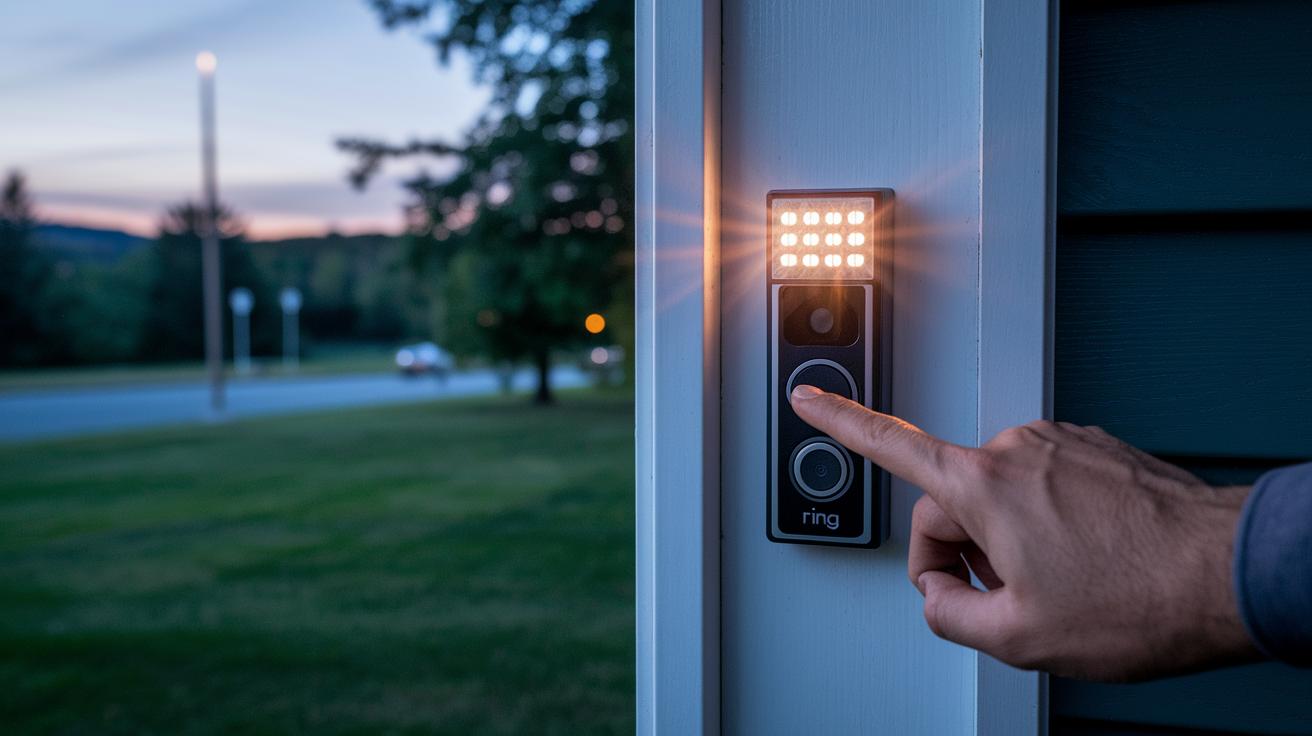
When your Ring doorbell acts up with minor connection issues or fails to join your new Wi-Fi network, a soft reset can often do the trick. This quick fix restarts all connection protocols without erasing your custom settings.
Soft Reset (Quick Reboot)
To perform a soft reset, press the reset button for about five seconds. You'll see an LED flash that reestablishes the Wi-Fi link, giving your doorbell a fast network refresh without losing any of your configurations. It’s ideal when you're dealing with small glitches or need a rapid restart.
Full Factory Reboot
If you need a complete restart due to more serious issues, try a full factory reboot. This method wipes all settings and returns the device to its original state. To do this, either hold down the button for about 20 seconds or use the reset option in the Ring app’s health menu. You can also power cycle manually by disconnecting power or removing the battery, waiting about 30 seconds, and then reapplying power.
Final Words
In the action, our guide walked through the entire process of a ring doorbell factory reset. We broke down each step, from finding the reset button and holding it properly to watching the LED flash and rebooting the device. We also covered pre-reset preparations and troubleshooting tips for various models.
This clear breakdown makes it easy to follow along and set your doorbell back to its factory settings. A ring doorbell factory reset can help solve issues and get you set up quickly for a fresh start.
FAQ
How do I reset my Ring doorbell without using the app?
Resetting your Ring doorbell without the app involves using its manual reset button. Locate the button, press and hold for 20 seconds until the LED flashes, which triggers the reset process.
How do I factory reset my Ring Doorbell 2?
The factory reset for Ring Doorbell 2 uses the device’s reset button. Press and hold the button for 20 seconds until the LED indicates reset mode, then let the doorbell reboot to its default settings.
How do I prepare my Ring doorbell for a new owner?
Resetting the doorbell for a new owner means performing a full factory reset. Hold the reset button for 20 seconds until the LED flashes to delete previous configurations and clear all personal data.
How do I reset my Ring doorbell through the app?
Resetting via the Ring app allows you to remotely remove the device. Go to Device Settings, choose Remove Device, and follow the provided prompts after starting the physical reset on your doorbell.
How can I perform a hard factory reset on my Ring doorbell?
A hard factory reset requires an extended press of the reset button. Hold it for around 20 seconds until the LED flashes rapidly to confirm the doorbell is undergoing a full, hard reset.
What should I do if my Ring doorbell factory reset isn’t working?
If the reset fails to work, ensure the doorbell is powered adequately and the reset button is held long enough. You might also try disconnecting power for 30 seconds before retrying the 20‑second hold.
Is there a special reset code for Ring doorbells?
There is no reset code required for Ring doorbells. The factory reset is completed solely through the device’s physical reset button, with any necessary confirmation done via the Ring app.
How do I factory reset my Ring doorbell camera?
Factory resetting your doorbell camera is done by using its dedicated reset button. Press and hold the button for about 20 seconds until the LED indicator flashes, which erases all settings and restores default operating conditions.