
Ever thought installing a Ring doorbell might be tricky? We're here to prove it isn’t. In this guide, we walk you through every step so even first-timers can tackle the job without any worry. We start with safety, explaining exactly how to get ready before you begin. From choosing your ideal spot to setting up your Wi‑Fi, you’ll get all the details you need. Get ready to boost your home security with simple, clear instructions that lead you straight to success.
Ring Doorbell Manual: Simple Steps for Success
Before you start, make sure you’re working safely. Turn off your power at the breaker or remove your doorbell battery to avoid any shocks when handling wires. This guide is made for anyone installing a Ring doorbell for the first time, so we’ve kept it simple and clear.
You will need a few basic tools:
- Level
- Drill with a 3/16″ masonry bit
- Screwdriver
- Pencil
- Anchors
Follow these steps to complete the installation:
- For safety, cut the power at the breaker or remove the doorbell battery.
- Use a pencil to mark the spot where you want your doorbell.
- If you’re mounting on brick, drill holes with a 3/16" masonry bit.
- Secure the installation bracket in place using anchors.
- Attach your existing wires or insert the rechargeable battery.
- Carefully snap the doorbell unit onto the mounted bracket.
- Restore power to the circuit.
- Open the Ring app on your smartphone to begin the setup.
- Connect the doorbell to your Wi-Fi network.
- Check the app’s Live View to confirm everything is working properly.
For additional details or advanced setup options, please refer to the complete manual.
Ring Doorbell Manual: Wireless vs. Wired Installation Details
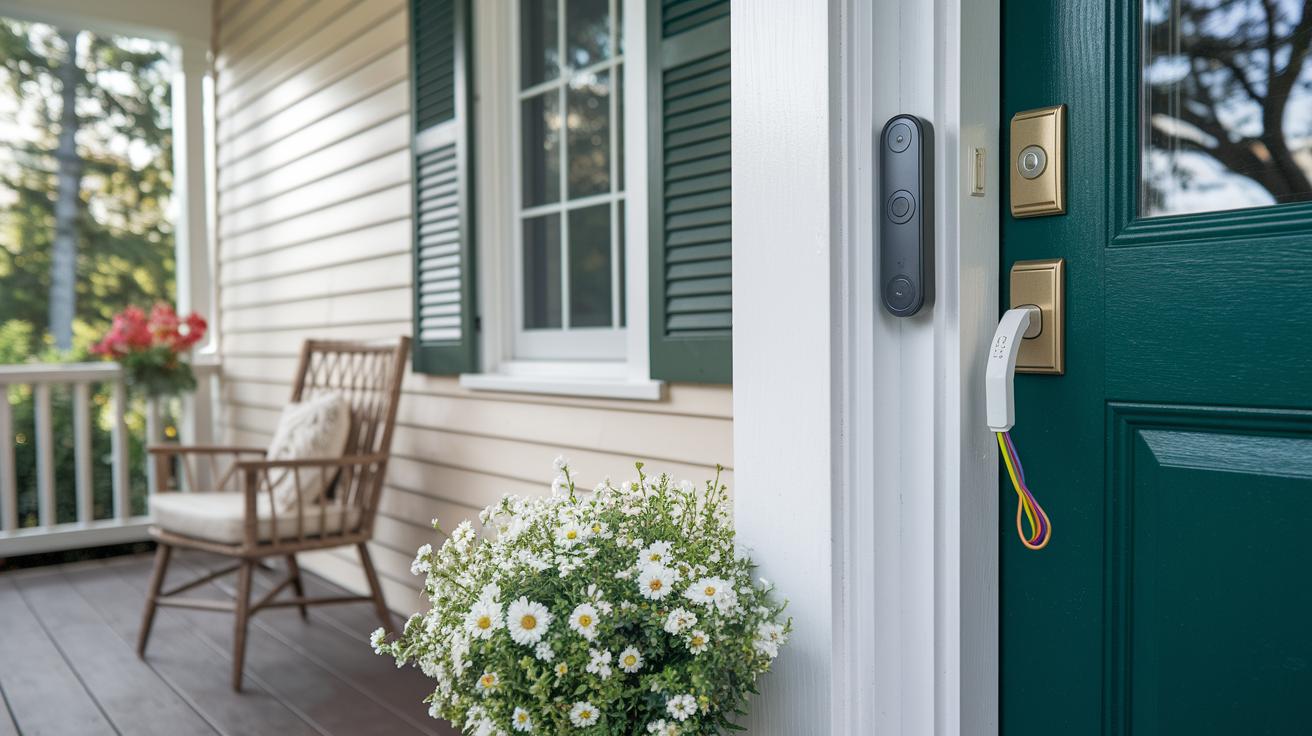
Ring doorbells give you two ways to set them up based on your home needs. With the wireless option, you use a rechargeable battery that comes with simple directions for inserting and removing it. This setup means you can skip wiring and enjoy about 6–12 months of typical use. It works best if you want flexibility without dealing with your home's transformer.
The wired method connects your doorbell to a home's 16–24 VAC doorbell transformer for steady power delivery. This way, you never have to worry about replacing a battery. Just follow the power adapter wiring guide, which is ideal if your home already has a transformer connection.
For brick wall installations, both methods include mounting hardware like anchors and a weatherproof gasket. These parts ensure a secure fit that keeps water out. You also get clear mounting diagrams and instructions, making it easy to decide which option fits your situation best.
| Installation Type | Power Source | Tools Required | Wiring Diagram Reference |
|---|---|---|---|
| Wireless | Rechargeable battery (6–12 months) | Basic mounting tools | Battery insertion guidelines |
| Wired | 16–24 VAC transformer | Drill, anchors, screwdriver, level | Power adapter wiring guide |
Ring Doorbell Manual: Video Entry Guide and Chime Integration
Start by opening the Ring app and tapping on Live View to check what’s happening live. In the settings, turn on motion detection so you get an alert when something moves. This means you can quickly see a clear picture of your doorstep every time someone passes by. You can also adjust the sensitivity and choose specific motion zones directly on the app to suit your needs.
Next, get ready to install the Ring Chime Connector behind your existing chime. First, remove the chime cover with care to expose the wires. Then, secure the Connector in place, making sure it fits well with the internal contacts. Once it’s set, put the cover back on to protect the wiring from dust and weather. This easy step creates a smooth connection between your doorbell and the chime system at home.
Finally, go back to the Ring app for one more setup step. Here you can fine-tune the motion zone settings to make sure your video alerts and chime work the way you want. This last adjustment ties everything together so you can enjoy both live video monitoring and sound notifications from your Ring device.
Ring Doorbell Manual: App-Based Setup and Companion App Pairing
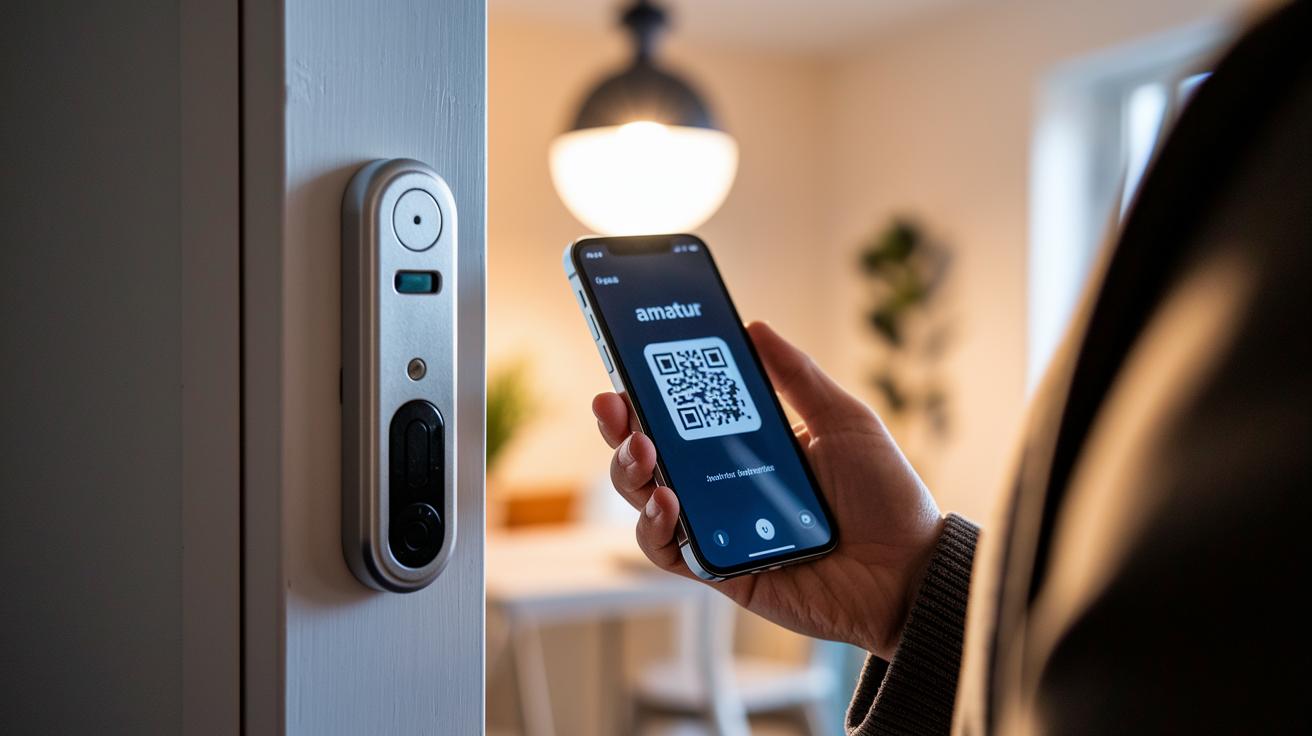
Start by downloading the Ring app on your smartphone or tablet. Open the app and either sign in or create a new account. Then, find the QR code on the back of your doorbell and scan it to link your device with your account. This quick step gets you ready to enjoy smart home features.
After that, the app will guide you through connecting your doorbell to your Wi-Fi network. Just follow the prompts, pick your network, and enter your Wi-Fi password. A reliable connection means you can easily watch live video and get alerts. The process is simple, even if you’re new to smart tech.
Finally, you can set up your doorbell to work with voice assistants like Alexa or Google Assistant. In the app, choose the option to enable the skill for your preferred assistant and authorize your account. Once that’s done, your doorbell will respond to your voice commands, making it a smart and handy part of your connected home.
Ring Doorbell Manual: Troubleshooting Instructions and FAQs
If your Ring doorbell acts up, chances are it's an easy fix. Sometimes you might see it go offline when the signal drops below -60 dBm, the video doesn't look clear, or it skips motion alerts. Usually, these problems come down to a weak connection, a small firmware hiccup, or a power issue. Follow these steps to get it back in tip-top shape without needing to call a pro.
Start by giving your doorbell a quick reboot. This simple restart often clears out any temporary glitches. If that doesn't work, try a factory reset by holding down the front button for 15 seconds. For those with a wired doorbell, make sure your transformer is delivering a solid 16-24 VAC. Then, open the Ring app and head over to Device Settings > Device Health to check if a firmware update is needed. These steps can help fix issues like low video quality and missed motion alerts, ensuring your doorbell works the way it should.
FAQ:
- How do I replace the battery?
Remove the doorbell from its bracket, slide off the cover, put in a new battery pack, and snap the cover back on. - How do I check my Wi-Fi strength?
Open the Ring app and go to Device Settings > Device Health; you'll see the signal strength details there. - How do I reset the doorbell?
Press and hold the front button for 15 seconds until you see a reset indicator on the screen.
Ring Doorbell Manual: Firmware Upgrade and Maintenance Guide
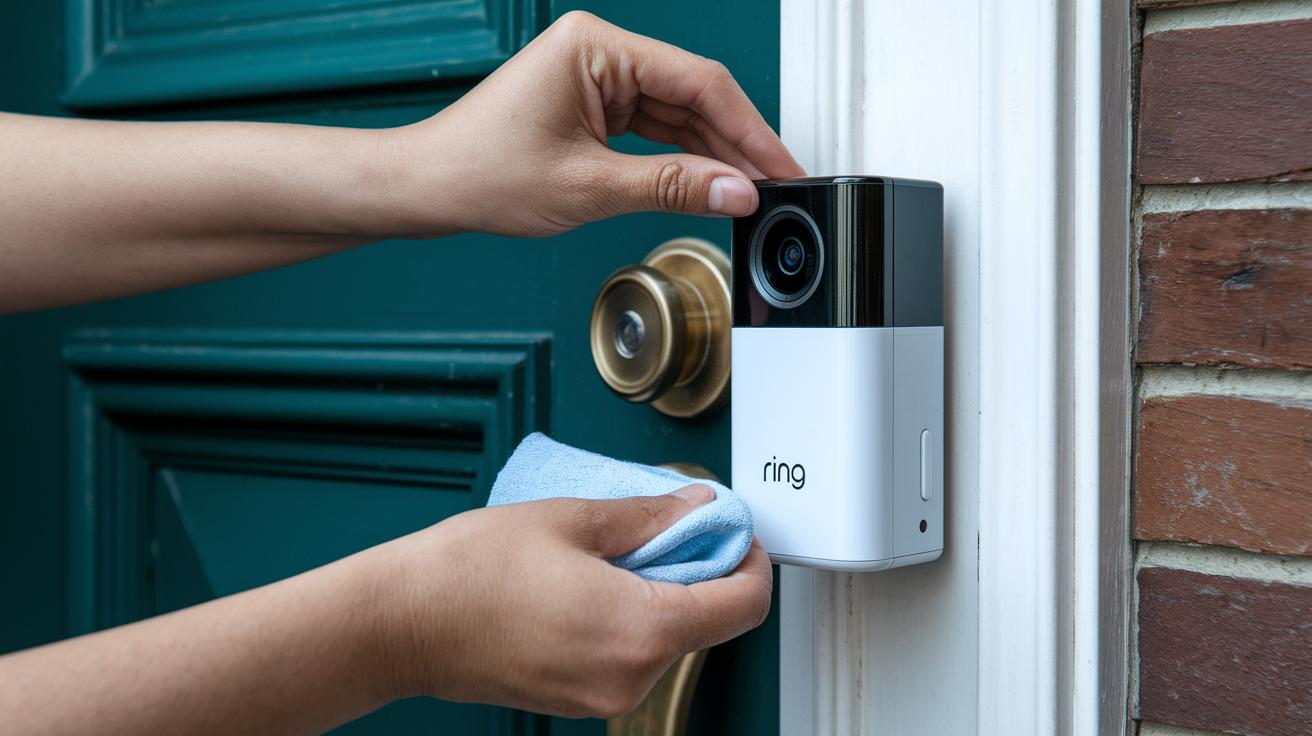
Keep your Ring doorbell in top shape by checking its firmware version in the Ring app under Device Settings then Device Health. While the doorbell mostly updates automatically, you can start a manual update when needed.
Regular cleaning goes a long way. Use a soft cloth to gently wipe the camera lens and check that the mounting screws are secure. This helps ensure clear video quality and extends the doorbell’s life.
Battery care is just as important. When it’s time to change the battery, slide the unit off the bracket, remove the cover, swap in a new battery pack, and snap the cover back on. This simple routine makes sure you get the most from every charge.
We recommend doing monthly checks on battery levels and installation hardware. These quick seasonal checks help catch any potential issues early, keeping your doorbell running smoothly all year long.
Ring Doorbell Manual: Downloadable PDFs and Instruction Resources
Ring's official support site makes finding your installation guides a breeze. You can download a full user manual, a Quick Start Guide, and a Troubleshooting Booklet in PDF format. Each document walks you through setup and maintenance with clear, step-by-step instructions. There are also video tutorials that guide you through everyday tasks in real time, plus a free user booklet packed with practical tips for first-time users. Printable instructions like mounting hole guides and wiring schematics make sure you get a secure, precise installation every time.
To get these resources, simply visit support.ring.com and click on the Device Manuals section. With just a few clicks, you can access your digital user guide, resource manuals, and printable templates. This simple process puts all the essential setup information right at your fingertips, so you can install your Ring doorbell with confidence.
Final Words
In the action, this guide walked through quick start setup steps, essential safety tips, and installation options. We covered everything from required tools and easy mounting instructions to app-based pairing and troubleshooting steps. Each section was crafted to simplify the process and build confidence in managing your Ring system. For more advanced details, check out the complete ring doorbell manual. Enjoy setting up your device and experiencing hands-on ease with every step along the way.
FAQ
How can I download Ring doorbell manuals in PDF format?
The question about downloading Ring doorbell manuals in PDF means you can access versions like Ring Doorbell, Doorbell 2, and Doorbell Plus through the official Ring support site under Device Manuals.
Why are people getting rid of Ring doorbells?
The question about why people are getting rid of Ring doorbells indicates that some users prefer devices without privacy concerns or recurring fees. Many choose alternatives that better suit their security and budget needs.
Which Ring doorbell do I have?
The question about identifying your Ring doorbell means you can check the model number on your device or within the app’s settings and compare it with the manuals available on Ring’s support website.
How can I turn my Ring off and back on?
The question about turning your Ring off and back on means you should perform a reboot by removing power—either disconnecting the battery or unplugging the device, then waiting briefly before restoring power.
How do I set my Ring doorbell?
The question about setting up your Ring doorbell means you should mount the bracket, connect the wiring or insert the battery, power on the device, and follow the in-app instructions for Wi‑Fi pairing and configuration.
What are the differences among Ring doorbell models like the 1080p HD Wi‑Fi Wired Video Doorbell Pro, Ring Battery Doorbell Plus, and Ring Video Doorbell Wired?
The question about different Ring doorbell models means that each option varies by power source, video resolution, and additional features like indoor cameras or chime integration, allowing you to choose based on your installation needs and desired functions.