
Ever been frustrated by complicated instructions when setting up a smart lock? The Kwikset Smart Lock Manual makes it simple. It uses clear, step-by-step diagrams that you can view on your phone, tablet, or computer. We explain every detail, from using a Phillips screwdriver to fitting all the essential parts. If you run into issues, like problems with connectivity or low battery alerts, the guide shows you easy fixes. This hands-on manual gives you the confidence to install and maintain your lock without any hassle.
kwikset smart lock manual: Smooth Setup & Troubleshooting
The official Kwikset Smart Lock Manual is a handy 30-page PDF loaded with 20 clear diagrams to guide you through setting up your smart lock. It’s designed so you can easily follow along whether you’re on your phone, tablet, or computer.
Along with the PDF, there’s an interactive version that lets you jump to the sections you need at your own pace. This means whether you’re installing the lock or need a quick fix, you’ve got direct, hands-on help right at your fingertips.
The manual walks you through every step, from installing the lock with just a Phillips screwdriver and a 1-inch drill bit to programming up to 30 user codes. It even covers network integration with both Wi-Fi and Z-Wave. A quick-start guide on page 2 shows you the basics, while a detailed parts inventory helps keep everything in order.
Troubleshooting is easy, too. If you run into issues like connectivity problems or low battery alerts, the manual offers step-by-step tips to diagnose and fix these problems. Plus, it includes practical advice on maintenance, such as how and when to replace the batteries so your lock stays reliable.
In short, this manual is your go-to resource for everything from the initial setup to keeping your Kwikset smart lock running smoothly over time.
Installation Instructions in the Kwikset Smart Lock Manual
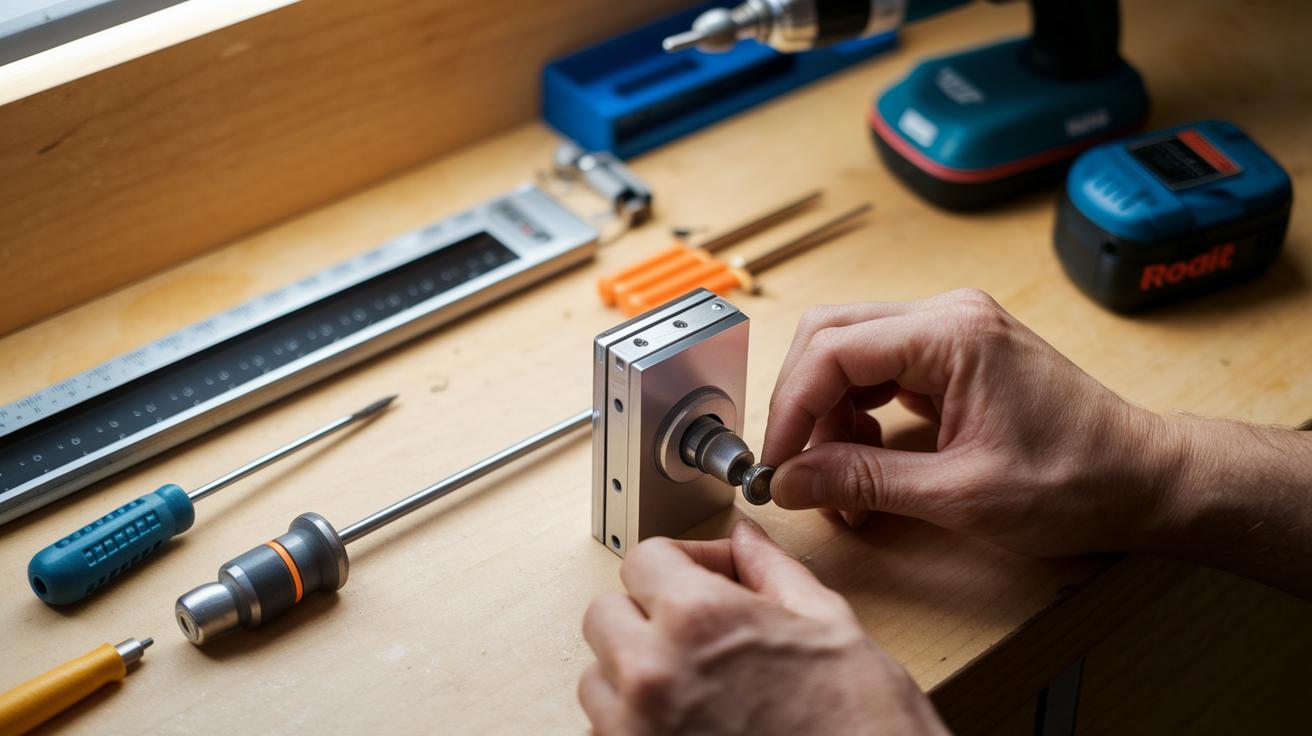
Before you begin, gather your tools: a Phillips screwdriver, a 1" drill bit, and a 1" drill. Also, have on hand the materials needed to prep your door. Make sure your door is the right thickness (between 1 3/8" and 2") so your lock fits well.
Follow these steps:
- Check the door thickness.
- Mark a 2 1/8" diameter for the bore hole.
- Drill the through and cross bores using a 1" drill bit.
- Fit the latch and deadbolt assembly.
- Secure the exterior keypad.
- Mount the interior housing.
- Insert four AA batteries.
- Test the alignment of the latch.
Once you finish these steps, tighten all screws to about 15 in-lbs. Confirm that the latch works smoothly and every part lines up properly. This careful setup keeps your Kwikset smart lock secure and ready for everyday use.
Programming and Keyless Entry in the Kwikset Smart Lock Manual
The Kwikset Smart Lock Manual breaks down programming into easy steps. With a default master code of 0000, you can add, update, or remove user codes and even reset the lock to its original settings. The clear instructions help you keep your self-locking door secure and working smooth.
Adding User Codes
- Hit the Program button and enter the master code (0000).
- Pick option 2 to start setting a new user code.
- Type in your chosen code, then press Lock to save it.
- Test the new code to make sure it opens the door.
Editing and Deleting Codes
- Open the programming menu by pressing Program and entering your master code.
- Choose option 1, then select the slot that has the code you want to change or remove.
- Follow the on-screen steps to safely update or delete the user code.
Factory Reset Procedure
- Start by pressing Program and entering the master code (0000).
- Select option 5 to reset the lock to its factory settings.
- Confirm your choice and wait for the system to respond.
- Check the reset by setting up a new user code, ensuring the lock is back to its original state.
Network Integration in the Kwikset Smart Lock Manual
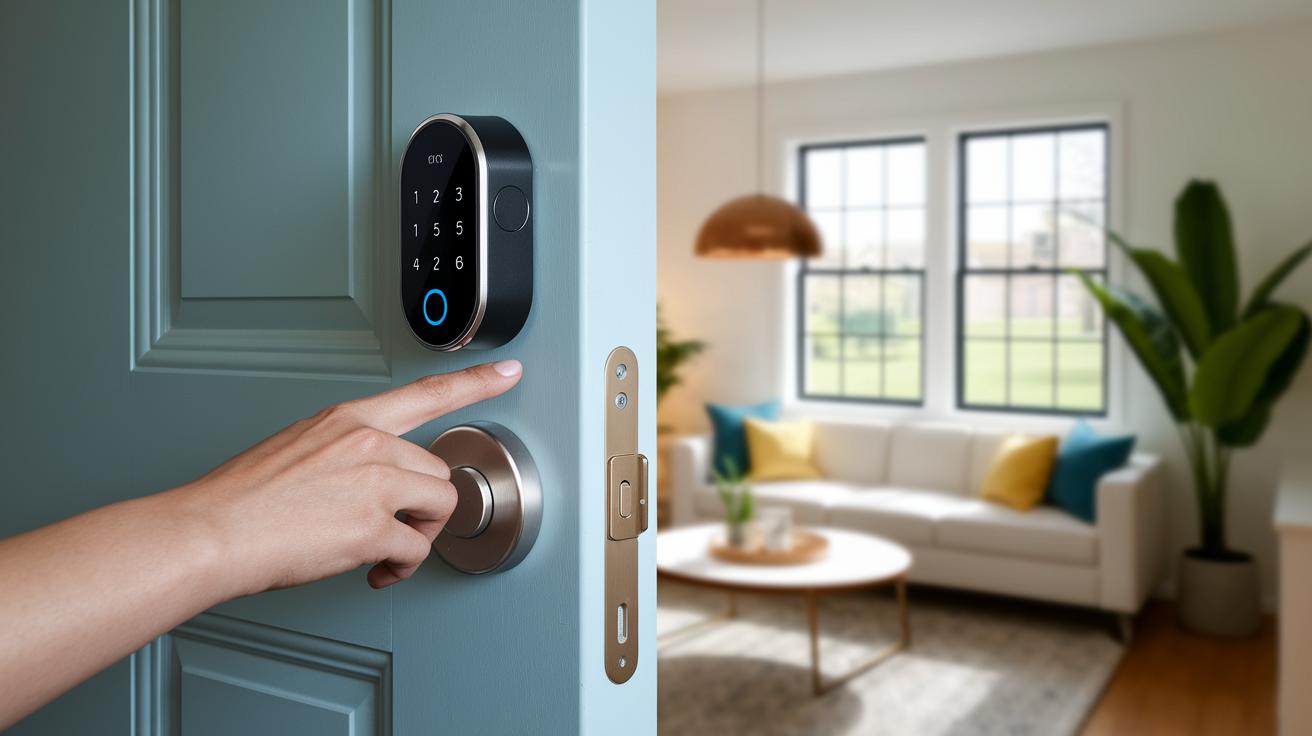
The manual explains how to connect your Kwikset smart lock to your home network using either Wi-Fi or Z-Wave. We walk you through each process, so it feels like you’re chatting with a friend who knows tech.
To set up your Wi-Fi connection, first place your Wi-Fi bridge in an area that receives a strong signal. Next, plug the bridge into a reliable power outlet. Then, press the lock’s Learn button three times to activate pairing mode. Open the Kwikset app and choose the Wi-Fi setup option. Finally, follow the prompts in the app to complete the pairing. This process ensures your lock seamlessly links to your home internet.
For broader smart home control, you can also integrate your lock with a Z-Wave system. First, install the dedicated Z-Wave module into the correct slot. Then, start inclusion mode by holding the Program button and pressing 7. Wait for the device to signal it’s ready to be paired. Confirm the connection on your controller using the Security S2 protocol.
After finishing these steps, make sure your lock’s firmware is up-to-date to keep your system secure and running smoothly.
Troubleshooting in the Kwikset Smart Lock Manual
If your Kwikset smart lock shows an error, the manual helps you quickly find and fix the problem. It covers usual error codes like E001 for low batteries (below 3.2 V), E002 if the lock can’t join your network, and E101 when a wrong user code is entered. There are also instructions for less common issues like E201 and E301.
On page 18, you'll find a handy tip: if your lock isn't working right, remove the batteries, press and hold the Program button for 5 seconds, then put the batteries back in so the motor can auto-calibrate. This step-by-step process is designed to get your lock back to normal quickly.
| Error Code | Solution |
|---|---|
| E001 | Replace batteries |
| E002 | Rejoin network via app |
| E101 | Re-enter valid user code |
| E201 | Restart lock calibration |
| E301 | Perform factory reset |
After making any adjustments, test the lock by using the keypad and ensuring it calibrates correctly after a reset. If it still misbehaves, go back to the troubleshooting tips in the manual. This approach helps keep your Kwikset smart lock secure and reliable for everyday use.
Maintenance and Battery Replacement in the Kwikset Smart Lock Manual
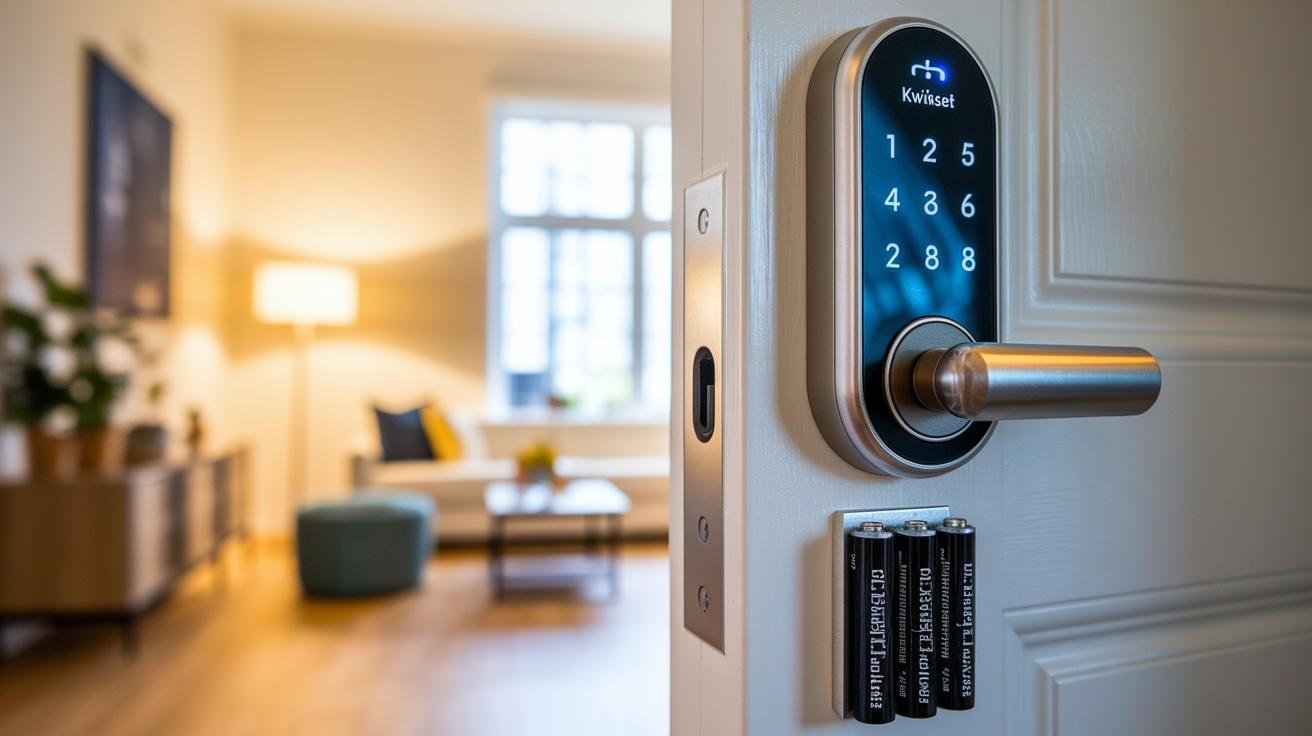
To keep your Kwikset smart lock running smoothly, the manual recommends using four AA alkaline batteries, replacing them every 6 to 12 months. You can also opt for lithium AA batteries, which might keep the lock powered for up to 2 years under steady conditions. Just remember not to mix different battery types, as doing so can lead to uneven power and affect the lock's performance.
The lock features an LED indicator that lets you know when it's time for a battery change. For example, five flashes warn you that only about 20% of the battery power remains, so it’s a good idea to schedule a replacement soon. The manual also mentions that cold weather can lower battery efficiency. Following these simple steps helps ensure your smart lock works reliably, providing you with consistent security regardless of the conditions.
FAQs and Resources in the Kwikset Smart Lock Manual
How do I reset the master code?
Press the Program button and follow the on-screen instructions. This simple method lets you quickly update your master code for a smoother experience.
What is the procedure for adding guest codes?
Head to the programming menu and enter the new guest code. The step-by-step guide makes it easy to set up secure access for your guests.
What are the warranty terms?
The manual states that mechanical parts enjoy a lifetime warranty while electronic components are backed for one year. This gives you added peace of mind with your purchase.
Which devices does the app support?
The app works with iOS 11 and later as well as Android 6.0 and above, so you can connect using nearly any modern smartphone.
How can I reach customer support?
You can call 1-800-327-5625 or visit kwikset.com/support for more help with your lock. They provide a thorough walkthrough to answer your questions.
For extra assistance, check out online tutorials or download the interactive PDF manual for Kwikset Smart Access.
Final Words
In the action, we broke down the detailed content of the Kwikset Smart Lock Manual. We ran through installation, programming, network integration, troubleshooting, and maintenance steps step-by-step.
Each section highlighted essential tools, clear procedures, and useful troubleshooting advice, making the setup process easier.
This guide, built on the kwikset smart lock manual, offers hands-on instructions and practical tips to help you set up and manage your smart lock confidently. Enjoy a smoother experience with your smart home devices.
FAQ
What are the Kwikset smart lock models?
The Kwikset smart lock models include various designs that offer keyless entry and smart connectivity. Users can find options like the Halo and SmartCode series tailored to different home security needs.
How can I get a free PDF download of the Kwikset smart lock manual?
The Kwikset smart lock manual is available as a free PDF download online. It delivers clear setup, programming, and troubleshooting details in an accessible format.
What troubleshooting steps are covered in the Kwikset smart lock manual?
The Kwikset smart lock manual troubleshooting section explains common error codes, calibration procedures, and fixes for issues such as low battery notifications or invalid code entries.
Where can I find the Kwikset installation instructions PDF?
The Kwikset installation instructions PDF is accessible online, offering step-by-step guidance on door preparation, hardware mounting, and verifying latch alignment for a secure setup.
How is programming addressed in the Kwikset smart lock manual?
The manual’s programming section details how to set up, edit, and delete user codes, as well as perform a factory reset, making keyless entry straightforward and secure.
What does the Kwikset SmartKey feature offer?
The Kwikset SmartKey feature provides a backup mechanical keyway for emergency access, ensuring reliable entry even when digital programming or battery power is compromised.
What information can I find in the Kwikset Halo Smart Lock Manual?
The Kwikset Halo Smart Lock Manual offers detailed instructions on network integration, installation, code programming, and troubleshooting, all designed to optimize smart home performance.
What details are available in the Kwikset SmartCode 270 manual?
The Kwikset SmartCode 270 manual contains essential information on installation, programming options, and maintenance tips to ensure users can operate their keyless entry system effectively.
How do I change the code on my Kwikset smart lock?
Changing your code involves accessing the smart lock’s programming menu and following the manual’s instructions to add, delete, or modify user codes securely and easily.
How can I tell which Kwikset smart lock I have?
Identifying your Kwikset smart lock is simple by checking the device’s label or manual; model names like Halo or SmartCode indicate specific features and setup information.
How do I reset my Kwikset lock?
Resetting your Kwikset lock generally requires accessing the programming mode with a specified button sequence. The manual outlines clear steps to restore factory settings safely.
How do I operate a Kwikset keypad lock?
Operating a Kwikset keypad lock means entering your user code via the keypad; the manual also provides quick-start guidance to help with everyday use and troubleshooting.