
Ever notice your soundbar suddenly goes mute as soon as your show starts? It might seem like a defect, but it’s likely just a simple switch-up between your devices. We explored a few easy fixes to get your sound back quickly. First, check the power and volume settings. Next, inspect your cables for any loose connections. Finally, confirm that your TV is set to the correct input. Follow these steps, and soon you’ll be back to enjoying your favorite shows without a hitch.
Comprehensive Soundbar Troubleshooting Workflow
Soundbar issues are most often caused by a miscommunication between your TV and the soundbar, not a fault in the soundbar itself. First, make sure both devices are plugged in, their volumes are set correctly, and none of them are muted. This simple check often clears up the most common problems.
Next, we move through a few clear steps. Check that the correct input or source is selected, and inspect all cable connections to be sure they're secure. Confirm that your soundbar supports the audio format you’re using, whether it’s Dolby Digital, DTS, or PCM. Also, look into any sleep or eco modes that might be turning the sound off without you realizing it. If everything seems good but problems persist, updating the firmware or doing a factory reset might get things back to normal.
| Step | Action |
|---|---|
| Power & Volume | Ensure both devices are powered on and volumes/mute settings are correct |
| Input/Source | Confirm the right input or source is selected |
| Cable Check | Inspect cables for secure and proper connections |
| Audio Format | Verify compatibility with formats like Dolby Digital, DTS, or PCM |
| Sleep/Eco Settings | Disable any settings that might automatically mute audio |
| Firmware/Reset | Update the firmware or perform a factory reset if issues persist |
Following these steps in order helps you avoid checking the same thing twice and pinpoints the exact cause of the problem quickly.
Diagnosing No Sound Errors in Your Soundbar
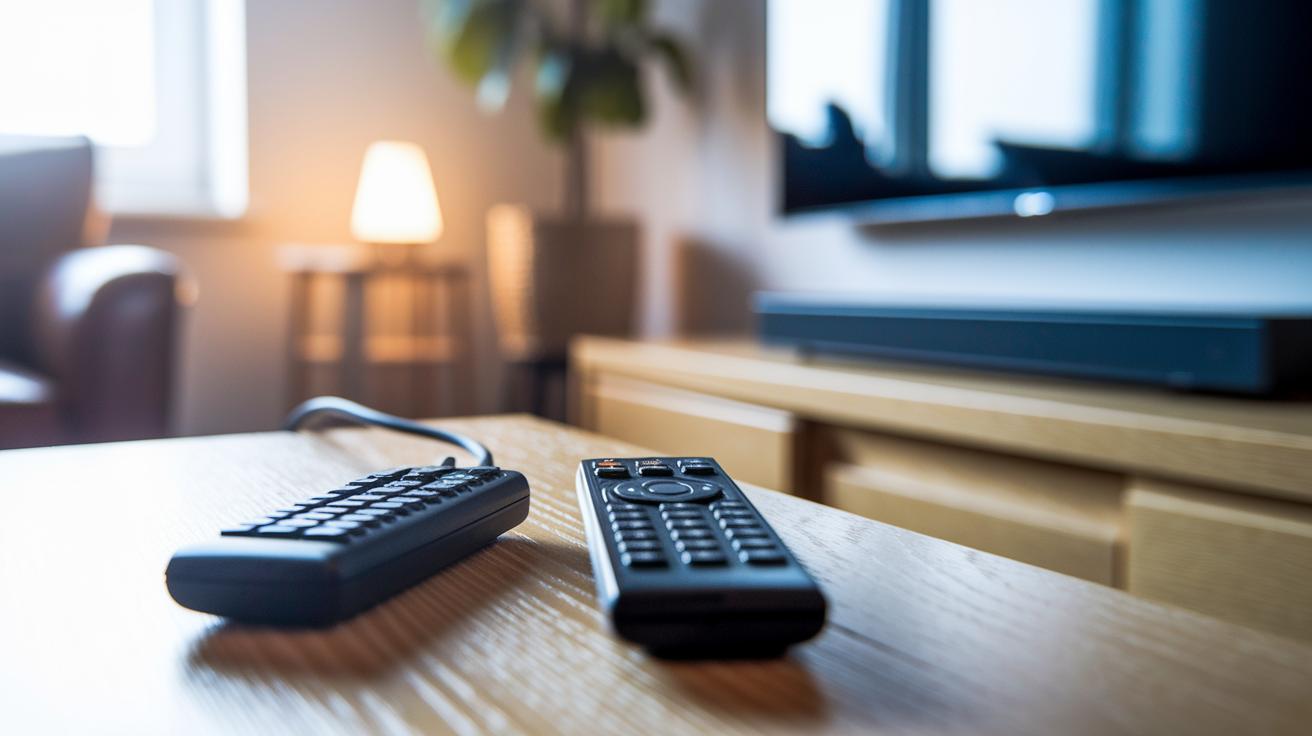
First, make sure your TV is set to the correct output port. Check that the input selected on your TV matches where your soundbar is plugged in, for instance, if you're using HDMI, double-check that it's set to HDMI 1 or HDMI 2. Also, verify that the volume on both the TV and the soundbar is turned up and not muted. A quick glance at your remote’s display should confirm these settings.
Next, inspect your cables closely. Take a good look at your HDMI, optical, and analog cables, ensuring there’s no wear, fraying, or loose connections. Even a slightly damaged HDMI cable can lead to intermittent sound issues, so if you notice any damage, it's best to replace the cable immediately.
If everything looks good so far, try switching the audio output from the soundbar to your TV’s built-in speakers. If the TV speakers work fine, the issue might be with the soundbar’s settings or cable connection. This simple step helps you pinpoint where the problem lies and makes it easier to decide what to tackle next.
HDMI ARC and Optical Connection Checkup
Begin by confirming your soundbar is hooked up to the correct port. Most TVs allow just one HDMI ARC (or eARC) connection, so check if you're using the right one and that HDMI CEC is turned on. Optical cables handle Dolby Digital and DTS 5.1, while RCA or a 3.5 mm jack delivers basic stereo sound.
| Connection Type | Port/Cable | Supported Formats | Troubleshooting Tip |
|---|---|---|---|
| HDMI ARC | Designated HDMI ARC/eARC port | Dolby Digital, DTS, PCM | Double-check that the port supports ARC and that HDMI CEC is on |
| Optical Digital | Optical cable input | Dolby Digital, DTS 5.1 | Make sure the cable is firmly connected and in good condition |
| Analog Stereo | RCA or 3.5 mm jack | Stereo sound | Select the right input and check the cable for any damage |
When troubleshooting, use just one primary connection. This focused approach keeps your setup simple and helps quickly pinpoint issues like audio dropouts, sound distortions, or other connectivity glitches.
Fixing Bluetooth Pairing and Wireless Subwoofer Sync
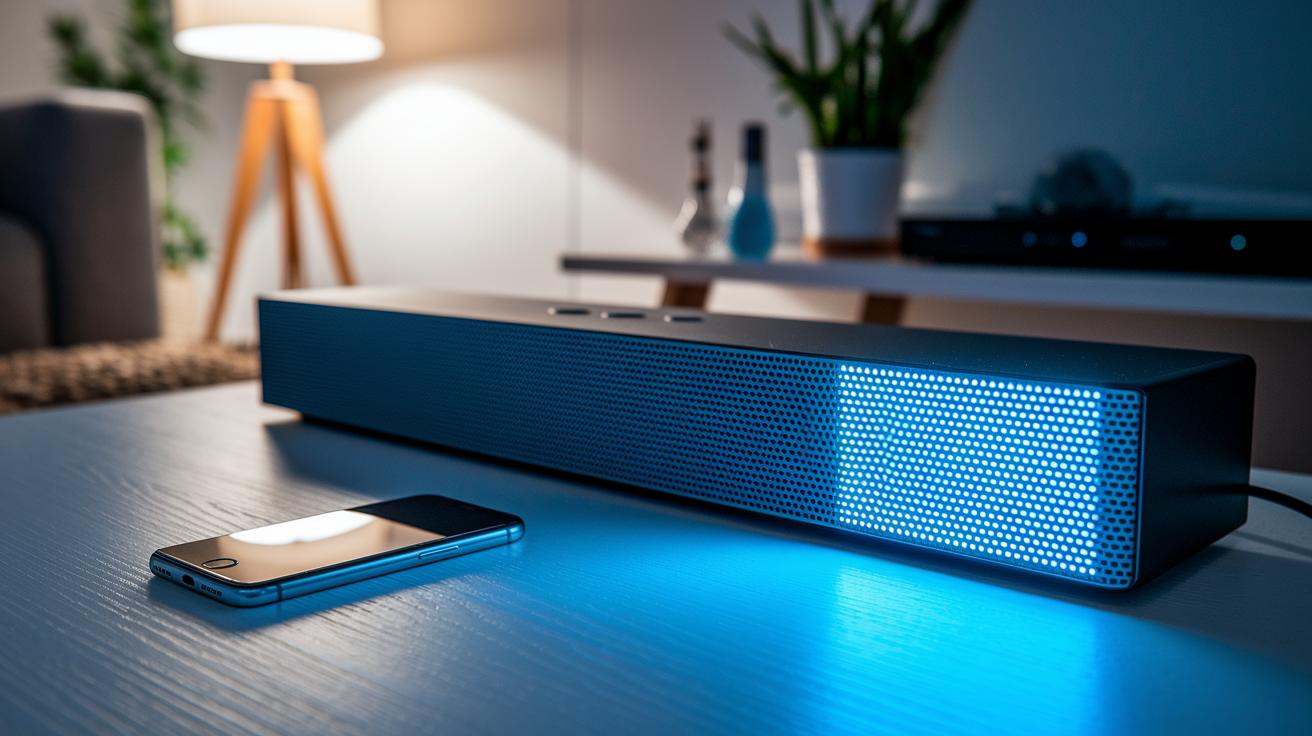
Soundbar users sometimes run into problems with connecting Bluetooth devices or keeping their wireless subwoofer in sync. Often, the soundbar clings to old device listings which stops it from spotting new Bluetooth connections, and the wireless subwoofer might lose touch if it isn’t properly re-synced. These hiccups can interrupt your favorite shows or tunes.
Bluetooth Pairing Troubleshooting
If your Bluetooth isn’t connecting, first double-check that Bluetooth is enabled on your source device. Then, put your soundbar into pairing mode by holding the Bluetooth button until its LED starts blinking. This blinking light means it’s ready to pair. It also helps to remove any old devices from your phone or tablet before trying the connection again.
Re-syncing Your Wireless Subwoofer
When your wireless subwoofer isn’t syncing, unplug it from power and wait a few seconds. Then press the pair button as described in your user guide. Keep an eye on the LED indicator – it should turn a steady light once the subwoofer successfully reconnects with the soundbar.
After you finish these steps for both the Bluetooth connection and the subwoofer, test your setup by playing audio at various volumes. Consistent sound across all levels confirms that your devices are paired and synced, giving you uninterrupted audio playback throughout your space.
Addressing Audio Distortion and Synchronization Delays
Begin by checking every cable that might be causing crackling or distorted sound. Look closely at HDMI cables for any signs of wear, like frayed or bent connectors. If you notice discoloration or damage near the connector, it’s a clear sign you should replace that cable.
Make sure every cable is firmly plugged into its port to prevent any audio dropouts. A loose HDMI cable can lead to intermittent sound and sudden interruptions when streaming. Simply unplug and reinsert the cable securely; you'll likely see a big improvement in audio stability.
If the sound lags behind the video, dive into your TV’s audio settings and adjust the delay or lip-sync options. Making small tweaks here can smoothly realign the audio with the video, fixing those annoying mismatches during your viewing experience.
Remote Control Issues and Performing Factory Resets
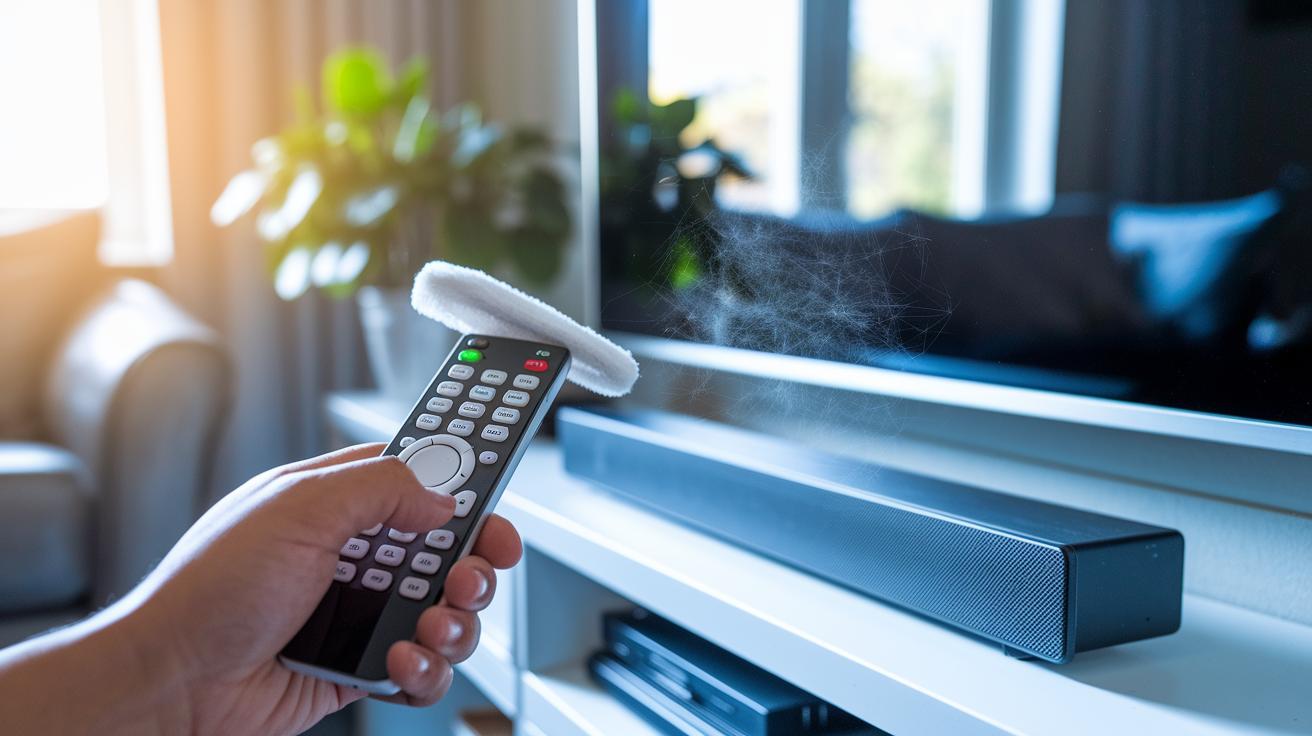
When your remote is acting up, start with the basics. Replace the batteries and wipe down the IR sensor on both the remote and your soundbar. Often, a quick clean-up and fresh batteries can clear up minor issues.
Remote Reset Methods
Before diving into anything complicated, double-check that your remote has new batteries and that nothing is blocking its view of the soundbar. Take a moment to inspect both sensors for any dust or smudges. A simple battery swap and sensor wipe can do wonders.
Performing a Factory Reset
If the remote still isn’t cooperating, try a factory reset through the on-screen settings. Find the reset or initialization option to bring the soundbar back to its original setup. Following the guided prompts will clear out any odd configurations that might be causing problems.
Resetting Without a Remote
Should your remote be completely unresponsive, most soundbar models let you perform a hardware reset. Hold down the Power and Volume Down buttons at the same time for about 10 seconds until you see the indicator light flash. This hands-on method lets you bypass the remote entirely. After any reset, don’t forget to set up your soundbar again and reconnect your devices.
Firmware Updates and Version Conflict Resolution
Begin by opening your soundbar’s settings to check the current firmware version. Head to the system update section to see your version details. This helps you know if your soundbar is using a supported firmware or if an update might resolve a problem you're experiencing.
When it's time to update, download and install the new firmware using either a USB drive or the mobile app that comes with your device. Manufacturers release updates regularly to fix bugs and improve performance. Follow the on-screen steps carefully so the installation goes smoothly and your soundbar keeps running at its best.
If you spot any compatibility warnings or see version conflict messages after updating, take a moment to review the manufacturer’s changelog. This log explains known issues and potential conflicts between versions. It helps you decide if you need to change your settings or just wait for the next update to come out.
Brand-Specific Diagnostics and Error Code Lookup
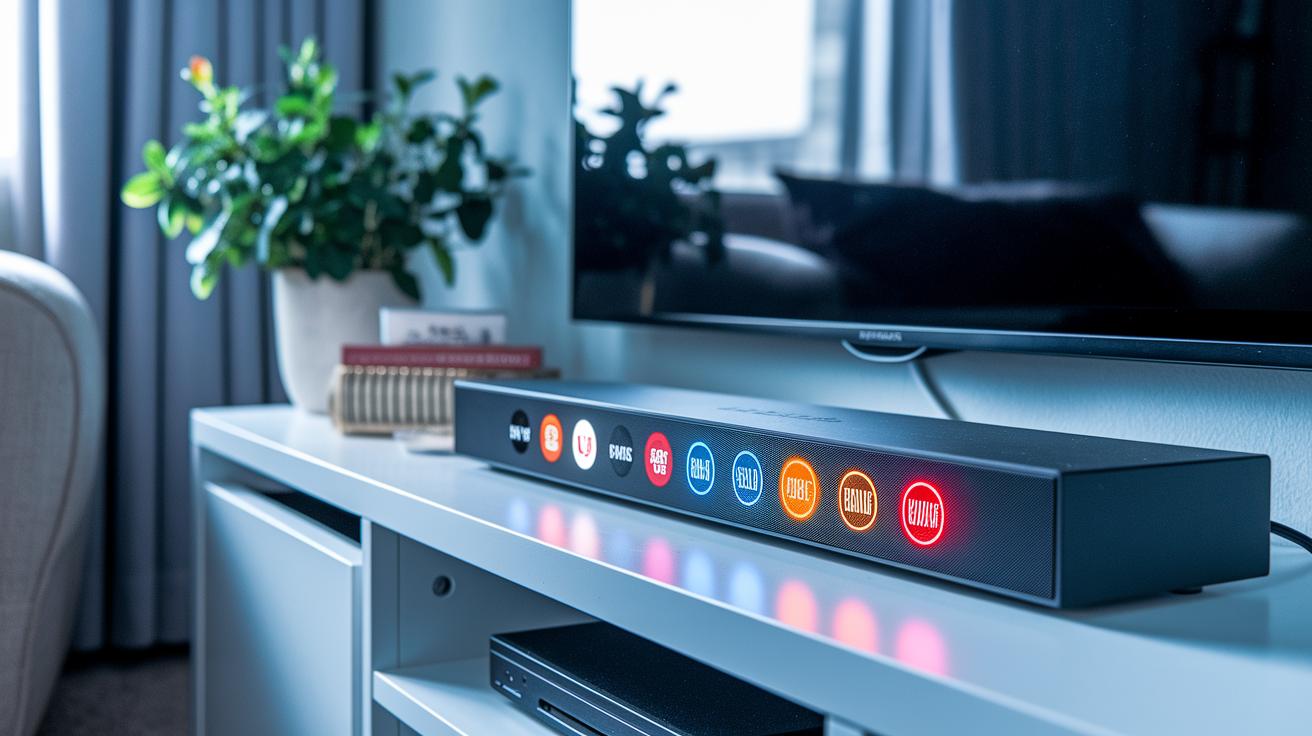
When your soundbar acts up, checking its error codes and light patterns can quickly point you in the right direction. Each brand uses its own signals to highlight issues. For example, Samsung might flash red twice if there’s an HDMI CEC conflict (a setting that lets devices control each other), while Bose shows a blinking blue light when its network connection isn’t stable. Vizio models usually display E13 when the audio format doesn’t match, and LG soundbars blink green if there’s a firmware error. Noticing these clues helps you save time during setup and troubleshooting.
| Brand | Error Code/Indicator | Meaning | Recommended Fix |
|---|---|---|---|
| Samsung | Flashing red (twice) | HDMI CEC conflict | Check the HDMI port and CEC settings |
| Bose | Blinking blue | Network or pairing issue | Restart the network and re-pair devices |
| Vizio | E13 code | Audio format mismatch | Adjust or change the audio format |
| LG | Blinking green | Firmware error | Update the firmware or perform a factory reset |
If your soundbar shows a code or light signal not listed here, check the manual for more detailed diagnostics and repair steps.
Frequently Asked Questions on Soundbar Troubleshooting
This section offers quick steps for common soundbar issues. For full details, check out the relevant troubleshooting guide for each topic.
How do I fix a soundbar that won’t power on?
Make sure the power cable is securely connected and test that the outlet is working properly. For extra help, review the troubleshooting guide on power connections.
Why is the soundbar muted when volume is up?
Double-check that neither the soundbar nor your TV has the mute feature turned on, and verify the volume settings on both devices. For further details, see the troubleshooting guide on mute settings.
What if HDMI ARC isn’t detected?
Confirm that your soundbar is plugged into the TV’s designated HDMI ARC port and that HDMI CEC is enabled in your TV settings. For more information, refer to the troubleshooting guide on HDMI ARC configuration.
How can I pair multiple Bluetooth devices?
Before pairing a new device, remove any previously paired devices to prevent connection conflicts. For a step-by-step process, check the troubleshooting guide on Bluetooth pairing.
When should I update my soundbar firmware?
If you’re experiencing ongoing issues or see a prompt in the settings menu, it might be time for a firmware update. Detailed instructions can be found in the troubleshooting guide on firmware updates.
Can I reset my soundbar without using the remote?
Many soundbar models allow a hardware reset using a specific button combination found in the user guide. For more on this, see the troubleshooting guide on reset methods.
When is it time to contact the manufacturer?
If none of the suggested fixes work, it may be best to reach out directly to the manufacturer for support. For more details, review the troubleshooting guide on contacting support.
Final Words
In the action, we broke down soundbar troubleshooting into simple, bite-sized steps, from verifying power and cable connections to syncing Bluetooth and updating firmware. The guide walked through HDMI ARC alignment, remote reset fixes, and error code insights, giving you a clear, actionable plan. This practical workflow helps prevent redundant tasks and streamlines your troubleshooting process. Follow our soundbar troubleshooting guide to resolve issues efficiently and keep enjoying crisp, uninterrupted sound every day.
FAQ
Q: Why is there no sound coming out of my soundbar?
A: The question about no sound coming out of a soundbar means checking the power status, volume levels, mute settings, and cable connections. Often, the cause is incorrect input selection rather than hardware failure.
Q: What do soundbar troubleshooting codes indicate?
A: The query regarding troubleshooting codes shows that error codes or LED signals can point to issues like HDMI connection faults, audio format mismatches, or firmware glitches. Consult the manual for precise guidance.
Q: How do I handle brand-specific issues for Samsung and Sony soundbars?
A: The question surrounding Samsung and Sony soundbar issues suggests checking for firmware updates, confirming proper input configuration, and looking for error signals such as flashing LEDs to diagnose problems unique to these brands.
Q: How do I troubleshoot Dolby Atmos soundbar issues?
A: The inquiry on Dolby Atmos troubleshooting means verifying that your soundbar’s audio mode is set correctly, using compatible cables, and confirming that your input source supports high-definition audio formats like Dolby Atmos.
Q: Why might my soundbar not work with my iPhone, TV, or computer?
A: The question about a soundbar malfunction on various devices indicates that differing device settings or incompatible connection methods may be at play. Checking each device’s input selection and settings usually resolves the problem.
Q: How do I reset my soundbar?
A: The query on resetting a soundbar means accessing the reset option either via the settings menu or by using a combination of physical buttons, which helps clear glitches by restoring factory defaults.
Q: What are common problems with soundbars?
A: The question about common soundbar issues shows that problems often stem from connection errors, muted settings, wrong input selections, damaged cables, or outdated firmware rather than from internal hardware faults.