
Ever notice your work laptop slowing down over time? A little regular maintenance can do wonders for its speed and overall life. In this post, you'll find simple cleaning tips, tricks to organize your files, and advice on software updates that keep things running smoothly. Think of it like an oil change for your laptop, it keeps everything in top shape. These easy steps not only boost performance but also help you dodge those frustrating slowdowns when your workday gets busy.
Workstation laptop maintenance tips: Boost Performance
Regular upkeep keeps your workstation laptop running smoothly and lasting longer. Try to clean your laptop every few months with compressed air to blow dust off the screen, keyboard, vents, and even inside the device. After a good cleaning, you might even notice your laptop feels cooler during heavy use.
It also helps to get rid of old files and run a defragmentation on hard drives (or a TRIM on SSDs) to reduce clutter and speed things up. We suggest you schedule a monthly cleanup using the built-in tools to scan for and remove junk data.
Keep your antivirus software updated and run regular scans. Think of it as a digital shield that protects your system from malware that could slow things down or mess with your files. Another tip is to disable apps you don’t need at startup. That way, your laptop boots faster and uses fewer resources from the start.
Backing up your important data to an external drive or cloud service is another smart step. It works like a spare key you keep around just in case you ever get locked out. Also, installing operating system and firmware updates as soon as they’re available fixes bugs and reinforces security.
You can even use maintenance tools like Norton Utilities to automate many of these tasks. Simple actions like regular cleaning, keeping updates current, and fine-tuning your software can make a big difference in keeping your workstation laptop at its best.
Effective Dust Elimination and Device Sanitization Routines for Workstation Laptops
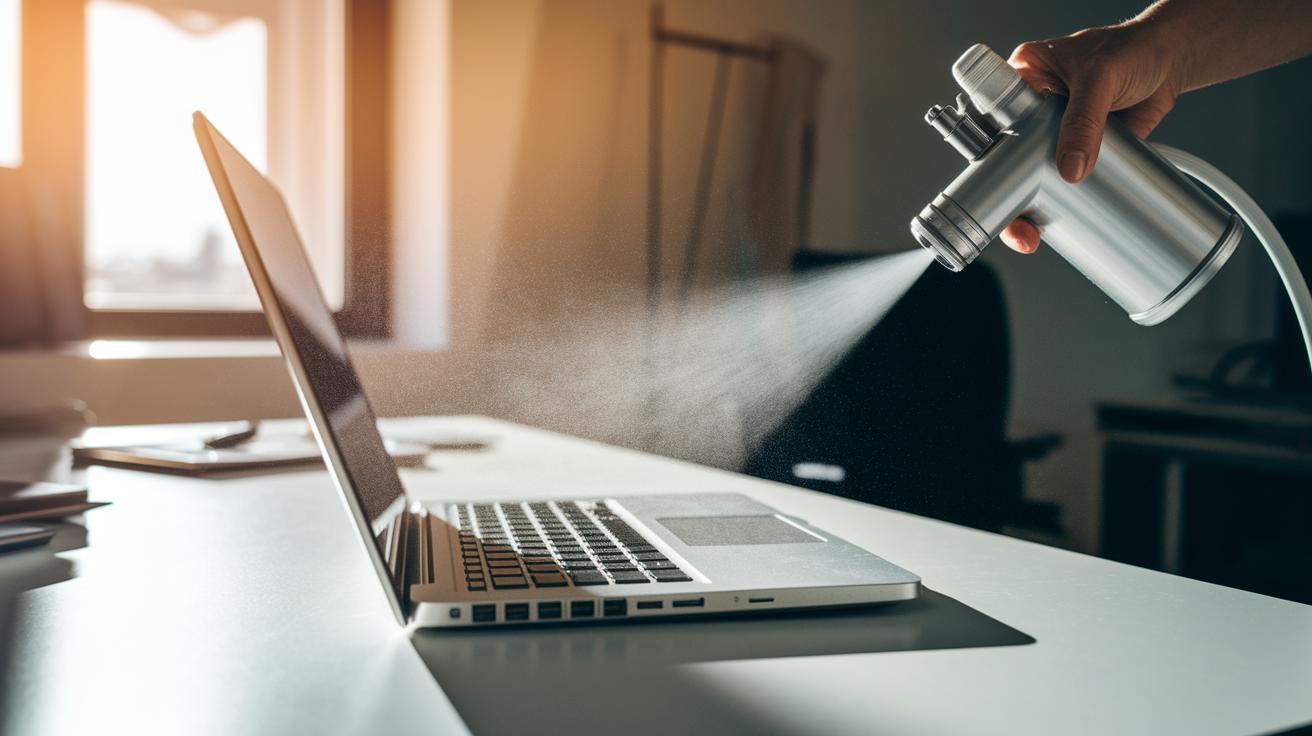
Dust and debris can block air vents and slow down your laptop's performance. When dust builds up, it hinders proper airflow and makes it harder for the device to stay cool during heavy use.
Using compressed air is a simple way to force dust out of vents and fans, keeping your laptop's internals cool. You can also wipe down the keyboard, trackpad, and case with a lint-free cloth lightly dampened with an electronics-safe cleaning solution to clear away sticky residues and grime. Cleaning the screen with a microfiber cloth and a dedicated screen cleaner keeps your display clear and scratch-free.
Cotton swabs dipped in isopropyl alcohol work well for sanitizing ports where dust tends to gather. This approach also helps prevent corrosion by avoiding excess moisture, which can lead to long-term damage. Setting aside some time every few months for these maintenance tasks can make a big difference in preserving performance and extending your laptop’s lifespan.
Steps to clean your workstation laptop thoroughly:
- Keyboard wipe-down
- Screen cleaning
- Vent and fan dust blasting
- Port sanitization
- Chassis exterior wipe
- Trackpad and palm rest disinfection
Be gentle throughout the cleaning process. Use lightly dampened cloths and careful bursts of compressed air to avoid saturating surfaces or forcing moisture into sensitive areas. With these practical routines, your workstation laptop will continue to effectively dissipate heat and resist the wear that dust buildup can cause.
Streamlined System Update Procedures and Security Patch Management
Keeping your workstation laptop running smoothly means staying on top of updates for your operating system, firmware, and drivers. When you install OS updates as they pop up, you get essential fixes and security boosts without extra effort. Setting your device for automatic updates or scheduling a quick weekly check ensures you never miss an important patch.
It's also smart to update your antivirus definitions every day. This small step stops new threats in their tracks, and even one missed day could leave you a bit more vulnerable. Likewise, don't skip your BIOS updates, most manufacturers suggest checking every 6 to 12 months to sort out firmware issues and keep your hardware working well together. Regularly checking for driver upgrades, especially for your GPU, chipset, and peripherals, also goes a long way. Always use signed driver packages to avoid compatibility hiccups and to keep everything stable.
A simple tip: set calendar reminders to review your operating system, BIOS, and driver updates. By keeping on top of these routine checks, you'll make sure all security patches and performance improvements are in place. This way, your workstation laptop stays protected and ready to perform at its best every day.
Battery Efficiency Optimization and Power Consumption Management Tips

If you want your laptop battery to last longer, try capping the charge at around 80%. This simple move helps reduce wear over time. Every few months, let your battery fully drain and then charge it back up to reset the battery meter for accurate readings.
We also recommend using the built-in power profiles. Switch to energy-saving mode for everyday tasks like browsing and editing documents, and save high-performance mode for when you're plugged in.
Adjusting your screen brightness can save even more power. Set it between 40% and 60% based on your surroundings. Close any background apps that aren’t in use because they slowly drain your battery. And unplug idle devices like USB drives and external keyboards, as every connected device uses up some energy, even when not active.
These simple tweaks can give you extra runtime on long trips or busy workdays, keeping your laptop efficient both at home and on the go.
Cooling System Evaluation, Thermal Regulation Practices, and Fan Cleanliness
Keeping your workstation laptop cool is crucial for long‑term performance. Regularly checking your fans, heat sinks, and vents helps stop dust buildup that can block airflow. A quick blast of compressed air on the fans clears away obstructions before they lead to overheating. We recommend inspecting fans and heat sinks every six months and brushing or blowing out vents every few months. Also, reapplying thermal paste on the CPU and GPU every 12 to 18 months keeps heat transfer efficient. Using monitoring tools like HWMonitor or Core Temp can alert you if your laptop starts to throttle during heavy work sessions.
Propping up the back of your laptop or using a cooling pad boosts airflow and reduces stress on internal components. Simple steps like these keep your device running at safe temperatures. Regular cleaning not only extends your laptop's life but also maintains peak performance by preventing wear on vital parts over time.
| Cooling Component | Inspection Frequency | Cleaning Method |
|---|---|---|
| Fans | Every 6 months | Compressed air blast |
| Heat sinks | Every 12 months | Soft brush + air |
| Vents | Quarterly | Vacuum or air |
Using these practical methods keeps your cooling system in check and helps prevent thermal damage.
Hardware Inspection Techniques and Component Care Checklist

Taking a close look inside your device now and then can stop small issues from turning into big headaches. Regular checks help your workstation laptop run smoothly and last longer. By inspecting parts and running simple tests, you can spot loose pieces or wear before they cause problems. We suggest a straightforward routine: start with a visual check and then use built‑in tools to confirm everything is working correctly. This checklist is your guide to keeping key components in top shape.
First, check that all parts are firmly in place. A loose memory stick or a connector that's off can lead to sudden freezes or crashes. Next, give storage connectors a once‑over for any corrosion that might slow down data access. Make sure battery contacts and power jacks are clean so charging stays reliable. Also, inspect display cables to ensure your screen stays clear. Even a tiny bit of dust in speaker grills or microphone ports can hurt sound quality.
| Inspection Step | What to Check |
|---|---|
| RAM Seating | Ensure memory is properly secured |
| SMART Test | Verify storage health |
| Battery & Power Jack | Check for proper charging contacts |
| Display Connection | Confirm cables are intact |
| Built‑In Diagnostics | Run self‑tests to catch hidden issues |
Regular visual and software checks like these help keep your device performing at its best, so you can enjoy smooth and reliable use every day.
Workstation Laptop Maintenance Tips: Boost Performance
Keep your workstation laptop running smoothly by not only handling hardware care but also giving your software a little tune-up. Aside from shutting off unused startup programs and uninstalling apps you no longer use, try these extra steps to give your laptop a boost:
- Clean out temporary files each month with Disk Cleanup to keep things running without a hitch.
- Regularly remove browser caches and cookies to speed up your internet browsing.
- Adjust your virtual memory (page file) based on your available RAM so your laptop can handle multitasking more smoothly.
These software tweaks work hand in hand with typical hardware maintenance like defragmenting old hard drives or using TRIM on SSDs to keep your system responsive.
| Action | Benefit |
|---|---|
| Clear temporary files | Keeps your system nimble by cutting out file clutter |
| Delete browser caches | Speeds up web browsing and prevents slowdowns |
| Adjust virtual memory | Helps manage multitasking by fine-tuning page file settings |
Preventive Service Scheduling and Maintenance Blueprint Development

Keeping your laptop performing well starts with a clear maintenance plan. Begin by setting calendar reminders for regular tasks: schedule a dusting every three months, renew your thermal paste twice a year, and update your software monthly. Recording these tasks in a spreadsheet ensures you never miss a key replacement or tune-up.
Stay informed by subscribing to your device maker’s support alerts. That way, you'll get firmware updates and fixes directly, often before any issues arise.
If you notice your laptop lagging, run through a basic checklist: open Task Manager to spot any runaway apps, check your system's temperature with a monitoring tool, and scan for malware to root out unwanted software. These steps act as the first line of defense against slowdowns.
And if the performance still isn’t up to scratch, consider a professional check-up once a year. A deep clean paired with hardware diagnostics can clear stubborn buildup and catch potential issues early. This structured approach helps keep your workstation running smoothly day in and day out.
Final Words
In the action, we covered cleaning, software tuning, battery care, cooling checks, and hardware inspections. We laid out each step so you can keep your system running reliably every day. Routine upkeep like software updates, dust elimination, and system performance tweaks goes a long way in preserving your device's longevity and speed. Use these workstation laptop maintenance tips to stay on top of upkeep, maximize efficiency, and enjoy a smoother, trouble-free workflow. Stay proactive and enjoy your improved computing experience!
FAQ
Q: What is computer maintenance?
A: Computer maintenance involves regular cleaning, software updates, and routine checks to boost performance, extend hardware life, and protect against malware.
Q: What does a laptop maintenance checklist involve?
A: A laptop maintenance checklist includes cleaning the keyboard, screen, vents, updating the operating system and drivers, scanning for security threats, and backing up important data.
Q: What are the types of computer maintenance?
A: The types of computer maintenance cover preventive tasks like regular cleaning, corrective repairs when issues arise, and adaptive changes such as system updates to keep hardware and software running smoothly.
Q: How can I access a computer maintenance PDF?
A: A computer maintenance PDF typically provides detailed instructions and checklists. You can download these guides from reputable tech websites or directly from manufacturer support pages.
Q: What are ten ways to take care of your computer?
A: Ten practical ways to care for your computer include cleaning hardware, updating software, backing up data, removing clutter, scanning for malware, defragmenting drives, checking battery health, managing startup programs, monitoring temperatures, and scheduling regular maintenance.
Q: What should a monthly computer maintenance checklist include?
A: A monthly computer maintenance checklist usually covers antivirus scans, software updates, temporary file cleanup, hardware connection checks, and data backup verification to ensure smooth performance.
Q: Why is computer maintenance important?
A: Computer maintenance is important because it prevents performance issues, extends the life of your device, secures your data, and helps avoid unexpected breakdowns.