
Ever wonder how your Apple Watch seems to read your mind? It's all thanks to Smart Stack. Smart Stack organizes your go-to widgets so that important updates, like the latest weather or transit details, appear right when you need them. It adjusts based on your routine, time of day, and location, making your everyday tasks simpler and more intuitive.
Smart Stack on Apple Watch: Definition and Benefits

Smart Stack on Apple Watch bundles several widgets so you can quickly check important info just by raising your wrist. It puts updates from different apps in one easy spot, so you won't need to open each app one by one.
This feature automatically reorders your widgets based on how you use your watch, the time of day, your location, and even your activity. For example, if you frequently check the weather in the morning or need transit details during your commute, the Smart Stack will bring the most useful widget to the top. Plus, with Live Activities enabled, you get real-time updates like food delivery progress or sports scores, which keeps time-sensitive information right at your fingertips.
First introduced in watchOS 10, Smart Stack made it simple to view key information on your watch face without hopping through multiple screens. Then, in September 2024, watchOS 11 took it a step further by adding support for popular apps such as Shazam and Photos while also prioritizing location-based and time-sensitive updates for a truly personalized experience.
This clever grouping method also integrates settings for activities like health tracking and calendar events. The widgets adjust automatically to fit your daily routine, meaning you'll always have the information you need exactly when you need it.
Surprisingly, one user saw their Smart Stack rearrange itself to display transit updates just as they were about to leave for work, helping them save valuable time.
Accessing and Navigating Smart Stack on Apple Watch

To check your Smart Stack, simply press the Digital Crown to go back to the watch face. From there, swipe up from the bottom or use the Digital Crown to scroll until the stack appears. This design keeps it quick and easy to see all your key info with just a few wrist movements.
If you have an Apple Watch Series 9–11 or an Ultra 2/3, there’s an even faster trick. Give a double tap, and you can cycle through your widgets without any scrolling. This hands-free method works great when you're on the move or in a hurry. You can keep scrolling or tapping until you see what you need. When you're done, just press the Digital Crown again to go back. These simple gestures make the Smart Stack both practical and user-friendly, fitting smoothly into your everyday routine.
What is Smart Stack on Apple Watch: Amazing

Customize your Smart Stack so it only shows what matters most to you. With a few simple steps, you can add, remove, pin, and rearrange widgets to match your daily needs.
-
Add widgets
Open the Watch app on your iPhone or head to Settings then Smart Stack on your watch. Tap "Add Widget" to bring in new options. If you rely on your calendar, for instance, adding that widget keeps your schedule right at hand. -
Remove widgets
If a widget stops being useful, tap "Edit" in your Smart Stack view. Then tap the red minus next to the widget you want gone. This clears space for the features you actually use. -
Pin widgets
To keep favorite widgets fixed in place, press and hold one until it wiggles. Then tap the yellow pin icon so it stays on top. For example, pin your weather widget so you always see the forecast first thing in the morning. -
Reorder widgets manually
To set up your stack just the way you like it, press and hold a widget and drag it up or down to the perfect spot. Hit the Digital Crown to lock in your changes. This way, related tools , like music controls near your activity rings , are just a tap away. -
Customize the final position
Normally, the last spot shows the app launcher (for Music, Workouts, or Messages). You can swap this for any favorite app so everything feels truly personal.
Live Activities and Dynamic Rotation in Smart Stack on Apple Watch
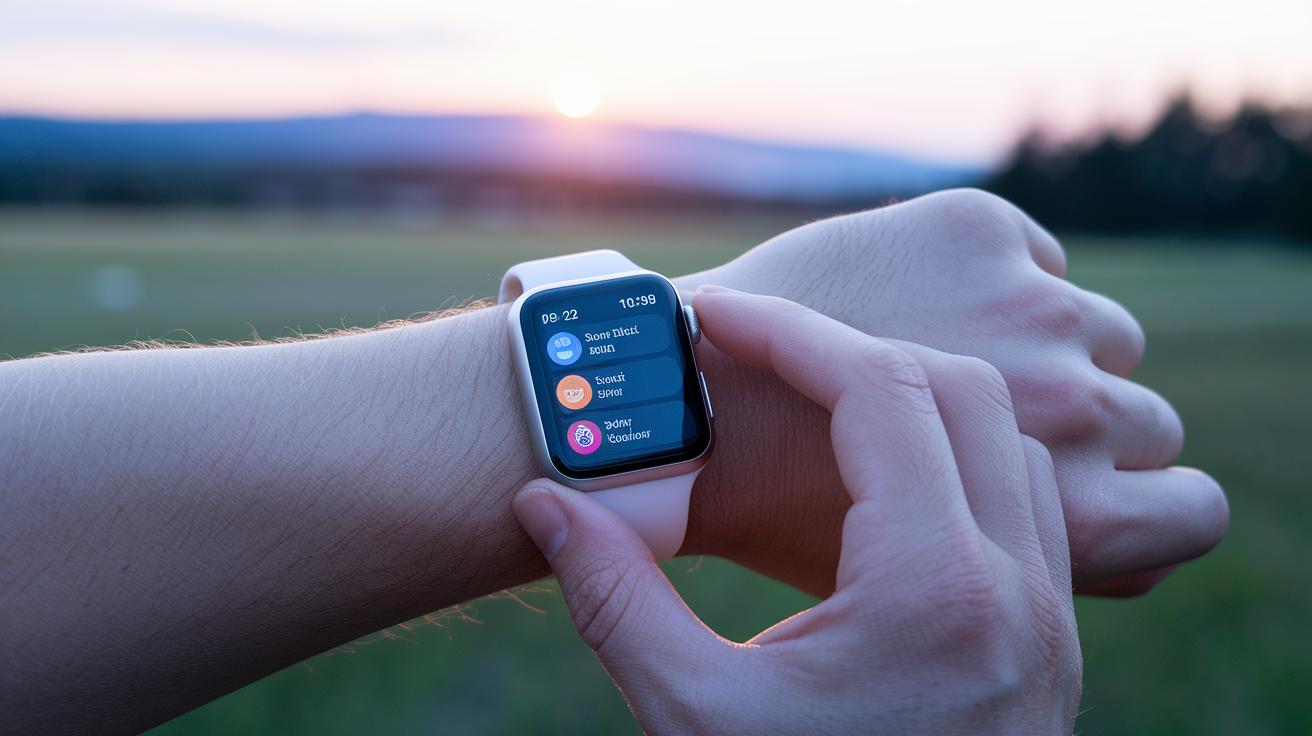
Smart Stack brings live updates from apps like delivery services and sports trackers directly to your Apple Watch. It looks at factors such as time, location, and what you're doing to decide which widget lands on top. When you're on the move, the transit departures widget might jump to the front, imagine your bus schedules showing up right when you need them.
With watchOS 11, the system keeps an eye on your calendar and surroundings to rearrange your widgets on the fly. That means you'll get timely updates like live sports scores or the latest on your food delivery progress.
Smart Stack Evolution in watchOS Updates on Apple Watch
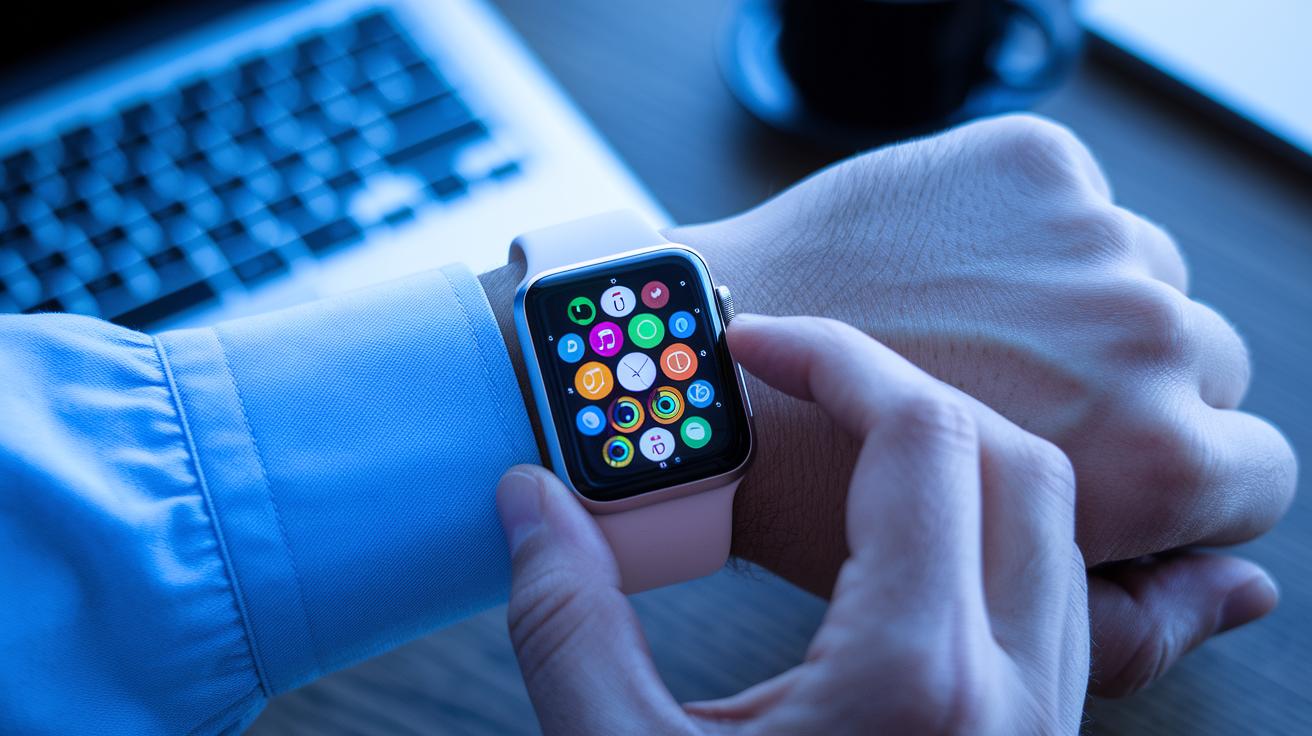
Apple introduced Smart Stack in watchOS 10 (September 2023) to let you group easy-to-read widgets on your Apple Watch. With watchOS 11 (September 2024), they brought in support for apps like Shazam and Photos. They also tweaked the widget system so that alerts and location-based updates show up first.
These changes come with faster performance and smarter power use. Widgets now load quicker on Apple Watch Series 9, 10, 11 and Ultra 2/3, which makes your watch feel snappy while helping to save battery life.
Troubleshooting Smart Stack on Apple Watch
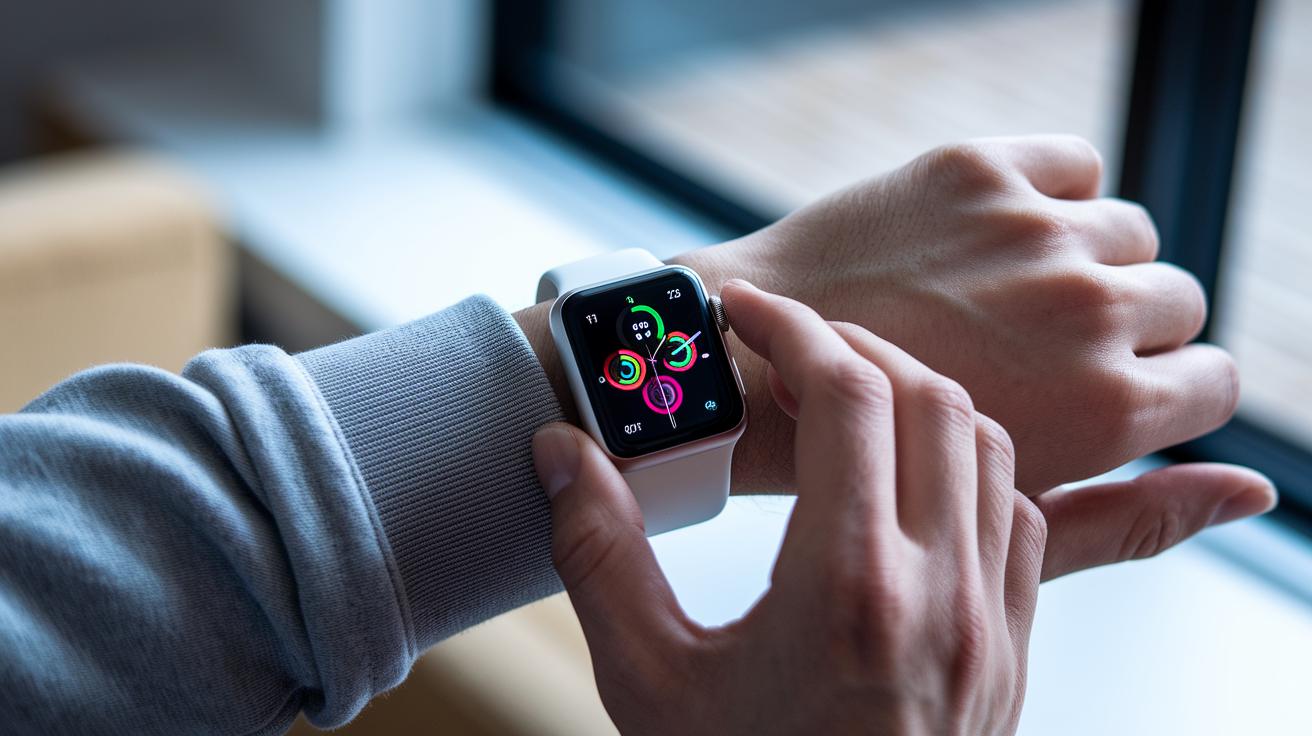
Sometimes your Smart Stack on the Apple Watch doesn't work as it should. You might notice that widgets won't rotate or they show outdated information. In this case, try a quick fix by force‑restarting your watch. Just press and hold both the side button and the Digital Crown for about 10 seconds. This simple reset often clears up any temporary glitches affecting live updates.
If problems persist, consider resetting the Smart Stack feature itself. Open Settings on your Apple Watch, find the Smart Stack option, and toggle it off and then back on. This refresh can resolve issues like incorrect widget rotation or delayed data.
If you encounter issues with auto‑launch, there might be conflicting widgets messing with the order. Try removing and then re‑adding the troublesome widget. If that doesn't work, reinstalling the related app could help. If the order remains erratic, you can always manually pin your favorite widgets and rearrange them as needed.
Here's a quick checklist to follow:
- Force‑restart your Apple Watch
- Toggle Smart Stack off and on in Settings
- Remove and re‑add any problematic widgets
- Manually pin and rearrange key widgets
By following these steps, you should see smoother performance from your Smart Stack throughout the day. And remember to keep your watch updated for the best experience.
Best Practices for Smart Stack on Apple Watch
Apple Watch’s Smart Stack makes it easy to keep your favorite widgets right where you need them. You can pin your top widget, group similar apps together, and even replace the default app launcher with the one you use the most.
It’s a good idea to check your Smart Stack each week. This way, you can remove old widgets and reorder the stack to match your current routines. For example, you might find that you no longer need the calendar widget and that a health app would work better for your daily interface needs.
- Review and adjust your widget lineup weekly
- Remove unused widgets and simplify your shortcuts
Final Words
In the action, we explored Smart Stack on Apple Watch, breaking down its key benefits, setup process, customization tips, and troubleshooting steps. We looked at how this feature rotates widgets dynamically based on usage and real-time updates. It also clarified how you can fine-tune and reorder your display for quick access. The article offered hands-on insights and practical advice on what is smart stack on apple watch, ensuring you get the best out of your wearable. Enjoy personalizing your watch for an efficient and satisfying experience.
FAQ
Q: What are Apple Watch Smart Stack settings?
A: Apple Watch Smart Stack settings allow you to customize, add, remove, and rearrange widgets. You can access these options via the Watch app on your iPhone or directly on your Apple Watch.
Q: How do you use Smart Stack on Apple Watch?
A: Using Smart Stack on Apple Watch means swiping up from your watch face or scrolling with the Digital Crown to cycle through widgets. On newer models, a double-tap gesture enables hands-free switching.
Q: How does Apple Watch Smart Stack order work?
A: Apple Watch Smart Stack order lets you manually drag and reposition widgets. Press and hold a widget to move it and pin your favorites to lock them in place for consistent display.
Q: What are Apple Watch Smart Stack Live Activities?
A: Apple Watch Smart Stack Live Activities provide real-time updates like delivery progress or sports scores. They automatically adjust based on time, location, and your activity for timely information.
Q: What should you do if your Apple Watch Smart Stack is not working?
A: If your Smart Stack isn’t working, try force-restarting the watch or toggle the feature off and on in settings. Removing and re-adding problematic widgets may also resolve the issue.
Q: How do you add widgets to Smart Stack on Apple Watch?
A: To add widgets, open the Watch app on your iPhone or go to Settings > Smart Stack on your watch, then tap “Add Widget” to incorporate additional elements into your stack.
Q: How can you disable Smart Stack on Apple Watch?
A: You can disable Smart Stack by toggling off the feature in your watch settings. This stops the display of stacked widgets and reverts your watch face to its standard configuration.
Q: What is the Apple Watch Smart Stack digital clock?
A: The Apple Watch Smart Stack digital clock integrates time display with stacked widgets, allowing you to check the time quickly while accessing glanceable app information.
Q: Can Smart Stack drain your battery?
A: Smart Stack is designed for energy efficiency. It updates only necessary widgets periodically, meaning it does not significantly drain your battery during regular use.
Q: Will the Apple Watch call 911 if your heart stops?
A: The Apple Watch does not automatically call 911 if your heart stops. It can alert your emergency contacts after detecting abnormal heart rates, but it requires manual confirmation for an emergency call.