
Setting up your hybrid watch is as easy as charging, pairing, and adjusting a few simple settings. Start by plugging in your watch to charge, then download its app from your device's app store. Once installed, open the app and follow the on-screen prompts to connect via Bluetooth. Next, choose your preferred display settings and enable notifications to stay in tune. In just a few quick steps, you'll be ready to enjoy the perfect mix of digital convenience and classic analog style.
Quick Setup Overview for Hybrid Watch
Start by charging your hybrid watch for at least 2 hours so the battery is ready for use. Next, download and install the companion app from your device's app store, whether you're using iOS or Android. Make sure your smartphone’s Bluetooth is on before continuing. Then, sign in or create your new watch account.
Let the app scan for your watch and confirm it using the PIN that appears. You'll then have the option to choose either a 12-hour or 24-hour display and set your local time zone. Once that's done, use the calibration tool within the app to align the analog hands correctly. Finally, turn on notifications so you never miss a call, message, or calendar update.
Keep reading below for more detailed instructions, visuals, and tips to help with any troubleshooting along the way.
Installing and Configuring the Hybrid Watch Companion App
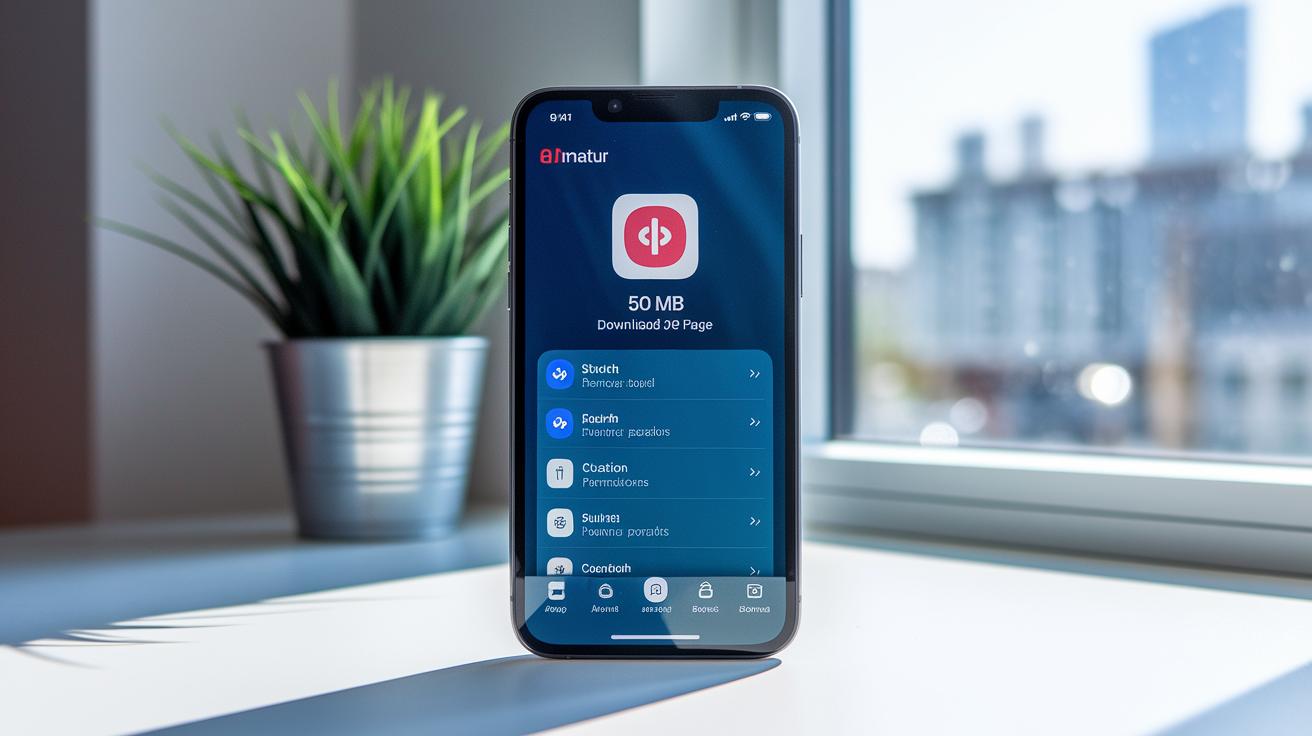
You can use the app on any device running iOS 11 or later and Android 6 or higher, meaning nearly every modern smartphone will work. Start by finding the app on your device’s App Store or Google Play Store. It takes up about 50 MB and downloads without any hassle. During installation, the app asks for Bluetooth and location permissions. Grant these so the app can properly connect and configure your hybrid watch.
Once the download is complete, open the app and either create a new account or log in if you already have one. You will need to enter your email and then verify it using a code sent to you. Keeping Bluetooth and location enabled at this point is crucial for the app to detect your watch.
After your account is verified, simply follow the instructions in the app to link your account to your hybrid watch. This final step syncs your settings between the watch and the app, giving you a seamless digital-analog experience.
Pairing Your Hybrid Watch via Bluetooth with Your Smartphone
Before you start, make sure your phone supports Bluetooth 4.0 or above. This version is needed to keep the connection steady during pairing.
Next, open the companion app and head to the pairing menu. Tap the Add Device button and choose your watch model from the list. The app will show a PIN that should match the one on your watch. When they match, tap to start the pairing process. The app will then walk you through a few more steps to connect your watch and phone securely. This ensures both devices communicate well and prepares your watch for further setup.
Once you're done, check that the connection worked. You can do this by looking at the last sync time in the app and confirming that the analog hands on the watch move in sync with the digital display. This visual sign, along with the updated sync info, means your devices are paired correctly.
Customizing Hybrid Watch Settings and Activating Features
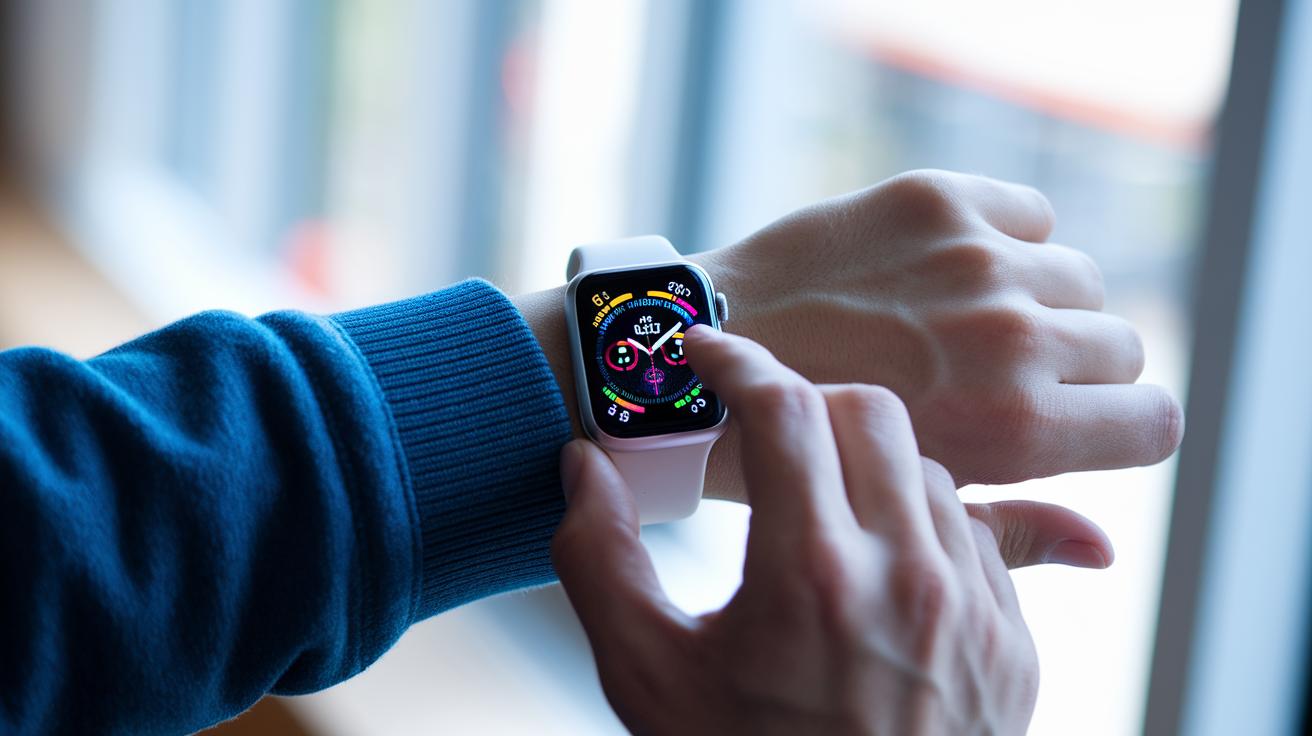
Tap the gear icon on your watch’s main screen to quickly open the Settings tab. From there, you can easily adjust notifications and other personal features with just a few taps.
Once in Settings, head over to the display options. You can choose from five distinct watch faces. Each one is designed with its own unique style, whether you prefer a digital display or a traditional analog look. You even have the option to mix both styles for a classic hybrid feel. Adjust the screen brightness easily with three levels – low, medium, and high – so your watch looks great in any lighting. It’s a bit like fine-tuning the volume on your favorite song, setting it exactly right for your surroundings.
Keep scrolling to find the notification settings. Here you can turn alerts for calls, text messages, calendar events, and activity tracking on or off one by one. You can also set the vibration intensity to low, medium, or high to match your day. For example, a gentle buzz might be perfect during meetings, while a stronger vibration ensures you catch every important update when you’re out and about.
Calibrating Analog Functions for Accurate Timekeeping
Calibrating your hybrid watch is a must to ensure the analog hands match what you see in the digital display. This process keeps your watch accurate throughout the day, whether you're at work, home, or on the move. Think of it like tuning your instrument so it plays perfectly when you need it most.
To get started, pull the crown out one click to enter adjustment mode. Gently rotate the crown until the analog hands perfectly mirror the digital time shown on your device. When they line up, push the crown back in to lock your settings. Lastly, open the companion app and use the calibration tool to make sure both the analog face and digital reading are fully synced.
Troubleshooting Setup Errors and Applying Firmware Updates

If your hybrid watch is having trouble connecting to your phone, try hanging close, about 10 ft away, to cut down on interference. Next, flip your phone’s Bluetooth off and on again to give the connection a fresh start. Make sure the companion app has all the needed permissions, particularly for location and Bluetooth. Sometimes, a simple toggle can clear up the issue.
One user mentioned that turning Bluetooth off and back on immediately helped with pairing, so it’s worth a try. If that doesn’t work, relaunch the app or restart your phone to boot out any temporary bugs.
Still no luck? Open the companion app, head to the "About Watch" section, and tap "Check for Update" to see if there’s a firmware update available. Installing any new firmware can boost performance and fix known bugs.
If you still run into persistent errors after updating, try a factory reset using the app’s configuration reset option. This will return your watch to its default settings, so be sure to note your personal settings beforehand, they’ll be wiped out during the process.
Final Words
In the action, this guide walks you through charging your hybrid watch, downloading the companion app, and pairing it with your smartphone. We covered account setup, selecting time formats, calibrating analog hands, and activating notifications.
The post breaks down each step into a clear numbered list and detailed sub-guides, making it easy to follow. It wraps up with troubleshooting tips and firmware update steps. Enjoy getting the most out of your device and remember the guide on how to set up a hybrid watch for smooth everyday use.
FAQ
How to set up a hybrid watch on iPhone?
Setting up a hybrid watch on iPhone means starting with a full charge, then downloading the companion app from the App Store (iOS 11+), enabling Bluetooth, and following the in-app steps to pair using a PIN.
How to set up a hybrid watch on Samsung?
Setting up a hybrid watch on Samsung includes charging the device, installing the companion app from the Play Store (Android 6+), turning on Bluetooth, and then following the in-app steps which involve scanning and confirming the watch’s PIN.
How to connect a Fossil watch to an Android phone?
Connecting your Fossil watch to an Android phone involves downloading the Fossil companion app, enabling Bluetooth, creating or signing in to your account, and confirming the pairing via a provided PIN in the app.
How to set up a Fossil Hybrid smartwatch, including Gen 6 models?
Setting up a Fossil Hybrid smartwatch, including Gen 6, starts with charging the watch, installing the Fossil companion app, turning on Bluetooth, and then pairing the device by confirming the watch’s PIN followed by configuring time and notification settings.
How to put my smartwatch into pairing mode?
Putting your smartwatch into pairing mode typically means accessing the pairing menu in the companion app, then selecting ‘Add Device’ or pressing a specific button on the watch to enable a visible pairing signal for direct connection.
How to connect a hybrid watch?
Connecting a hybrid watch requires first charging the device, then activating Bluetooth on your phone and using the companion app to scan for and verify the watch’s unique PIN, ensuring a secure pairing between devices.
How to reset a Citizen hybrid watch?
Resetting a Citizen hybrid watch involves following the specific reset instructions in the user guide, which usually requires holding designated buttons until the display resets and the device restarts its system.