
Ever been frustrated when your laptop can't keep up with your heavy projects? Picking the right workstation isn't just about a sleek design, it means getting a machine that delivers solid performance and reliability. When you're handling tasks like video editing, data analysis, or design work, you need a computer that stays steady under pressure. Look for one with a fast CPU (the main chip that runs your apps), strong graphics for smooth visuals, plenty of memory to keep multitasking effortless, and fast storage to quickly load your files. With these key features, you can boost your workflow and tackle demanding tasks without a hitch.
Essential Factors When Choosing a Workstation Laptop
When picking a workstation laptop, you need a machine that keeps up with intense tasks. If you use creative software, simulation programs, or data analysis tools, any lag or crash can cost you precious time and make you miss deadlines. A laptop that runs strong through long sessions earns your trust for delivering business-grade performance, even when multitasking.
Focus on the main parts that power a workstation. Look at the CPU for multi-core speed, the GPU for clear and precise rendering, plenty of RAM for big files, and fast storage to get you booted up and working quickly. For those in creative fields, a top-notch display with accurate colors and robust brightness makes a big difference. Finally, reliable build quality, effective cooling, and smart portability ensure the laptop stays dependable no matter your work setting.
Each of these elements plays a vital role in your daily workflow. A fast processor paired with ample memory keeps heavy applications like CAD or video editing software running smoothly. Meanwhile, a dedicated GPU speeds up graphics tasks and quick storage slashes waiting times. By zeroing in on these performance markers and specs, you can choose a workstation laptop that not only meets but exceeds the demanding needs of professional work.
CPU and Multi-Core Processing Advantages for Workstation Laptops
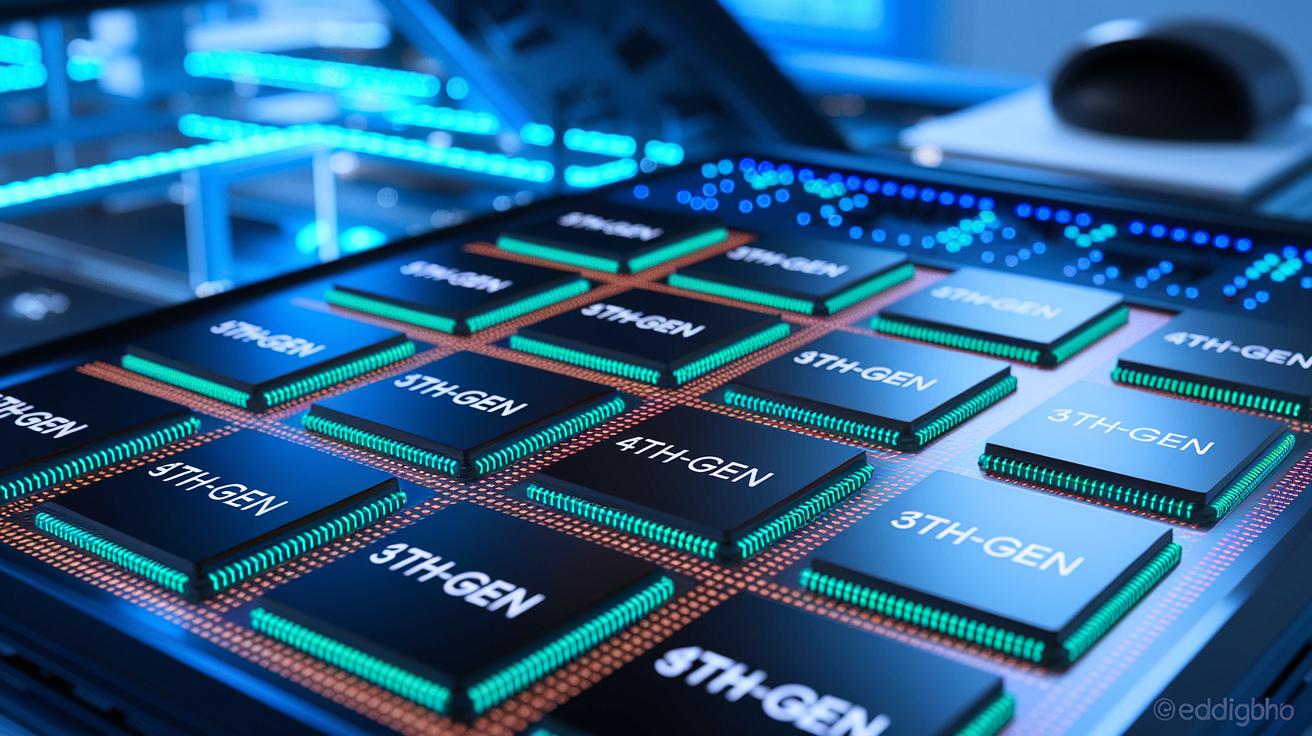
When you select a processor, it's important to balance the number of cores with the clock speed. More cores let your laptop run several tasks at once, like rendering and simulation, without slowing down. But if your work needs individual tasks done very quickly, a higher clock speed really comes in handy.
Different generations of CPUs also make a big difference. Today's workstation laptops offer chips from 4th-Gen to 13th-Gen. For instance, SINSMART rugged laptops use 12th-Gen Intel Core i5/i7 processors that improve both efficiency and multitasking. Tests show that newer CPUs use power better and handle multiple tasks smoother, even under heavy workloads.
When picking a CPU, think about what matters most in your day-to-day work. If you do simulation or 3D rendering, a processor with extra cores is smart. But if your software works best with fast, one-by-one processing, you're better off choosing a chip with a higher clock speed.
Advanced Graphics Options in Workstation Laptops
Graphics processing units power the visuals in workstation laptops. They take care of everything from drawing detailed CAD models to handling smooth video editing and 3D animations. While integrated graphics (built into the main processor) do the trick for everyday tasks and light creative work, dedicated graphics cards come with their own memory and stronger chipsets to handle tough simulations and detailed modeling.
When you're shopping for a GPU, pay close attention to VRAM size and chipset design. More VRAM means the GPU can work with larger textures and higher resolutions without slowing down. Workstation laptops that use dedicated GPUs, like NVIDIA Quadro or AMD Radeon Pro, usually perform better because they have specialized memory and optimized architectures. This setup keeps heavy rendering and real-time visual effects running seamlessly, something integrated options might struggle with since they share system memory.
It’s important to match the GPU to your workload. If you're only doing office tasks and basic editing, integrated graphics should suffice. For those engaged in CAD tasks or moderate 3D modeling, an entry-level dedicated GPU can make a difference. Professionals who focus on high-end video editing or rendering will likely need a high-end dedicated GPU to maintain efficiency and reliability.
| GPU Type | Best Use Case | Recommended VRAM |
|---|---|---|
| Integrated | Everyday tasks and light editing | Shared memory |
| Entry-level Dedicated | CAD and basic 3D modeling | 2-4 GB |
| High-end Dedicated | Advanced rendering and video editing | 6 GB+ |
Comparing RAM Capacities and Memory Performance Optimization
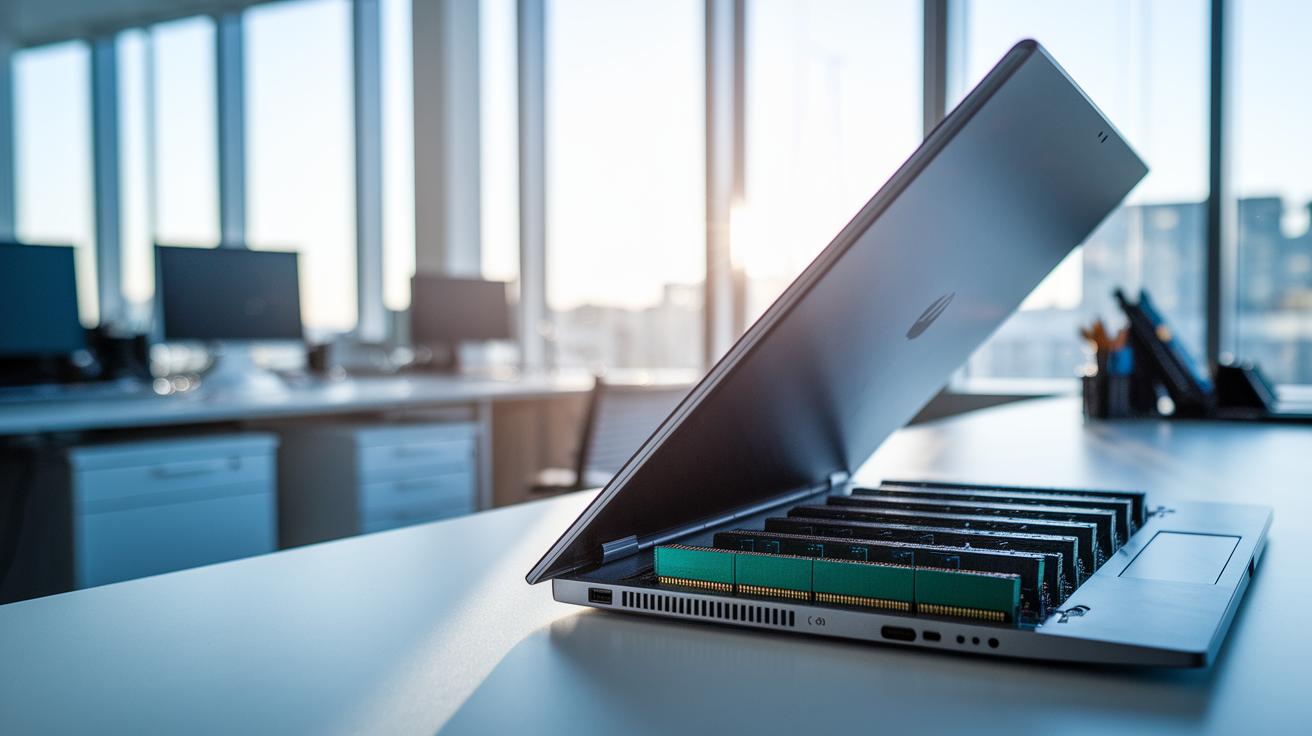
When you're using workstation laptops, RAM is the backbone of smooth performance. More memory means your system doesn't have to constantly move data between the storage drive and its active workspace, making multitasking easier. Whether you're handling multiple office applications or running heavy simulation software, your chosen RAM capacity has a direct impact on how swiftly and reliably your machine runs.
Some industrial-grade models pack up to 32GB of RAM, while most standard workstations come with 16GB, and entry-level options start at 8GB.
| RAM Configuration | Ideal For |
|---|---|
| 8GB | Everyday office tasks |
| 16GB | Moderate CAD or video editing |
| 32GB+ | Heavy simulations and deep-learning applications |
Matching your RAM to your workload keeps your system responsive, even during demanding tasks. For basic everyday applications, 8GB is usually enough. More creative or technical work benefits from 16GB, ensuring smoother data handling. And if you're running heavy simulations or deep-learning tasks, investing in 32GB or more will help keep your computer performing at its best all day long.
Storage Technology Considerations: SSD Versus HDD
Modern workstations need speedy storage to shorten startup times and launch apps quickly. NVMe SSDs hit boot times in under 10 seconds thanks to their direct connection to PCIe, which boosts data transfer speeds a lot. SATA SSDs aren’t as fast as NVMe drives, but they still reach speeds around 550 MB/s, making them a solid choice for most work tasks. By comparison, HDDs usually only reach speeds of 100–200 MB/s. They may be slower, but they cost less per gigabyte, so you can store heaps of data without spending too much.
When picking storage, you’ll want to consider cost per GB, how long the drive lasts, and options for backing up your data. NVMe SSDs come with a higher price tag, but they can help prevent slowdowns when you're multitasking or managing lots of files. For many setups, pairing a fast SSD for your active projects with an HDD for bulk storage hits the sweet spot. Plus, using RAID configurations can add an extra layer of protection by keeping your files safe even if something goes wrong.
Display Quality Analysis and Color Accuracy for Workstation Laptops
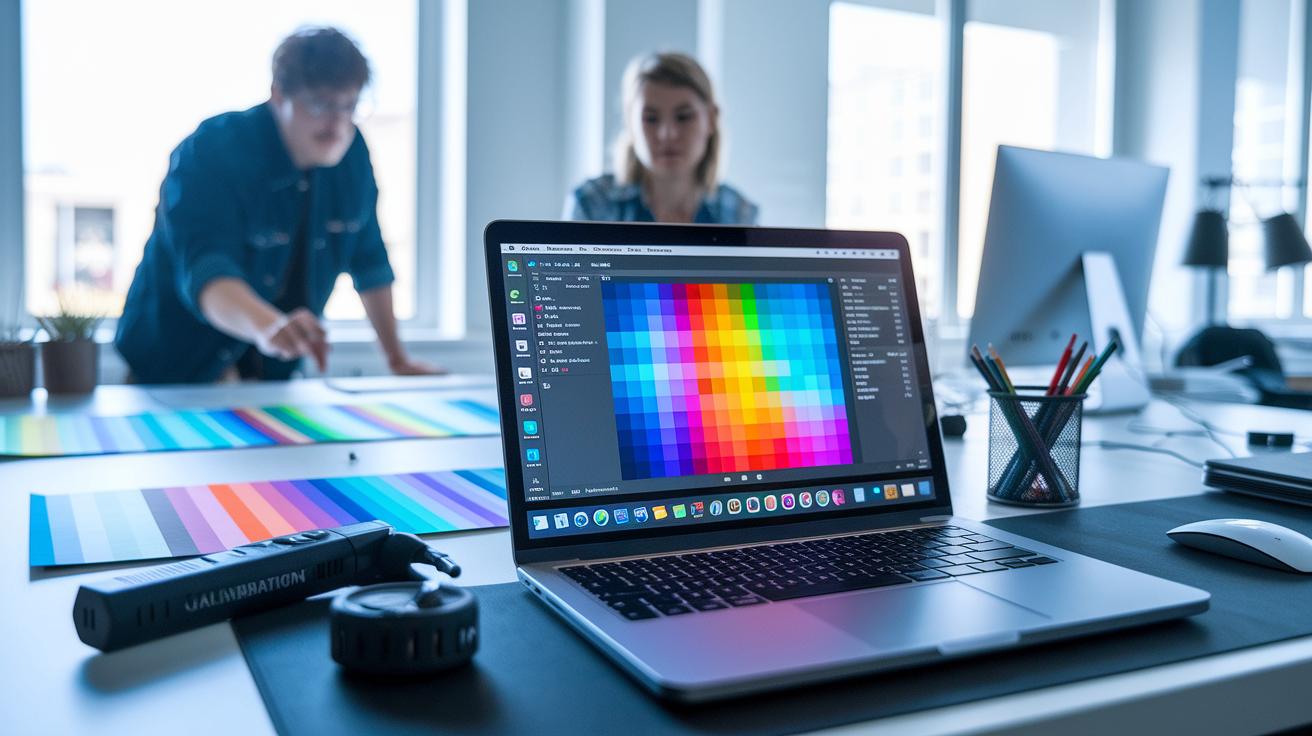
When you work on detailed projects from a laptop, a clear and lively screen makes all the difference. A high resolution, ranging from 1920×1080 up to 3840×2160, ensures that every line and color is crisp and easy to see. Plus, displays that can reach up to 1,000 nits of brightness help you work comfortably even when the room is very bright.
Getting the colors right is just as important. When a display covers 72% to 100% of popular color ranges like Adobe RGB or sRGB, your work comes out vivid and true-to-life. With proper calibration, these screens keep colors consistent so that every detail in your design or technical plan is spot on.
The type of panel also matters. For example, IPS panels offer wide viewing angles and consistent color performance, making your work look great no matter where you sit. Below is a simple table that breaks down common display specifications:
| Resolution | Brightness (nits) | Color Gamut |
|---|---|---|
| Full HD | 300-600 | 72-85% sRGB |
| QHD | 600-800 | 85-95% sRGB or Adobe RGB |
| 4K | 800-1000 | 95-100% Adobe RGB/sRGB |
Device Reliability: Build Quality, Cooling, and Certification
Build Quality Assessment
When choosing a workstation laptop, strength is key. A solid build keeps the inner parts safe and can handle accidental drops. Many rugged models pass MIL-STD-810H drop tests to prove they can take falls. An IP65 rating also shows the laptop is shielded from dust and water splashes. These features matter for anyone who works in tough environments every day.
Cooling System Efficiency
Good cooling is just as important for keeping performance steady under heavy use. Some laptops use a fanless design where heat pipes quietly move heat away, keeping noise below 40 dB. Others rely on fans that quickly cut down internal temperatures during heavy tasks like CAD work or video editing. Both methods help keep the laptop running smoothly when you need it most.
Certification Standards
Certifications also tell you a lot about a laptop's long-term reliability. ISV certifications ensure the device works well with professional software like simulation programs and video editors. MIL-STD-810H shows the laptop is built for extreme conditions, and the IP65 rating confirms its resistance to dust and splashes. Together, these marks prove the laptop is ready for rigorous, everyday work.
Balancing Portability and Power: Battery and Mobility Features

A workstation laptop needs a battery that can handle your daily workload. Many industrial models run between 6 and 12 hours on mixed tasks, and some even let you swap out the battery on the fly. That means you can keep working through long meetings, on-site jobs, or design sessions without waiting around for a charge.
The laptop’s weight and design are just as important. Depending on its build and battery size, these machines can weigh anywhere from 1.8 kg to 3.5 kg. A lighter laptop makes commuting and travel easier, while a bulkier one might be built tougher for heavy use. The goal is a design that keeps you comfortable for long hours without sacrificing performance.
Modern connectivity features add another layer of convenience. With ports like Thunderbolt and 5G Wi‑Fi, you can move files quickly and enjoy fast internet no matter where you are. These features help ensure that your workstation laptop stays efficient and adapts well to your busy, on-the-go lifestyle.
Budget Research and Cost-Benefit Analysis for Workstation Laptops
Workstation laptops come in a variety of price ranges, and your budget can affect both performance and durability. Entry-level models usually start around $1,500 and offer the basics you need for everyday office tasks and light creative work. Mid-range systems, costing between $1,500 and $2,500, deliver a balanced mix of solid processing power, improved build quality, and reliable performance for more demanding applications. For those who need a machine that can handle tough conditions, premium options can cost over $3,000 and often include features like IP65 and MIL-STD certifications, enhanced displays, and faster connectivity.
When you’re watching your budget, it helps to zero in on the features that matter most to you. Focus on a dependable CPU, enough RAM for smooth multitasking, and a high-quality display to get precise visuals. In other words, weigh what you pay against the performance you receive, and choose features that offer room to grow and ensure your laptop stands strong over the years.
Upgrade Potential and Long-Term Maintenance Strategy for Workstation Laptops

Keeping your workstation laptop up-to-date is easier when you can swap or upgrade parts on your own. Many models offer simple access panels that let you add more RAM or storage if you need extra speed or space. Some even include an extra M.2 slot for SSDs, which means you can boost performance without buying a brand new machine. This approach helps your laptop keep pace as your work demands grow.
Staying current with software updates is just as important. Regular BIOS updates keep drivers stable and your laptop compatible with the latest operating systems. Plus, reliable vendor support means you get timely fixes and clear instructions for improvements, ensuring your workstation stays both strong and efficient for years to come.
Final Words
In the action, we broke down the essentials of performance and reliability, detailing CPU strengths, advanced graphics, memory, storage speed, display clarity, build quality, battery life, cost trade-offs, and upgrade potential.
Our guide shows how every component impacts daily professional workflows. For anyone wondering how to choose a workstation laptop, these insights aim to make your decision faster and more informed. We trust you'll find the perfect balance of power and portability for your needs.
FAQ
What is a workstation laptop?
A workstation laptop is a mobile computer built for intense professional tasks like CAD, 3D modeling, and data analysis. It features powerful CPUs, advanced GPUs, and robust components to ensure reliable performance.
How do I choose a workstation laptop?
Choosing a workstation laptop means evaluating its processor speed, GPU capability, RAM, storage type, and display quality. These factors help determine if the laptop can handle demanding applications and deliver consistent performance.
Are workstation laptops worth it?
Workstation laptops are worth the investment if you regularly run resource-intensive design, simulation, or video editing tasks. Their hardware is optimized for professional workloads, offering stability and efficiency despite a higher price tag.
How does a mobile workstation differ from a gaming laptop?
A mobile workstation prioritizes professional software support and certification over gaming graphics. Its components, like ISV-certified GPUs and precise color displays, are designed for productivity and design work, unlike typical gaming laptops.
How much RAM do I need in a workstation laptop?
The RAM needed depends on your workload. Basic office tasks may work fine with 8GB, moderate CAD or video editing benefits from 16GB, and intensive applications like simulation or 3D rendering often require 32GB or more.
What are some of the best workstation laptop models available?
Leading models include Lenovo’s ThinkPad P1 Gen 7, P16 Gen 2, P16v Gen 2, P16s Gen 3, ThinkPad T14s Gen 6, and HP’s ZBook Studio G11. Each model caters to different professional needs with tailored specifications.
Which workstation laptop is best for 3D modeling and engineering?
For 3D modeling and engineering, look for laptops with high-end processors, advanced GPUs, and ample RAM. Top-tier ThinkPads or HP ZBook models often provide the power and reliability required for complex design tasks.
What is the most powerful workstation laptop?
The most powerful workstation laptops combine the latest high-performance processors, advanced graphics cards, and increased memory capacity. Their peak performance suits professionals with the most demanding computing tasks.
What features should I expect in future workstation laptops like those for 2026?
Future workstation laptops will likely integrate faster, more efficient processors, improved graphics performance, and increased battery life while continuing to meet demanding professional software requirements through enhanced reliability and build quality.