
Is your ultrabook feeling a bit slow lately? A quick clean-up might be exactly what it needs. Simple routine steps like dusting off the vents and updating the software can work wonders. Regular maintenance not only keeps your laptop running fast but also helps you avoid costly repairs down the line. Stick with tried-and-true methods and smart care, and you’ll enjoy performance improvements that last. Here are some practical tips to keep your ultrabook functioning like new every day.
Core Ultrabook Maintenance Tips for Peak Performance
Regular upkeep is essential to keep your ultrabook running smoothly and securely every day. When you take care of your lightweight laptop, you not only maintain its speed but also ward off issues that can bog down its performance. Whether you use your machine for heavy tasks or everyday work, a solid maintenance routine that covers software updates, battery care, and data management makes a big difference. In fact, many users find that a quick cleaning every few weeks can turn a sluggish device into one that feels as responsive as it did when it was new.
- Remove dust and debris to help prevent overheating.
- Keep vents clear to maintain good airflow.
- Back up your data regularly to an external drive or the cloud.
- Install software and security updates after major patches have settled.
- Adjust your power settings to match your daily workflow.
- Manage system files by clearing cookies, cache, and emptying the recycle bin.
- Keep your antivirus software updated to block new threats.
By following these steps, you give your ultrabook the best chance at long-lasting performance. Regular cleaning, timely updates, and smart data management can help your laptop handle daily tasks more efficiently and extend its overall life. This proactive approach not only prevents unexpected slowdowns or hardware glitches but also helps you avoid expensive repairs and early replacements.
Cleaning Guidelines and Dust Prevention for Ultrabook Care
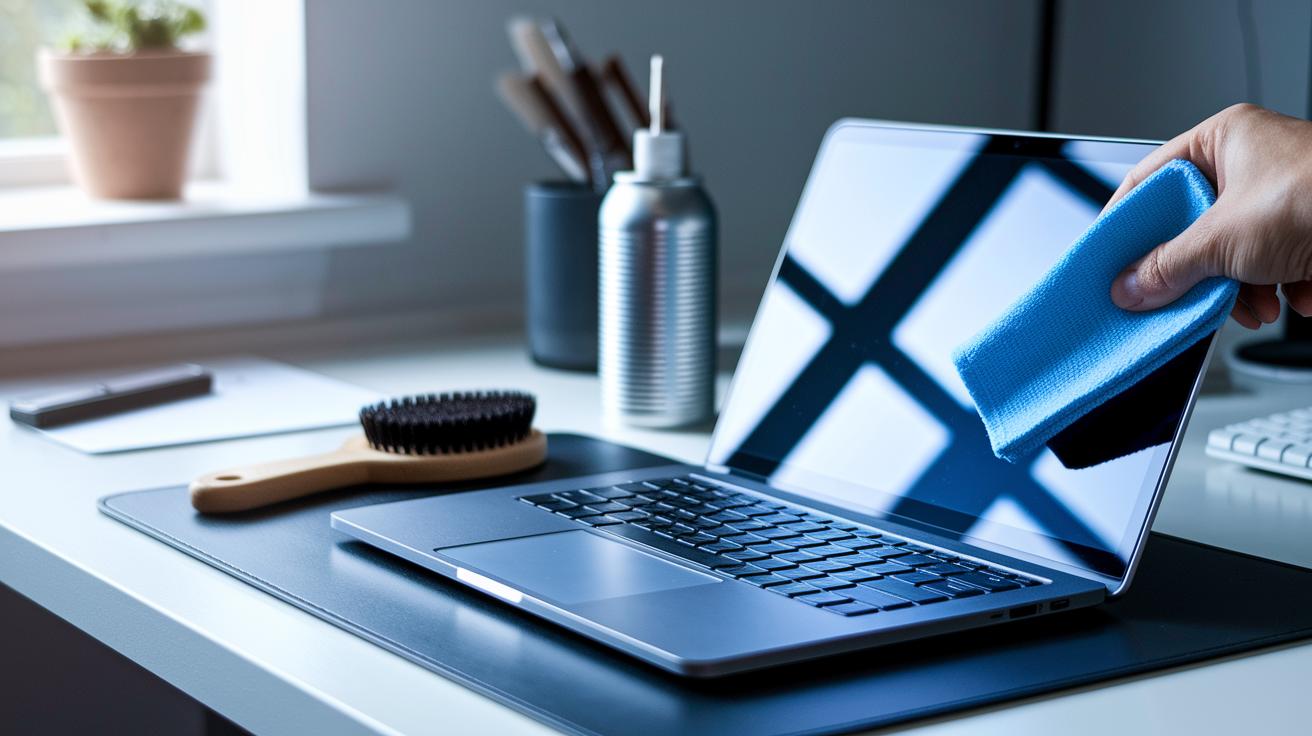
When you're cleaning your ultrabook, start with a gentle external wipe-down. Use a soft microfiber cloth dampened with a little water to remove smudges from the screen, keyboard, and body. This keeps your device looking neat and helps prevent dust build-up that could lead to tougher cleaning later.
For internal upkeep, focus on clearing air vents. A can of compressed air or a gentle brush will do wonders for getting rid of debris in those hard-to-reach spots around keyboard crevices and cooling fans. This simple step improves airflow and keeps excess dust from trapping heat and straining internal components. Doing this every three to six months can help avoid potential overheating issues.
A protective cover or sleeve is another smart move. Using one while storing or transporting your ultrabook shields it from airborne dust. Combining regular cleaning with these protective covers forms a straightforward defense that keeps both the external surfaces and internal parts running smoothly for the long term.
Battery Care and Power Cell Longevity Strategies for Ultrabooks
Battery performance matters a lot for your ultrabook. Lithium-ion batteries only have a limited number of full charge cycles. Every time you fully charge and then let it run down, it wears the battery a bit. To keep your battery healthy, avoid letting it drop to 0% or staying fully charged at 100% for too long. Instead, every two to three months, fully charge it and then let it slowly drain to around 5%. This routine helps the battery perform well over time by preventing early wear.
Another way to take care of your ultrabook’s battery is to adjust your power settings. When you’re not doing heavy tasks, use a balanced or power-saving mode instead of high-performance mode. Also, turning on sleep or hibernate when you aren’t using the device instead of leaving it on saves energy and puts less strain on the battery. These simple habits not only boost your daily battery life but also support the battery’s overall health.
Software and Firmware Update Scheduling for Ultrabook Stability

Keeping your ultrabook in tip-top shape means planning your updates carefully. Regular updates keep bugs at bay and make sure your drivers and system tools stay current. Think of it like routine car maintenance, you schedule it, and your machine runs smoother and stays secure. Using the update tools built right into your device or provided by the manufacturer simplifies the process.
| Frequency | Task | Recommended Interval |
|---|---|---|
| Biweekly | OS updates | Wait 2 weeks after major release |
| Monthly | Driver updates | Check and install |
| 1-2 times per year | Firmware/BIOS updates | Apply patches as available |
| Daily | Security-software patches | Auto-update definitions |
| Periodic | Utility and firmware tools | Run built-in utilities regularly |
Following this schedule makes sure every part of your ultrabook gets the attention it needs. Regular checks help you dodge issues from rushed patches and keep your system ready for new apps. Whether you update manually or let auto-updates handle it, sticking to a set plan improves security and keeps your ultrabook running reliably every day.
Performance Optimization Techniques on Ultrabooks
Keeping extra disk space free can make your ultrabook run much faster. Using the built-in cleanup tool or a trusted third-party app to remove unnecessary files, cookies, and cache data helps free up space so that key processes can work quicker. This keeps your device responsive even when you’re juggling multiple tasks.
Speeding up startup times and managing memory also go a long way. Disabling apps that you don’t need at launch means your ultrabook boots up faster and is ready to work sooner. Checking RAM usage in Task Manager shows you which background apps are using too many resources, and closing them can make your system feel more agile. Looking at what runs on startup can uncover extra clutter that you can easily trim.
Regular performance checks can also keep your device up to speed with the latest software demands. Running simple benchmarks every few months helps spot apps or background processes that are slowing things down, allowing you to make adjustments sooner. These routine tests ensure your everyday work is smoother and even help extend your ultrabook’s overall lifespan.
Heat Regulation and Cooling System Maintenance for Ultrabook Durability
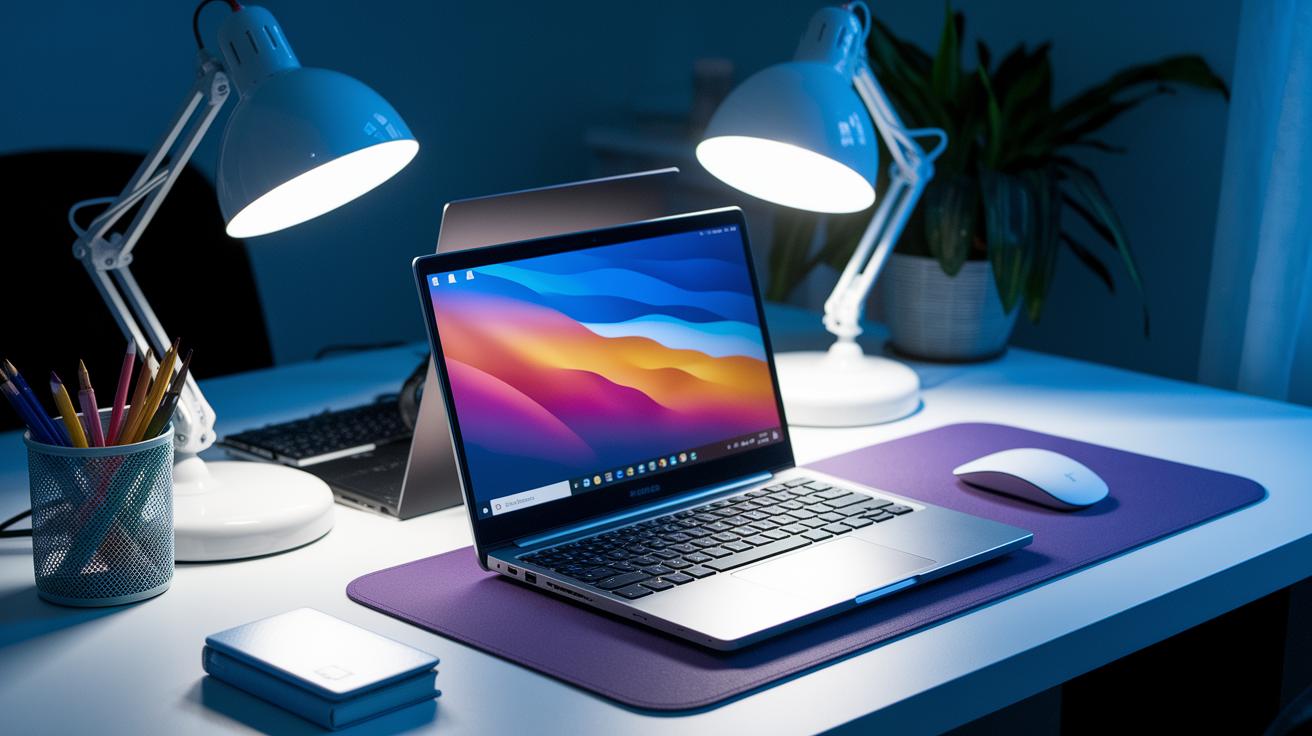
Keeping your ultrabook cool is all about good airflow. It helps protect important parts like the CPU and GPU from getting too hot. A cooling pad or stand can boost airflow by lifting your device so that its vents have plenty of room. This simple trick ensures that heat doesn’t get trapped, reducing stress on your hardware.
It also helps to check how your fans are working. Many manufacturers include software that lets you adjust fan speeds so they kick into gear when temperatures rise. Make sure your ultrabook has enough space around it so the fans can pull in cool air without any obstacles. When everything is positioned correctly, the fans clear heat faster, keeping your system steady during long, demanding sessions.
Don’t forget about your environment either. Keeping humidity between 30% and 50% can lower the risk of corrosion on circuit boards and other crucial parts. Plus, setting your ultrabook on a hard, flat surface, not on soft materials like curtains or blankets, further improves ventilation and helps prevent overheating. This way, your device stays reliable and lasts longer.
Data Backup and Diagnostic Health Checks for Reliable Ultrabook Performance
Backing up your data is key to keeping your ultrabook running smoothly. A simple way to do this is by using an external hard drive or a trusted cloud service. This makes sure that even if your hardware fails, your files stay safe. We recommend setting up regular backups and creating system restore points every month. That way, if a glitch or error disrupts your work, you have a recent snapshot to quickly get you back on track. For example, backing up your essential documents to the cloud can save you from losing weeks of work if your device crashes unexpectedly.
Keeping an eye on your ultrabook's health is just as crucial. Run the built-in diagnostic tools or a reliable third-party program every few months to check that all your hardware is performing well. After any crash or freeze, take a look at the Windows Event Viewer or log files to spot error codes and potential issues. Also, schedule weekly antivirus scans to protect against malware that might slow your system down. These proactive steps help catch problems early, ensuring your ultrabook stays responsive and ready for everyday use.
Physical Protection and Ergonomic Use for Extending Ultrabook Lifespan
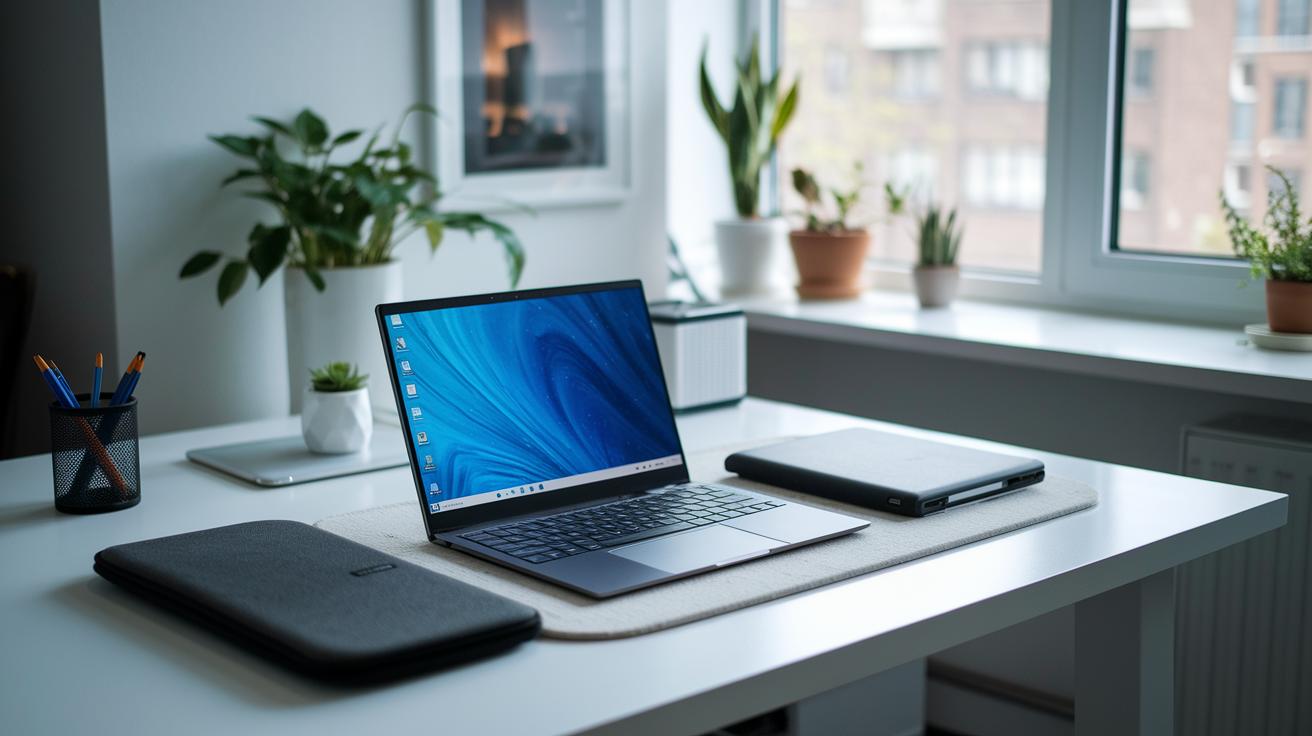
Using the right accessories can really help your ultrabook handle everyday bumps and spills. A padded sleeve or a sturdy hardshell case shields your device from drops, and a keyboard cover protects against spills. Think of it as giving your laptop a reliable raincoat to keep it safe from accidents.
Good ergonomics and proper storage add to this protection. Always work on a flat, stable surface that supports a neutral wrist position to ease stress on the hinges. When storing your ultrabook, choose a dry place with less than 50% humidity to stop moisture buildup. These simple habits not only protect your device but also keep it comfortable to use day after day.
Final Words
In the action, our guide covered essential ultrabook maintenance tips, from cleaning techniques to battery care practices that extend your device’s lifespan.
We outlined practical steps for keeping your ultrabook dust-free, maintaining optimal cooling, scheduling updates, and managing performance. Regular data backups, diagnostic checks, and proper physical protection help safeguard your investment.
These smart upkeep habits ensure your ultrabook stays responsive and reliable for everyday use, boosting both its performance and longevity.
FAQ
What does a laptop maintenance checklist include?
A laptop maintenance checklist includes cleaning dust from vents, updating software, backing up data, managing system files, checking battery health, and performing regular physical and digital upkeep to keep your device running smoothly.
How does cleaning a Dell laptop help it run faster?
Cleaning a Dell laptop helps it run faster by removing dust from vents and internal components, which improves airflow, reduces heat, and allows hardware to perform at peak efficiency.
How do I clean my laptop internally, including fans and the hard drive?
Cleaning your laptop internally means gently using compressed air or a soft brush on fans and vents, and keeping your hard drive free of clutter by regularly deleting unnecessary files and running system diagnostics.
How can I take proper care of my laptop battery?
Taking care of your laptop battery involves avoiding full discharges, calibrating it periodically, using power-saving settings, and keeping the battery between moderate charge levels to extend its overall lifespan.
What steps are involved in cleaning laptop software?
Cleaning laptop software involves deleting temporary files, clearing cache data, uninstalling rarely used applications, and running regular antivirus scans to keep your system optimized and responsive.
What are some practical laptop tips and tricks?
Practical laptop tips include routine cleaning of both physical components and digital files, scheduling regular updates, maintaining battery health, protecting your device with covers, and backing up your data often.