
Ever wondered if setting up your new Apple Watch could be a breeze? With just a few basic steps and the right devices ready, you can avoid pairing problems and start enjoying your watch quickly. Think of it like lining up the perfect shot. When your iPhone and watch sync perfectly, everything falls into place. Keep reading to learn how a careful setup makes all the difference and helps you get started with ease.
Apple Watch Setup: Effortless, Smooth Start
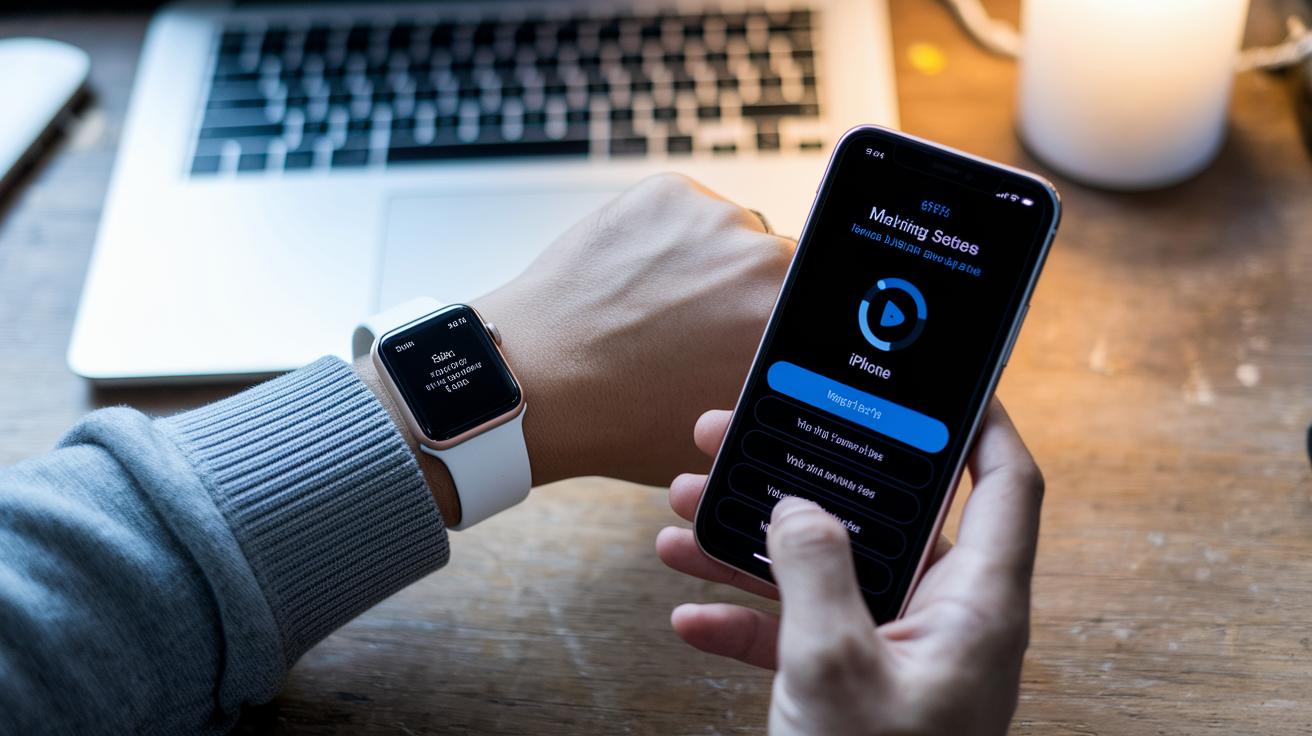
Before you start, make sure your devices are ready. A proper setup avoids pairing issues and gets you enjoying your new watch fast.
Key requirements:
- iPhone XS or later running iOS 18+
- iPhone connected to Wi‑Fi or cellular with Bluetooth turned on
- Apple Watch charged and turned on
- Both devices kept close during pairing
To begin, turn on your Apple Watch. Then, open the Apple Watch app on your iPhone and tap "Start Pairing." Hold your iPhone near your watch so its camera can capture the animated pattern on the screen.
Imagine it like lining up for a perfect photo: hold both devices steady until the pattern fits in view. When you see the message "Your Apple Watch is Paired," choose either "Set Up for Myself" or "Set Up for a Family Member" based on who will use it.
Keep the devices near each other while the sync runs. Soon, your watch face will appear once all your settings, apps, and data have transferred smoothly. Enjoy your new watch as it wraps up the final steps with a clear, animated scan that shows everything is in sync.
Apple Watch Setup: Manual Pairing Guide
Sometimes the animated scan might not work because of low light or camera hiccups. In these cases, manual pairing is a straightforward fix that helps you troubleshoot. Here’s how to set up your Apple Watch without the animation:
- Make sure your Apple Watch and iPhone are fully charged and placed close together.
- Open the Watch app on your iPhone.
- Tap "Pair Apple Watch Manually."
- Choose your watch from the list of nearby devices.
- Enter the six-digit code that appears on your watch.
- Double-check that your iPhone’s Bluetooth is enabled.
- If issues persist, restart both the iPhone and the watch, then try again.
For example, if you find yourself in a dim room, moving to a brighter spot can help your iPhone’s camera capture the code more accurately. Keeping both devices nearby ensures that the connection isn’t lost during the process. By following these clear, simple steps, you can bypass glitches and secure a reliable connection between your devices.
Apple Watch Setup: Family Setup Without iPhone
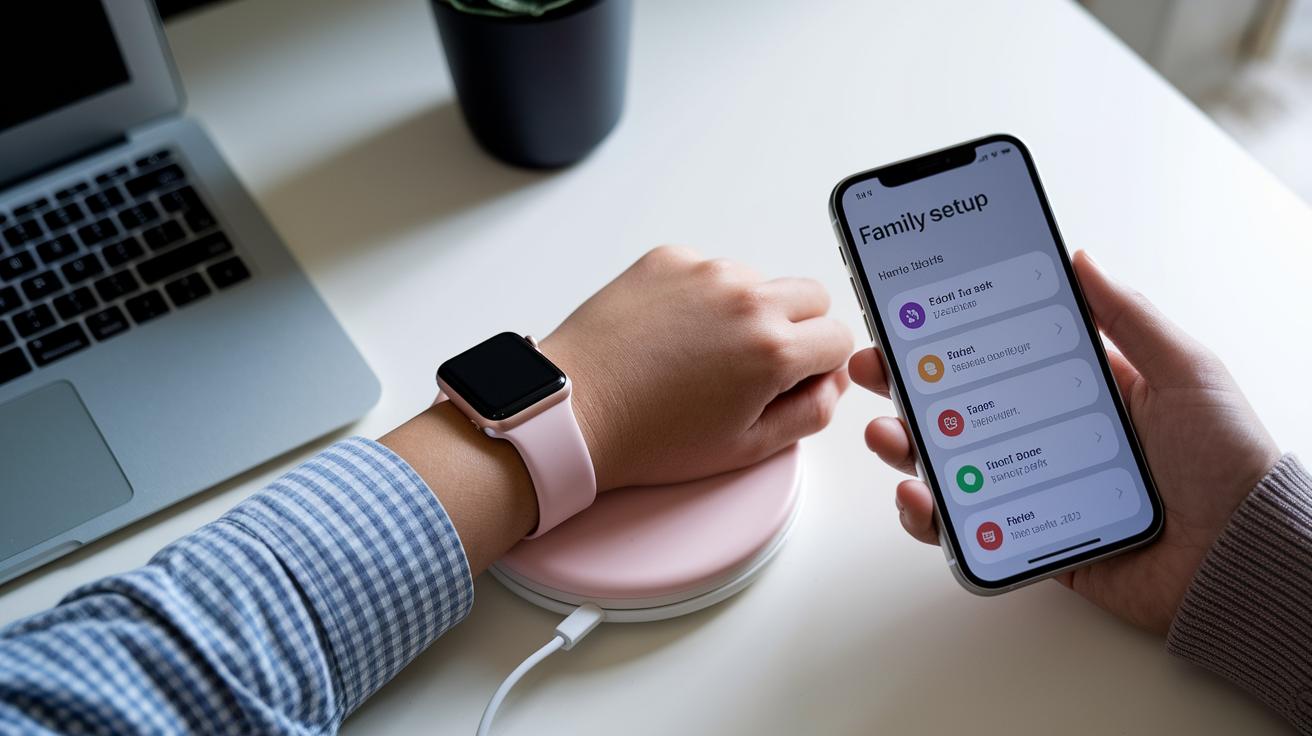
Before you get started, make sure you have these items handy:
- An organizer’s iPhone running iOS 18 or later
- A cellular Apple Watch (Series 4 or newer)
- An active family plan with a supported carrier on the organizer’s device
- The organizer’s Apple ID signed in with iCloud
This setup lets a family member, like a child with a kids smartwatch, make calls, send texts, and share their location even without an iPhone of their own. Simply open the Apple Watch app on the organizer’s iPhone. When you see the prompt, tap “Set Up for a Family Member.” This tells the app that you want to create a standalone setup.
Just follow the on-screen steps to set up the cellular service. You’ll need to confirm your carrier details to activate the eSIM. You can also set Screen Time limits and restrictions from the organizer’s device, making it feel just like a full family account where you control every setting.
Keep both devices near you until the setup is complete. With just a few taps, the Apple Watch becomes an independent, connected device that stays secure even without a paired iPhone.
Apple Watch Setup: Transfer and Restore to a New iPhone
First, make sure you've backed up your Apple Watch data to iCloud with Health turned on. This step saves your health info, activity records, and settings so they stay with you during the switch. Then, on your new iPhone, sign in using the same Apple ID and enable Health in iCloud to get your saved data back.
Next, open the Watch app on the new iPhone and tap Start Pairing. When you see the option to restore from a backup, select it. The app will walk you through setting things up, such as confirming your wrist side and checking notification settings.
Keep your Apple Watch and new iPhone on their chargers while the transfer completes. This helps avoid interruptions and ensures the process finishes smoothly.
Apple Watch Setup: Customizing Settings and Features
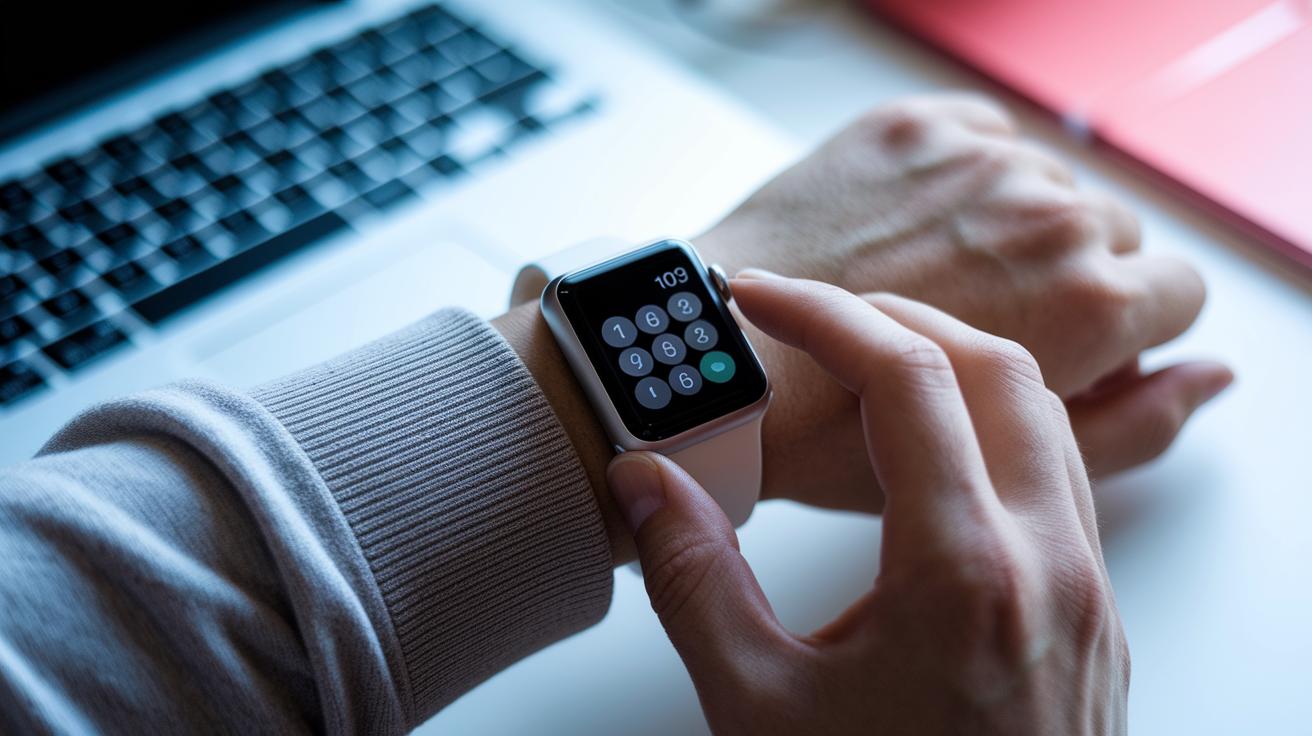
Once your Apple Watch is paired, it's time to tailor it to your daily routine. Start by choosing which wrist you wear and setting a passcode. This step makes sure your watch moves with you and keeps your data secure.
Next, set up your payment and safety features. Adding your credit cards to Wallet turns on Apple Pay, so you can make contactless payments easily. Don't forget to configure Emergency SOS. With a simple press, this feature quickly alerts emergency services and informs your chosen contacts if you're in trouble. Imagine being on a brisk walk or at a busy intersection, a quick tap can really make a difference.
Now, consider how you want to handle apps on your watch. You can have all available apps installed immediately or pick them later, depending on whether you prefer a clutter-free start or ready-to-go convenience.
Finally, personalize your watch face for at-a-glance information. Arrange complications (quick data widgets) and adjust brightness and layout. You might add helpful widgets like Smart Stack for easy insights. Adjust the design until your watch truly fits your lifestyle.
Apple Watch Setup: Activating Cellular Service
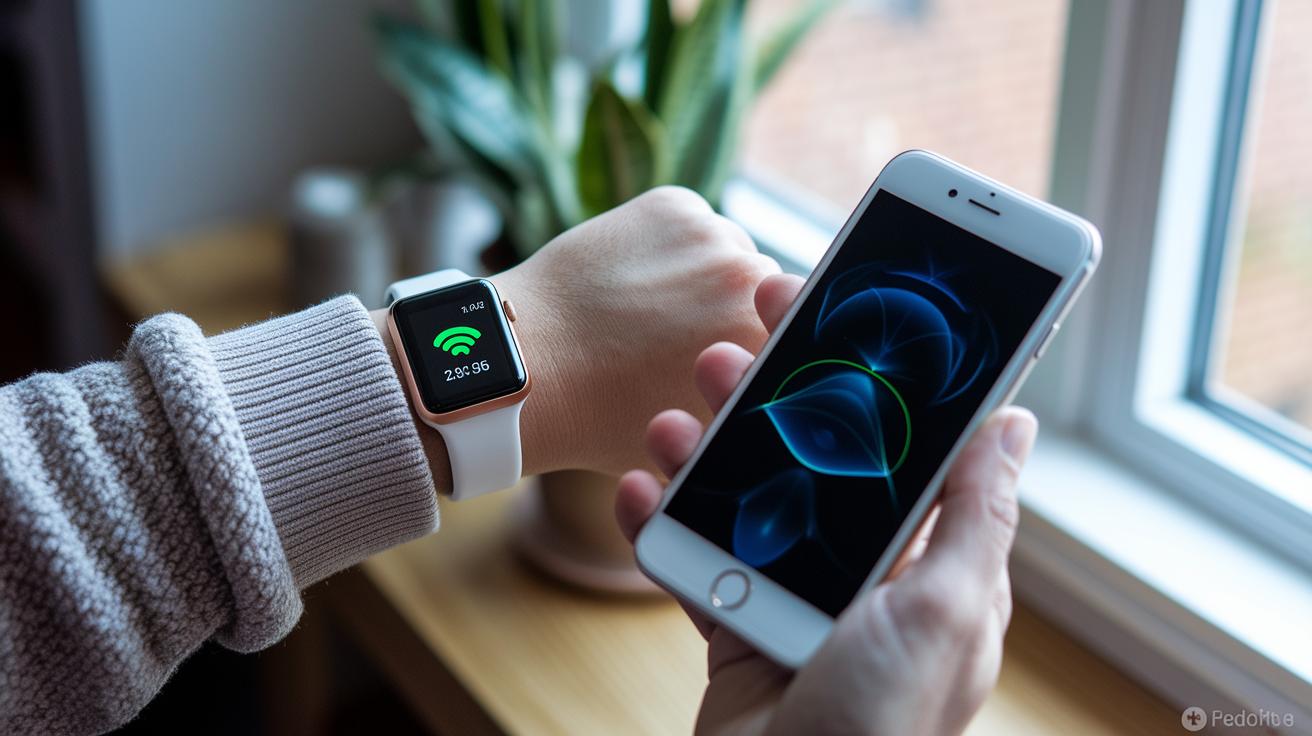
If you're using a GPS + Cellular model, start by confirming that your Apple Watch can activate cellular service with your carrier, such as AT&T, Verizon, or T-Mobile. These networks typically charge a monthly fee, so have your billing info ready.
Next, open the Watch app on your iPhone and go to the Cellular section. Tap on Cellular and then select Set Up Cellular. Follow the prompts to enroll your eSIM (the digital version of a SIM card). Your carrier might ask you for extra details to verify that your plan is compatible and your account is in good standing.
Once you complete these steps, your watch will be able to work on LTE or 5G on its own. To check, look for the green cellular icon in the Control Center – this shows that your watch can now make calls, send texts, and stream data without staying close to your iPhone.
If you run into any connectivity issues, make sure both your watch and phone are updated with the latest software. Revisiting the enrollment process and checking your network settings can also help ensure a smooth, reliable connection on the go.
Apple Watch Setup: Troubleshooting Common Setup Issues
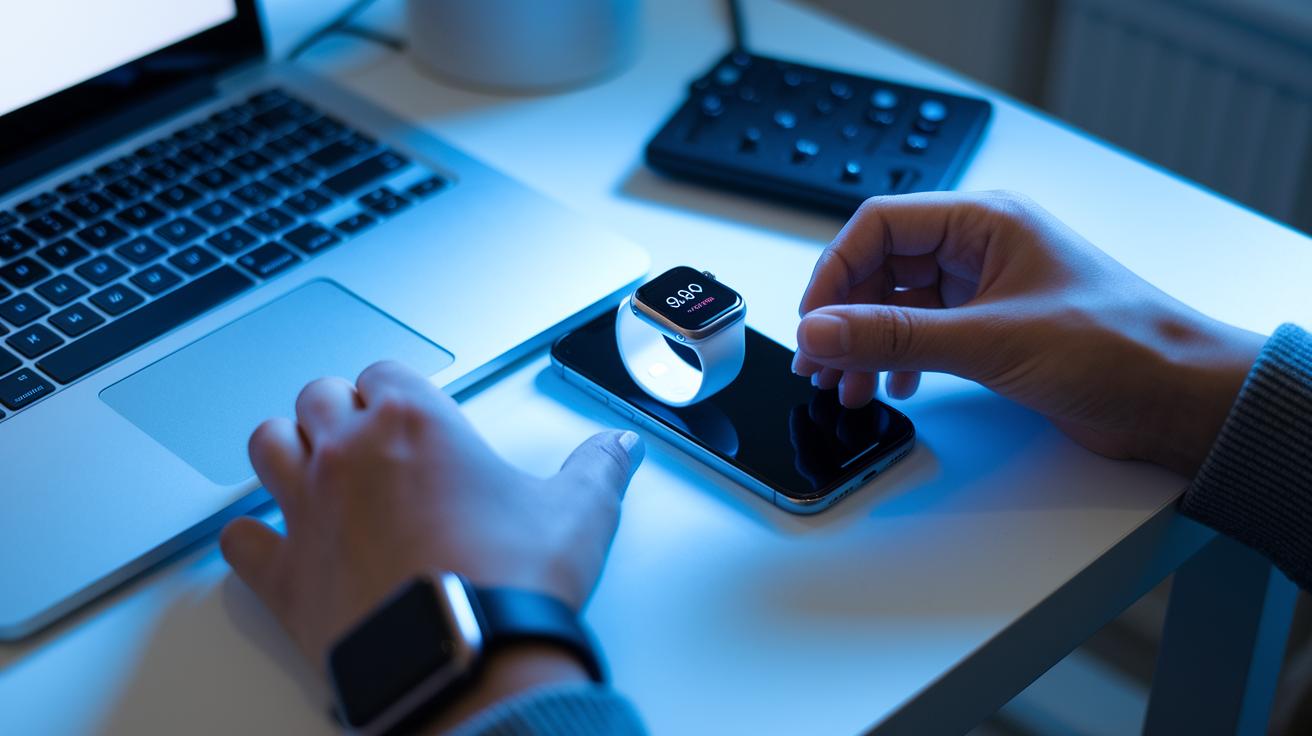
Setting up your Apple Watch can sometimes feel more complicated than it should be. You may notice that the wireless sync fails because of a few common hiccups. Often, this happens when settings like Bluetooth or Wi‑Fi are turned off, the iPhone software is outdated, the battery is too low, or the Activation Lock is active. Each of these issues can stop the pairing from finishing properly. Here are some simple fixes for each problem:
- Bluetooth off: Turn on Bluetooth in your iPhone's Settings, then restart both the iPhone and the watch before trying to pair again.
- Wi‑Fi off: Switch on Wi‑Fi on your iPhone, check that your home network is working, and run through the setup once more.
- Outdated iOS: Update your iPhone to the latest version of the operating system and then start the pairing process again.
- Low battery: Make sure both your iPhone and Apple Watch are fully charged to avoid interruptions.
- Activation Lock active: Sign out of your Apple ID on your old device or remove the Activation Lock through iCloud.com.
- Sync error during pairing: Open the Watch app, go to General then Reset to unpair the watch. Do a full factory reset and re-pair the devices.
Keeping your devices charged and all settings turned on can help prevent these issues. If you've tried these tips and still encounter problems, reaching out to Apple Support is a smart next step. This approach should help you overcome any setup delays and get your Apple Watch ready for everyday use.
Final Words
In the action, we've walked through apple watch setup steps that cover pairing with your iPhone, manual troubleshooting, family configuration, transferring to a new device, and personalizing settings. Each section strives to simplify what can seem like a complex process.
This guide cuts through every step in a clear, practical way. It leaves you with easy-to-follow instructions so you can confidently get your watch up and running, enjoying real-world benefits every day.
FAQ
Frequently Asked Questions
How do I pair my Apple Watch manually?
The manual pairing process bypasses the automatic animated scan. Open the Apple Watch app, tap “Pair Apple Watch Manually,” select your watch, and enter the six-digit code shown on your watch to complete pairing.
How do I connect my Apple Watch to my phone without pairing?
The Apple Watch must pair with the Watch app. If automatic pairing fails, restart both devices and use manual pairing steps to connect reliably without the standard animated process.
What is the Apple Watch setup app?
The Apple Watch setup app is the iPhone application used to initiate the pairing process, customize settings, and guide you through configuring your new watch in a straightforward manner.
How do I use the Apple Watch app effectively?
The Apple Watch app manages pairing, settings, and troubleshooting. It lets you adjust features like notifications, add payment cards, and activate emergency services after your watch is successfully paired.
How do I unpair my Apple Watch?
Unpairing disconnects your Apple Watch from your iPhone. Open the Apple Watch app, select your watch, choose “Unpair Apple Watch,” and follow the prompts to reset the watch to its factory settings.
How do I reset my Apple Watch?
Resetting your Apple Watch erases all data and settings. On the watch, navigate to Settings > General > Reset, then follow the on-screen prompts to clear content and prepare for new pairing.
How do I connect my Apple Watch to another iPhone?
To connect your watch to a new iPhone, back up your watch data, unpair from the current iPhone, then use the Apple Watch app on the new device to pair and restore your backup.
How do I turn on my Apple Watch while it’s charging?
Your Apple Watch automatically powers on when connected to its charger. If it stays off, simply press the side button to wake the display and activate the watch.
How do I set up my Apple Watch for the first time?
Setting up your Apple Watch for the first time involves powering it on, launching the Apple Watch app on your iPhone, tapping “Start Pairing,” and following the on-screen setup instructions.
How do I reset my Apple Watch and pair it again?
Reset your Apple Watch by going to Settings > General > Reset, then unpair it using the Watch app. Afterward, follow the standard pairing steps to set up your watch from scratch.
How do I reconnect my Apple Watch to my iPhone?
Reconnecting your Apple Watch involves using the Watch app to pair it again. Restart both devices, ensure Bluetooth and Wi-Fi are enabled, and follow the pairing prompts to re-establish connection.
How do I bring up the Control Center on my Apple Watch?
Access the Control Center by swiping up from the bottom edge of your Apple Watch face. This reveals quick settings such as Wi-Fi, Airplane mode, and cellular connectivity for immediate control.